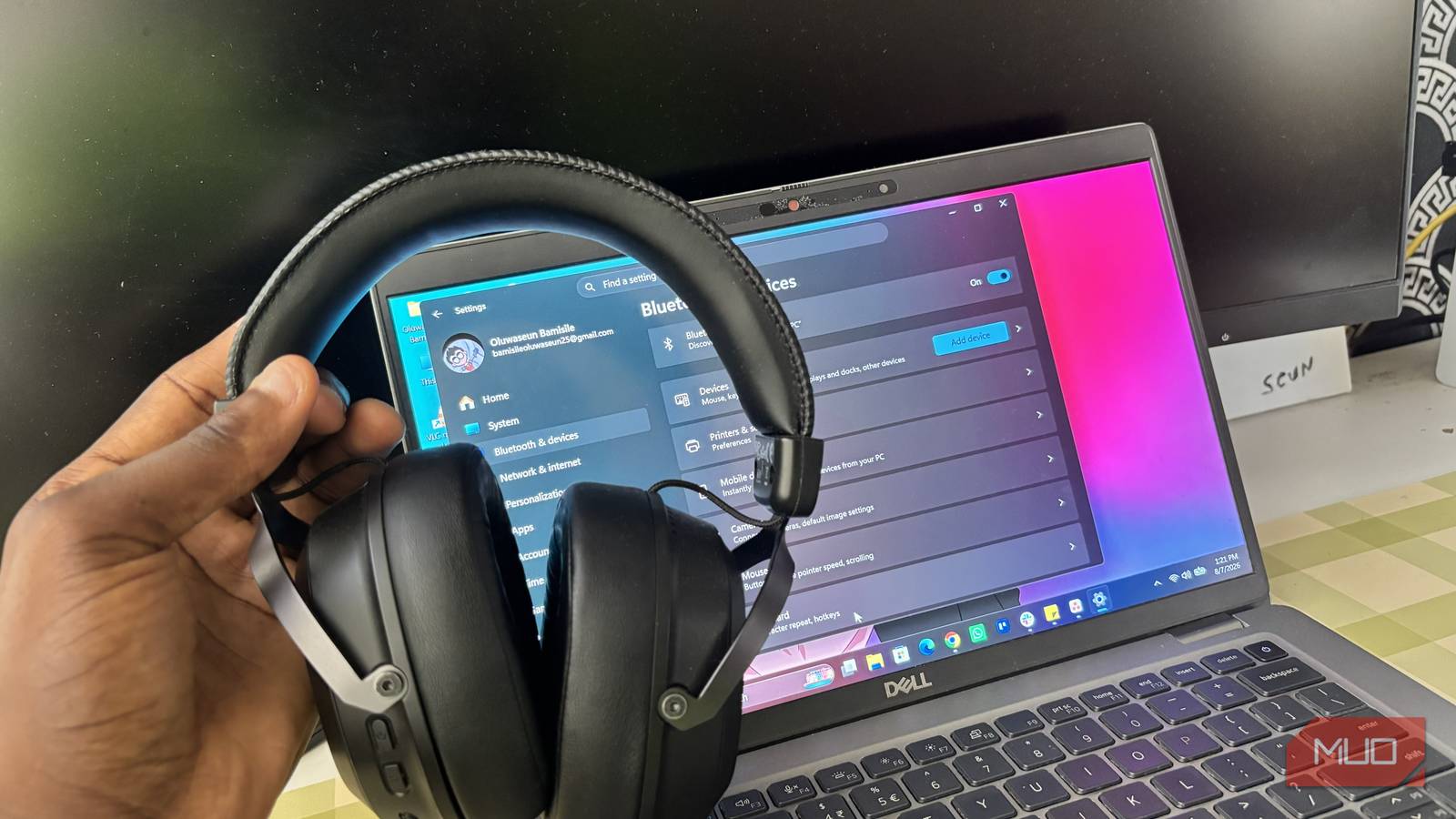
I’ve never been the type to use a headset for calls on my laptop. My laptop’s built-in speakers and microphone are among the best I’ve used, and I’m not exaggerating. But a little while ago, my laptop’s audio randomly stopped working. I tried everything to fix the problem myself, but it still wasn’t working.
So, I had to rely on my Bluetooth gaming headset for calls for about a month because I didn’t have the zeal to take the laptop to a technician right away. During that period when I was using my headset for calls, I would sometimes notice the audio kept cutting out. It wasn’t really bad, but it was noticeable and quite annoying, to be honest.
At first, I assumed my headset was developing issues. But it worked perfectly with my phone and my other devices, so I knew the headset itself wasn’t faulty. That sent me down a troubleshooting rabbit hole, which eventually led me to a relatively unknown Windows feature called Handsfree Telephony.
What exactly is Handsfree Telephony
It’s a useful feature, but it doesn’t always play nice

Handsfree Telephony is a Bluetooth service that allows your headset to handle both audio output and microphone input during calls. It lets Windows treat your Bluetooth headset as a proper communication device rather than just a pair of wireless headphones.
The problem is that it doesn’t always work as smoothly as it should. To make room for microphone input over the same Bluetooth connection, it switches your headset to a lower-bandwidth “call” mode, which halves audio quality compared to normal stereo playback. So yeah, those $300 Sony Bluetooth headphones that sound horrible whenever you use them on your Windows PC, Handsfree Telephony is likely behind it. And apart from halving audio quality, this feature can also cause random audio dropouts, crackling, or brief cuts during voice and video calls.
As expected, the feature is enabled by default because that’s just how Windows does. What really annoys me, though, is that it’s not something you can easily come across unless you go digging for it. It’s buried deep enough that most people will never even know it exists, let alone realize it could be the reason their Bluetooth audio is acting up.
Disabling Handsfree Telephony fixed my audio cutouts
Who would have guessed
Once I found out about Handsfree Telephony, disabling it was one of the first things I tried. Here’s how I did it:
- Open Settings -> Bluetooth & devices -> View more devices.
- Scroll down and click More devices and printer settings. This opens the old Control Panel window.
- Right-click your Bluetooth headset and choose Properties.
- Switch to the Services tab.
- Uncheck Handsfree Telephony.
- Click Apply, then OK.
After that, I disconnected my headset, reconnected it, and called my sibling to see if anything had changed. To my surprise, the random audio cutouts were completely gone, and the audio sounded way better. I stayed on the call much longer than I normally would just to make sure it wasn’t a coincidence, and the audio remained stable the entire time.
There’s one big trade-off you should know about
Your headset’s microphone will stop working

Disabling Handsfree Telephony solved one problem, but it introduced another. As soon as I turned the feature off, my headset’s microphone stopped working completely. That’s because Hands-Free Telephony enables the headset’s microphone during Bluetooth calls. Without it, Windows treats the headset as an audio-only output device.
For me, that wasn’t a deal-breaker because my laptop’s built-in microphone sounds much better than the one on my gaming headset, anyway. I simply switched Windows’ default input device back to my laptop’s microphone and continued using the headset for audio.
If you have an external microphone, that works too. You still get uninterrupted audio through your Bluetooth headset while your laptop (or external mic) handles voice input instead.
It turned out Windows was the problem all along
I spent longer than I’d like to admit thinking something was wrong with my headset. If it had sounded bad on every device, I probably would’ve started shopping for a replacement.
Instead, the culprit was a Windows feature I’d never really heard of before. Turning off Handsfree Telephony fixed the audio cutouts almost immediately, and switching back to my laptop’s built-in microphone made the trade-off easy to live with.

- Battery Life
-
Up to 100 hours
- Brand
-
Baseus
- Sensitivity
-
20Hz-40kHz
- Transducer Size
-
35mm dynamic driver
- Weight
-
275g
- Noise Cancellation
-
Yes
The Baseus Inspire XH1 are over-ear Bluetooth headphones with adaptive ANC tuned by Bose, Dolby Audio, LDAC Hi-Res support, and up to 100 hours battery life (65h with ANC). Bluetooth 5.4, multipoint connectivity, and comfy padded ear cups make them ideal for travel, commuting, and everyday listening.