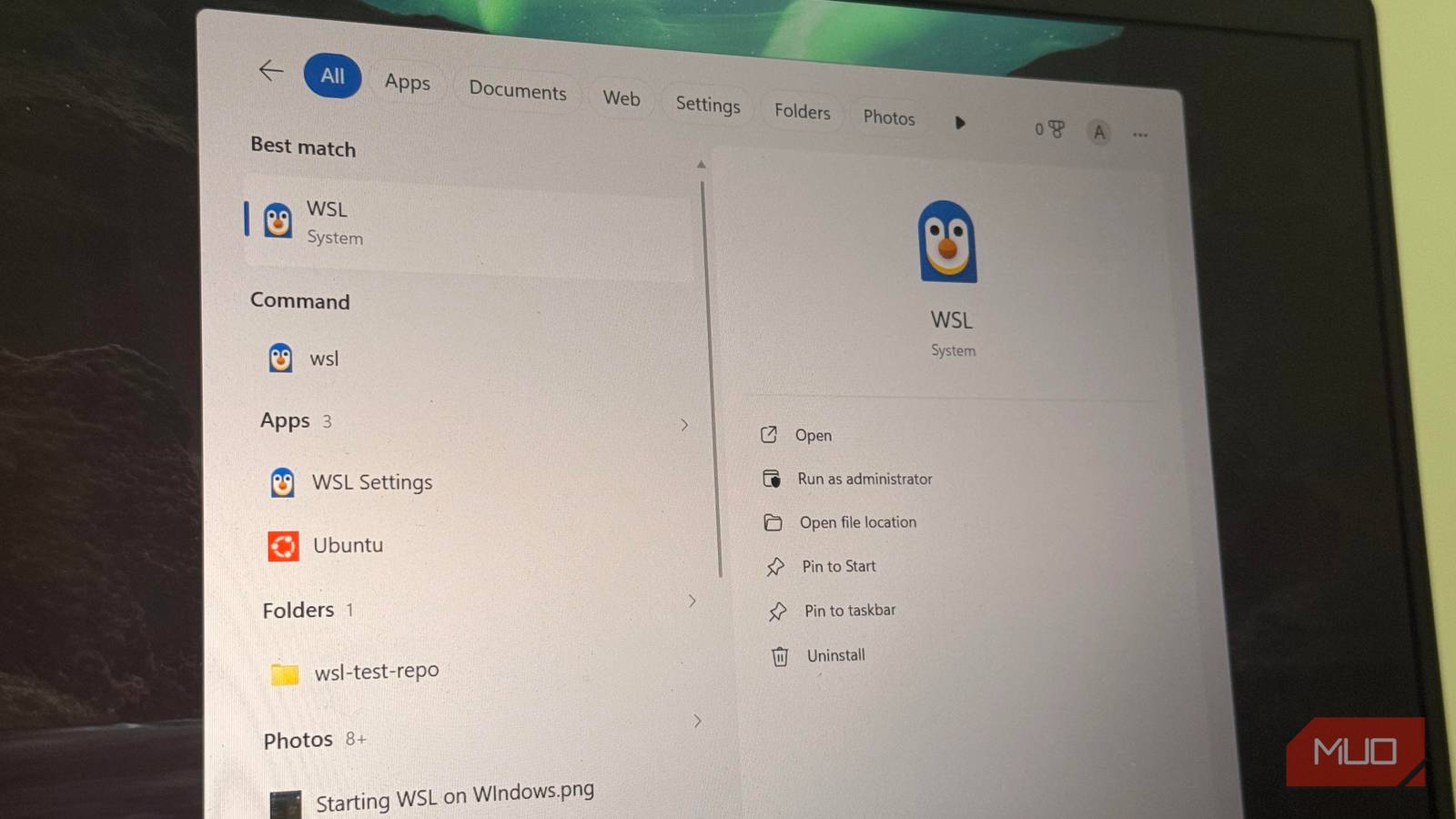
This last week, I replaced WSL with Microsoft’s Coreutils for my daily work. This meant natively running commands like ls, grep, find, cat, and the rest on Windows; the same commands I use on Linux. However, I wasn’t just interested in whether they functioned, but whether they could replace a full Linux subsystem for file management, log filtering, and small scripts. It turns out I was able to do a lot without having to leave my Windows terminal.
I wasn’t missing Linux; I was missing eight commands.
Windows never gave me a language for the terminal

While working on a client project, I needed to find a config file that I had renamed some days earlier. I had already opened a WSL tab even before I consciously decided to. At that point, it struck me that rather than thinking that I needed Linux, I was reaching for the find command. My fingers were moving before the reasoning finished. That was the habit: the moment something went missing, I opened WSL and typed the command I already knew.
So, after Microsoft introduced Coreutils, I was testing it more as an accusation than a new tool. If all Windows truly lacked was a handful of commands, then for my workflow, WSL had become a workaround for the most commonly used commands: ls, grep, find, cat, sort, head, tail, and wc.
I’m constantly deep in file management, text processing, and small scripts. These were the typical tasks that would send me hunting for the Linux terminal. They didn’t need a real Linux kernel underneath them, so they were the first group of tasks that I ran Coreutils against.
The question I was trying to resolve wasn’t whether Coreutils works, but if I had been using WSL for Linux or simply for these eight commands that I was already used to.
My terminal stopped breaking my focus
I never had to leave the window
A lot worked and honestly felt boring in that specific way that means something is working correctly. ls -la worked on native Windows, and recursive find did too. I used grep -r seamlessly across a project folder, and a pipeline I use to log triage — cat access.log | grep 500 | sort | uniq | wc -l — worked perfectly.
I didn’t expect the scripting to hold up as well as it did. Furthermore, I needed almost no editing to port over the handful of small bash-style one-liners I use for renaming batches of files and trimming log output. If I were to do a PowerShell rewrite of the same script, I’d need a new syntax and object-pipeline logic. Without relearning anything, Coreutils simply ran what I already had.
Native filesystem performance was another advantage. I was able to get results for recursive grep and find operations over a large project directory faster than running the same command from WSL. I’d attribute this to the layer sitting between the tool and the native drive that no longer needed translation — a little bonus, even though that wasn’t why I stopped switching terminals.
What created the most impact was something I couldn’t easily quantify. In the past, opening WSL meant leaving one mental context for another, and then leaving that one to come back. This became the round trip that Coreutils erased.
|
What I needed |
Before |
Now |
|---|---|---|
|
Search a log |
Open WSL |
Stay in CMD |
|
Find a config file |
Open WSL |
Stay in CMD |
|
Count matches |
Open WSL |
Coreutils |
|
Bulk rename files |
Open WSL |
Coreutils |
Windows kept reminding me it wasn’t Linux
The compromises didn’t hide

On the second day of trying Coreutils, I typed ls in a PowerShell window, and it returned PowerShell’s own Get-ChildItem formatting in place of the Coreutils binary I’d just installed. This is an alias that PowerShell already owns. It took me a minute to realize that I needed to explicitly type ls.exe. In the end, I was faced with the decision of fixing my PATH order or just stripping the conflicting aliases out of my profile. I ended up doing both.
Microsoft has a compatibility table in its documentation with a list of utilities marked as “ships but conflicts” for PowerShell 7.4 and above. It’s better on CMD, where these tools don’t fight any built-in aliases. I wish the case were the reverse, but the tool that works best resides in the shell I use the least.
There are other smaller gaps, and they add up. Since Windows permissions don’t map onto chmod and chown, they are missing. kill and timeout are missing as well, since there are no POSIX signals to hook into on Windows. Microsoft left out dir, more, and whoami to avoid clobbering the Windows versions you rely on. At some point, you hit CRLF line endings, and while you’re in the middle of something else, you’ll notice the absence of /dev/null (it’s NUL here).
|
Command |
In CMD |
In PowerShell |
|---|---|---|
|
ls |
Runs as installed |
Aliased to Get-ChildItem |
|
cat |
Runs as installed |
Aliased to Get-Content |
|
pwd |
Runs as installed |
Aliased already |
|
find |
Runs as installed |
Uses the installed executable (no PowerShell alias) |
|
sort |
Runs as installed |
Uses the installed executable (no PowerShell alias) |
What’s left that genuinely still needs Linux?
WSL has become optional for me for everyday file management, text processing, and scripting. This isn’t the same as saying Coreutils replaces WSL. Nothing has changed for development work. As long as something still needs advanced process control or Linux-specific permissions, it belongs to WSL. If your work involves package managers and containers, this article isn’t for you.
I’ve seen a group of people say “just use WSL or MSYS2”, and another group treat it as a genuinely useful convenience. Both approaches are reasonable depending on what your daily routines look like.