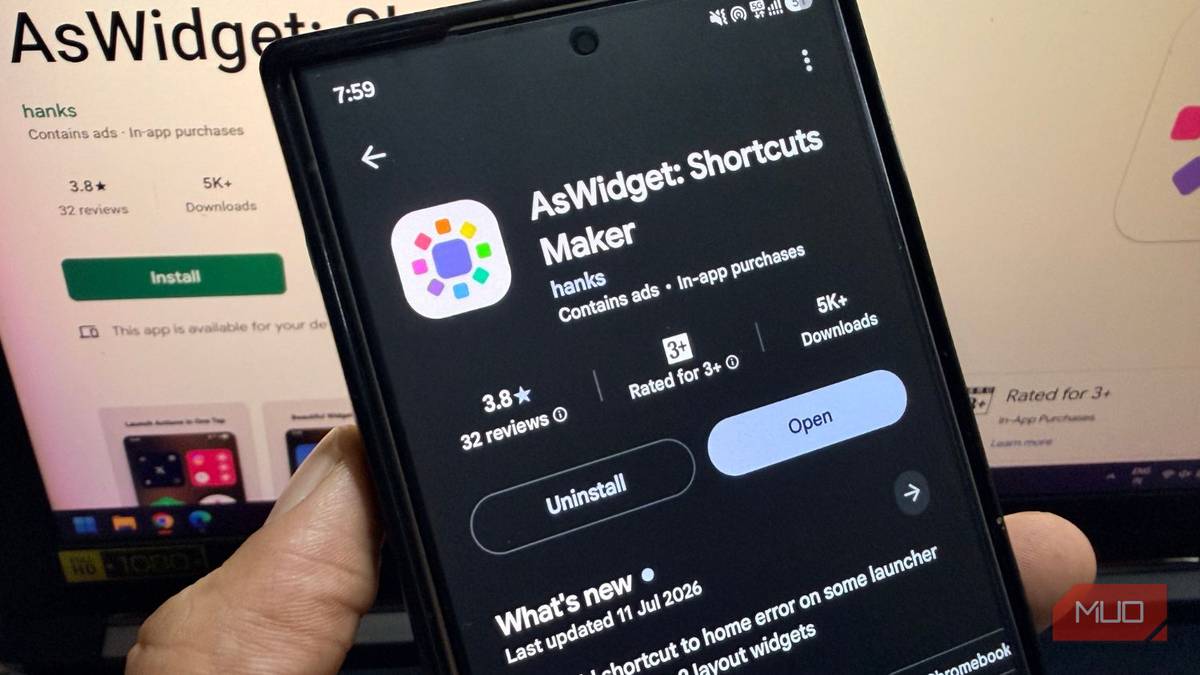
I treat my home screen as a clean space, where only apps and widgets that deserve my attention exist. While OneUI is one of the best UIs on Android phones, I have tried a bunch of launchers thatgive me granular control over my home screen. But there was no way to access in-app features directly; I couldn’t head straight to Instagram DMs or open my favorite YouTube channel from my home screen. Luckily, I found an app called AsWidget that lets you access in-app options with just a tap.
It creates shortcuts you never knew existed

AsWidget is available on the Google Play Store. This means you are not involved in the hassle of sideloading an app on your phone. This app is free and creates shortcuts, deep links, and widgets that take you straight to a specific screen within an app.
It eliminates the need to open an app and then find that specific option, which might sometimes be buried 5 to 6 steps in. AsWidget can create shortcuts for things like YouTube subscriptions, payment, QR code pages, chat threads, and buried Android system settings.
When I installed AsWidget on my Android phone, I set it up to open my favorite YouTube channel and a specific WhatsApp chat. Both worked exactly as mentioned, and they added shortcuts for both actions. I just needed to tap on the shortcut and boom! I was there.
The fun thing is that this isn’t a new idea. Apps like Shortcut Maker and Activity Launcher have been doing this for a while. But there is a slight difference in how AsWidget operates. This app actively surfaces suggestions instead of making you hunt through a giant list of confusing activity names. This is where AsWidget stands out, and apps like Activity Launcher can feel overwhelming.

- OS
-
Android
- Price model
-
Free, Paid
AsWidget lets you create customizable home screen widgets that open specific screens, actions, and settings inside your favorite apps with a single tap. It includes a growing library of deep-link shortcuts, customizable widget layouts, and support for combining multiple shortcuts into one widget for faster access.
Setting up takes less than a minute
From install to home screen shortcut in no time
Here is what you need to do to get AsWidget up and running in a few minutes:
- Head to the Google Play Store and download the AsWidget app.
- Once the installation completes, open the app.
- The app will show you a list of widgets that you can add to your home screen. Switching to the Shortcuts tab shows you the number of shortcuts available for each app installed on your phone.
- Tap on the one you want, and it will take you to a screen where you can edit the shortcut. You can change the shortcut icon to any image, change the shortcut name, choose an icon, and even add parameters.
- Tap the Add to Home screen button in the top-right corner. You will be shown the option to add it to the home screen, the app page, or both.
You don’t need to dig through multiple settings menus or long-press icons hoping something useful pops up, which is how most people discover shortcuts on Samsung phones today. AsWidget removes these steps and lets you straight up add them to your screen, no learning curve involved.
Shortcuts are great to have, but that is half the story. AsWidget also lets you build small home screen widgets, including 2×1 and 4×2 layouts. You can group a handful of shortcuts into one compact widget instead of scattering multiple icons across your screen.
Like the YouTube widget I have added, which gives me quick access to the YouTube home page, my subscriptions, YouTube Shorts, search for a video, YouTube Gaming, and straight to my channel. It is so convenient; now I don’t have to go through multiple steps to reach a specific menu on YouTube. Similarly, for other apps, AsWidget offers widgets you can use to make your smartphone experience easier.
If you love playing around with widgets on your home screen, then this could be a great addition to the widgets you’ve already added.
There are a few rough edges
Not every shortcut works perfectly

During my time with the AsWidget app, everything worked perfectly except for a few times. For instance, the media controls widget for the music app did not work, and shortcuts for lesser-known apps refused to launch properly.
Deep links depend on how well an app supports them, so results vary depending on what you are trying to shortcut. One interesting thing is that while the app offers in-app purchases, it mentions that the paid subscription removes ads. I did not see any ads while I was using the app in its free version.
There are monthly, annual, and lifetime subscriptions, which give you full access to all customization options, create unlimited app widgets and shortcuts, and the option to request new features from the developer.
My verdict after a week of testing
I juggle a lot of apps, be it for work or for my own entertainment. I spend a good amount of time on YouTube, watching my favorite creators, or doomscrolling on social media. AsWidget helps me to be on my toes with a single tap. Do note that it isn’t going to reinvent how you use your phone, but it quietly removes a handful of small, annoying steps you previously had to take to reach a specific location within the app. If your home screen looks like a wall of default icons, give AsWidget a shot. Worst case: you will delete it in five minutes; best case: you will find three or four shortcuts you will use every day.