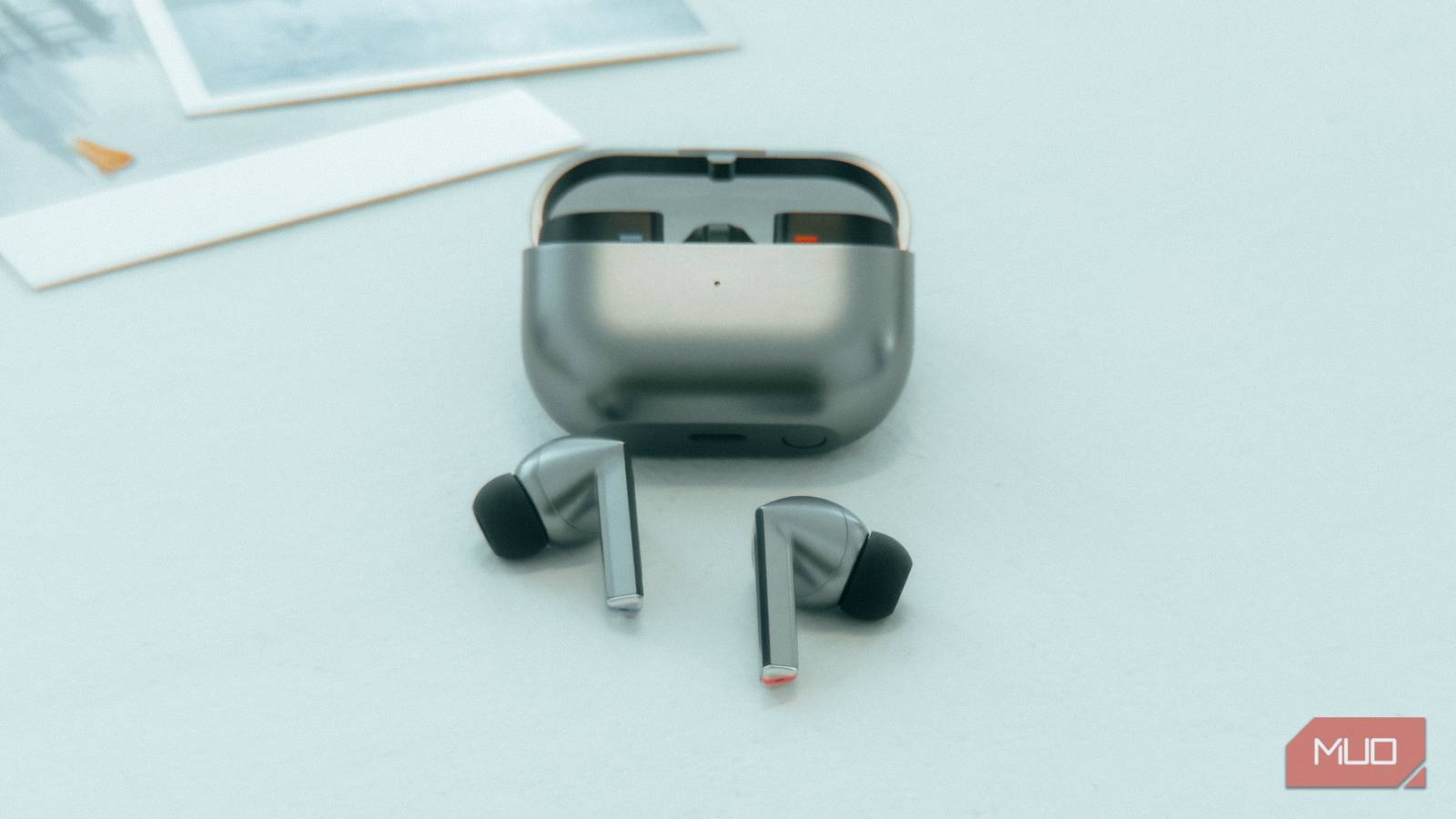
I am very particular about how sound reaches my ears. Though the default sound may be good enough for many people, it isn’t for me. And since the default equalizer on my Samsung Galaxy phone is limited, I like tuning it with a dedicated equalizer app just to ensure that the music feels right.
But no amount of equalizer tweaking fixes sudden volume jumps or stuttery playback.
For months, that’s exactly what my Bluetooth earbuds kept doing to me. Turns out Android was quietly limiting my headphones the whole time, through a buried setting in Developer Options that most people never touch or know about.
This hidden Bluetooth setting ruins your volume
It comes turned on by default

On an Android phone, many features come switched on by default, and many people don’t bother changing them, because they don’t know where to find them. Google buries many of these settings in the Developer Options, because they’re important and shouldn’t be tinkered with unless you know what you are doing.
But there are several options that a normal person can tweak under Developer Options and actually make their smartphone experience better, such as lowering animation speed for improved responsiveness, turning on ADB Debugging mode for third-party app installations and system app deletions, etc.
There is also one option called Absolute Volume, which decides how loud your audio gets before you even touch a button. According to Google, the Android Bluetooth stack lets a source device set an absolute volume, sending attenuated audio along with volume information, while the receiving device amplifies the sound based on that information.
In simple words, your phone tells your earbuds exactly how loud to play, instead of two devices juggling their separate volume levels. On paper, this arrangement sounds great, but for a lot of people, including me, it has been the reason behind some of the recent audio problems that I’ve been facing.
Volume could jump from whispering sound to painfully loud with just one tap, skipping every comfortable step in between. Sometimes your volume slider on screen and volume levels won’t match, and other times you may get a half-second crackle or stuttering during playback. All of this directed me towards this feature called Absolute Volume.
You need to enable Developer Options to tweak this setting
Turning it off solves a lot of audio issues
Most people try to fiddle with the volume slider if they experience any volume issues with their earbuds. But the fact of the matter is that not everything is your earbuds’ problem. It could also be because of how your earbuds and phone are communicating with each other.
Since my research and tests all pointed to Absolute Volume being the culprit, only turning it off was left. But if you are listening to Developer Options for the first time, it is a hidden setting that you need to unlock by heading over to Settings > About Phone > Software Version, then tap Build number 7 times, and enter your passcode to enable Developer Options.
The location of Developer Options may vary, and the above steps are for a Samsung Galaxy phone. If you have a different brand of phone, the exact sequence can vary slightly.
Once you enable Developer Options, here’s where you will find Absolute Volume:
- Disconnect your Bluetooth headphones for now.
- Navigate to Settings > Developer Options.
- Under the Networking section, you will find the Disable absolute volume toggle.
- Toggle it on and restart your phone.
- Reconnect your headphones, and most of your audio issues will be gone.
Once you have turned off Absolute Volume, your phone and headphones will stop syncing. This means your phone’s volume buttons no longer control your headphones directly. Once turned off, you’ll need to adjust the volumes of your earphones using the earbuds themselves. This could be a tricky situation for those whose headphones don’t come with volume control or touch buttons.
Additionally, turning this feature off can also limit how high you can push the volume when you are using higher-bitrate codecs. Based on your preferences, you can decide whether you want this turned on or off. It is a trade-off worth knowing about before you flip the switch, not after.
Should you actually flip the switch?
Disabling absolute volume may not be for everyone, but for me, it was. My daily pair of earbuds had been driving me a little unhinged with those sudden volume jumps. Turning off absolute volume fixed it completely within a single restart. But if your earphones are perfectly synced and work smoothly with your phone’s volume controls, and you have never noticed any stutter or volume jumps, you should leave this option as is.
If you are in Developer Options, it is also worth glancing at your Bluetooth Audio Codec settings, since audio and volume problems are often mistaken for one another.
For the best possible audio listening experience, you should switch to this audio player, which is the undisputed king when it comes to offering audio tweaking options and playback. For offline music playback, there are a bunch of options that can get you to your destination through those patchy network areas.