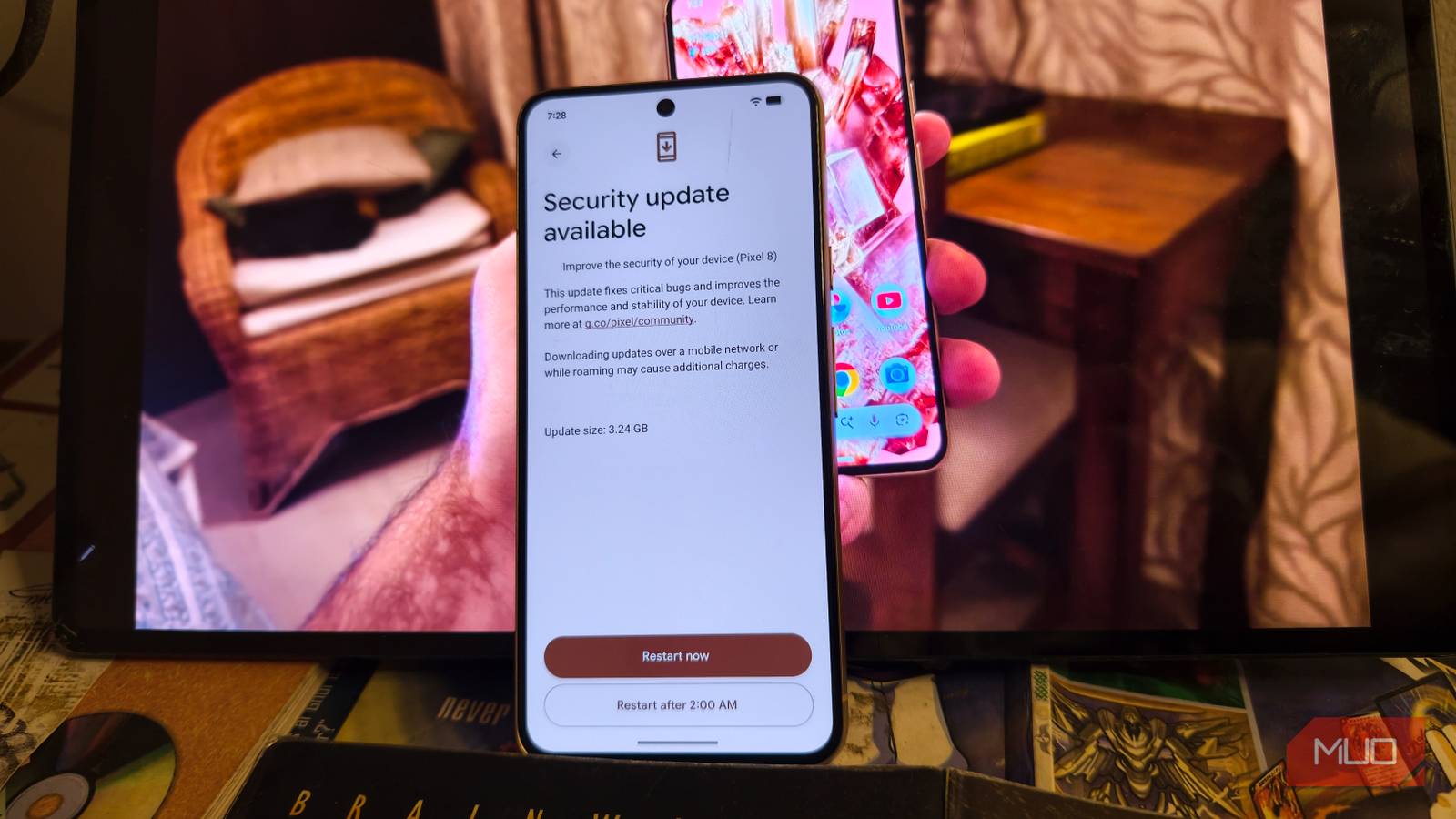
Google Pixel smartphones are renowned for a clean software experience and cutting edge AI capabilities, making it important to keep the fully updated. I was recently poking around my Pixel 8’s settings and discovered that Google has taken a modular approach to updates.
While digging deeper, I discovered a new page that is responsible for updating components which may not always occur automatically. This clarified that my device was not up-to-date on all fronts.
Updates on the Google Pixel are segmented into various categories
Keep your phone updated

While major Android OS upgrades and security patches are larger system-level downloads, Google breaks other key updates down into smaller pieces. These are listed individually, and you can actually find these modules split across a few different pages within the Settings app.
On my Google Pixel 8, I was able to access some components of updates by going to Settings > System > Software updates. Here, you can typically find updates to a new Android version, security updates, Google Play system updates, and app updates. You can also access the security patch updates under Settings > Security & privacy > System & updates > Google Play system update. The exact location of the updates may differ slightly depending on your model and the version of Android you are running.
Google Pixel phones have a separate update screen located deep in the settings app

I didn’t expect to find a hidden screen on my smartphone’s settings page that can be accessed to manually update a bunch of services. Google calls it System services. Funnily enough, the screen is neither located in the System menu nor is it housed in the Security & Privacy section. To find this option on a Google Pixel, you have to go to Settings > your Google Account profile name and picture > All services > Privacy & security > System services.
This menu houses a bunch of apps and core services. The menu differentiates the components that are “Up to date” and “Available updates” categories, giving you a clear look at exactly what is running on your device. I don’t recall my device ever notifying me about these pending updates. In my case, they had not appeared in the Play Store’s pending downloads list, nor were they triggered by checking for a Google Play system update.
These system components keep your smartphone running smoothly
The services may not always update automatically
The components listed on the ‘System services’ menu are not Android version updates, security updates, or general app updates. Rather, these updates manage critical functions that silently run in the background to maintain app compatibility, device connectivity, and on-device AI functionality.
A few of the critical components you’ll find here include Adaptive Connective Services, Android Developer Verifier, Android System WebView, Android System Intelligence, and Settings Services, among others. YOu may not notice an immediate difference after updating these. Think of them as vital components that keep your device functioning efficiently without glitches and bugs.
For instance, if you are experiencing sudden app crashes related to WebView, and have a pending update, you don’t need to wait for the device to automatically update the same. You can manually go and install the updates from this screen. This hidden update page also eliminated the need for me to search for individual Play Store listings of these core components by listing them all out together.
Google frequently rolls out new, optimized versions of these services to address specific bugs. These system services are supposed to update automatically in the background alongside your regular security patches or OS updates. Generally, these apps update when the phone is idle, connected to Wi-Fi, and charging overnight. But they may not always be up-to-date, so it is a good idea to check the status of the same manually.
Modular updates are useful, but finding them feels like a treasure hunt
By separating the updates in a modular fashion and decoupling core system features from major firmware updates, critical patches can reach your device faster. Users can also manually choose to update each component if the automatic route hasn’t kicked in. But searching for these settings under different menus can be a bit of a treasure hunt.
For me personally, I would prefer the device to accurately update on all fronts and notify me about any pending updates. Additionally, it would help if all the update tabs were located in one menu instead of being scattered throughout the settings app. So, for now, I’d suggest checking your settings for updates across all categories every couple of weeks, or whenever you encounter a glitch or unexpected issue.