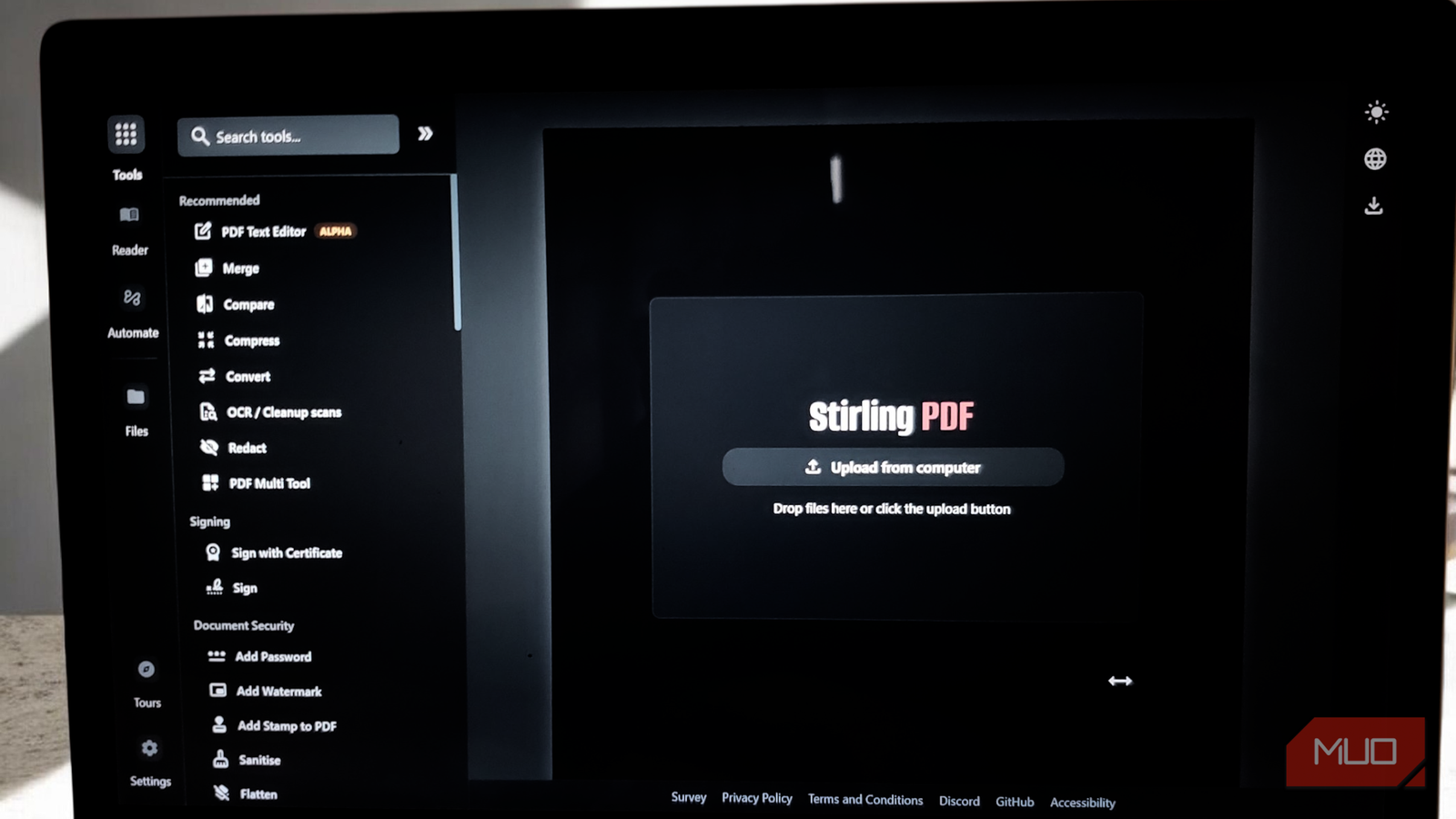
Most free PDF apps have a major problem, which is that they don’t let you edit text. Originally, that was the idea behind the PDF format: a way to preserve your documents from making any unintended changes. However, times have changed, so any good PDF tool must offer some sort of modification feature to be useful.
And for this reason alone, I’ve seen people pay for solutions like Adobe, Foxit, or Nitro. Stirling PDF had the same gap when I first started self-hosting it as my go-to PDF toolbox. But with the release of V2.0, that missing piece is finally here, and it makes Stirling PDF a far more complete free PDF editor you can self-host without giving up much on features.
Stirling PDF can edit text now
V2.0 adds a text editor, though it works differently than you’d expect
When you open the PDF Text Editor in Stirling PDF, the first thing you’ll see is a warning dialog. It tells you the feature is in early access and still in active development. The tool works best with simple PDFs that contain mostly text and images, like letters, essays, reports, and basic documents. It’s not ready for PDFs with bullet points, tables, multi-column layouts, magazines, or instruction manuals with complex formatting. Font rendering may also differ slightly from the original.
That warning is honest, and I appreciate it. The way Stirling handles text editing is different from apps like Adobe Acrobat, Sejda, or PDFGear, where you click directly on the text and start typing. Stirling first converts your PDF into JSON, then lets you enter an edit mode. It’s a less polished approach, but the upside is you get a clean text editing view with consistent formatting and fewer visual distractions.
I’ve tested the text editor on a resume and a few other simple documents with clean layouts. It matched the fonts more often than not and let me add or remove text without issues. The font detection panel even confirms which fonts on the page can be reproduced perfectly, so you know what to expect before you start editing. Anything more complex, like a scanned PDF or a document with heavy formatting, can turn into a mess. But if all you need to fix is a typo in a cover letter, updated contact details on a resume, or a corrected date on an invoice, it handles the job without forcing you to open Adobe.
On the right-side panel, you also get a few useful options in Advanced Settings. There’s Auto-scale text to fit boxes, a Text Grouping Mode that lets you switch between Auto, Paragraph, and Single Line, and a toggle to Lock edited text to a single PDF element. The panel also shows you how many fonts are on the current page and whether they can be reproduced perfectly.
Edit, reorder, split, and merge without re-uploading your file

Another addition is the multi-tool workspace. You no longer have to repeatedly upload the same file to perform multiple actions.
Once you have uploaded your PDF, it stays live in the workspace. From there, you can delete pages, drag them into a new order, split the document, insert pages from another file, or rotate individual pages. Every action stacks on the one before it, all on the same in-memory version of the file, and you only download the final result when you’re done.
What’s more, it now also supports undo/redo and version history on top of the workspace. If you delete the wrong page three steps into a chain of edits, you won’t be starting over from your last download. A simple undo resets the last modification and keeps the rest of the progress.
Over a hundred tools, all processing locally on your machine

Text editing and the multi-tool workspace are surely the big improvements in 2.0, but Stirling PDF was already packed with features before this update. The app bundles over a hundred tools, and all of them process files locally, so nothing ever leaves your machine.
You can merge multiple PDFs, split large documents, compress files to shrink their size, convert between formats, and compare two documents to see what changed. Security tools let you add passwords, apply watermarks, attach digital signatures, and redact sensitive information before sharing. For page management, there are options to rotate, crop, reorder, add page numbers, and extract just the pages you need.
Then there are the tools that push it beyond a basic PDF editor. OCR handles scanned documents and can recognize text in dozens of languages, which is useful if you’re dealing with paperwork in more than one language. There’s also metadata editing, form filling, annotation tools, image extraction, and even repair utilities for damaged PDFs. If you want to automate repetitive tasks, Stirling has a pipeline feature that lets you chain multiple operations together, and a developer API for integrating it into other workflows.
For setup, you can run it through Docker, use the native desktop installers for Windows, macOS, and Linux, or deploy it on Kubernetes. The desktop installers need almost no setup and work well for most people. Docker and self-hosting make more sense if you want to share the tool across a network or run it alongside other self-hosted PDF apps on a home server. Stirling supports up to five users on the self-hosted version so that a small team can share a single instance without any extra cost.
A full-fledged open-source PDF editor
Stirling PDF remains fully open source, and you can self-host it for free with all features included. The lack of text editing used to be the one reason to consider still paying for Adobe or Foxit. That gap is closing. The text editor is still in alpha and has its rough edges, but for simple everyday documents, I find it very usable.
If you want to try it, I’ve put together a detailed guide on setting up Stirling PDF with Docker that covers the full installation process.