It can be frustrating when your Bluetooth speaker starts playing glitchy and low-quality audio without any noticeable reason. I recently purchased a new device, and the music quality was terrible. I was convinced that a brand-new speaker from a reputable brand had more to offer.
Compared to wired speakers that connect physically via the 3.5mm jack or the USB Type-C port, Bluetooth speakers are more complicated. The overall quality depends on the settings enabled on your device, the codecs supported by the speaker and your smartphone, and the overall compatibility.
Choosing the highest quality codec can improve audio quality
The first thing to check if your audio lags

Ideally, if both your smartphone and Bluetooth speaker support high-quality codecs and the settings are in line, you should not have any issues. First, check the Bluetooth settings for the connected device and confirm which codec is being used. On some devices, you do get some basic control in terms of codecs under this option.
For instance, if your speaker supports aptX or LDAC, you may see an option to enable or disable it for that particular connection. However, you cannot choose from all the codecs available for that connection. For that, you need to access Developer Options. In my case, there were no issues with audio codecs, so I had to dig deeper.
Visit Developer Options for additional audio settings
Developer Options are usually hidden by default

To enable Developer Options on your Android device:
- Open the Settings app.
- Navigate to the About Phone window.
- Search for the Build number or Software information.
- Tap Build number seven times in a row.
- Type your PIN or passcode if prompted.
Developer Options should then be visible, and you will get a notification. You can access them by going to the System or System Management tab in the Settings app and selecting Developer Options.
The hidden setting that fixed my Bluetooth audio quality
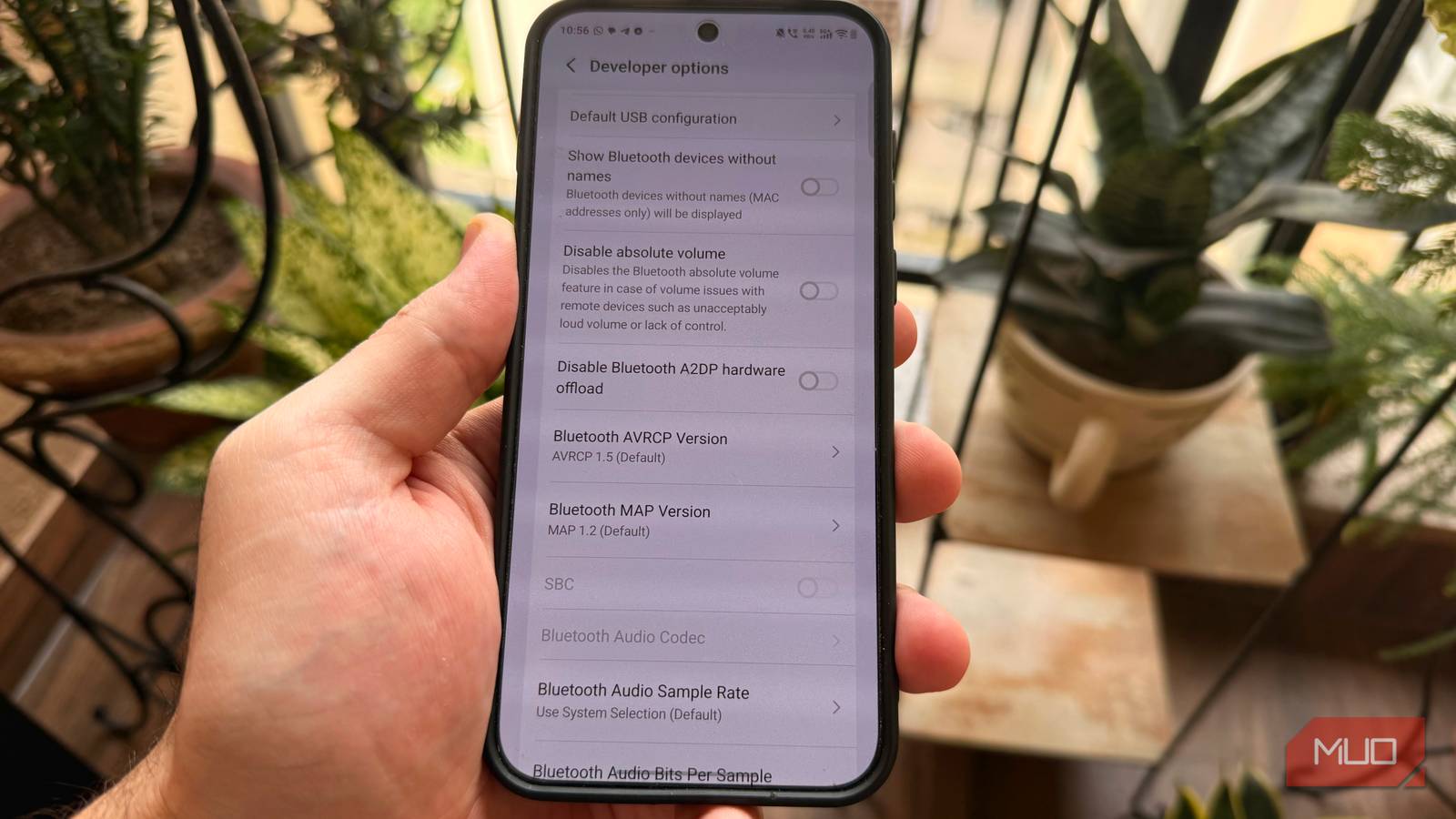
Disabling Bluetooth A2DP Hardware Offload
The toggle that fixed my device’s audio quality was buried under Developer Options. This feature is called A2DP Hardware Offload. Android smartphones are built to be power-efficient. To save your battery, the system may delegate the heavy lifting of processing and encoding wireless audio from your phone’s main processor to a dedicated, low-power audio chip.
It may sound like a useful optimization tool. But the low-power chip can at times fail to communicate properly with some third-party Bluetooth devices. When this happens, the smartphone may switch to the lowest possible bitrate. This can cause the speaker to play compressed audio with a muddy, distorted sound profile.
Thankfully, you can disable this setting in a few simple steps.
- Open the Settings app on your device.
- Navigate to System and then tap on Developer Options.
- Type A2DP into the search bar.
- Scroll down until you see the toggle labeled Disable Bluetooth A2DP hardware offload.
- Turn this toggle ON. (Remember: turning the switch on means you are actively disabling the offload feature).
You may need to restart your Android device for the changes to take effect. After tweaking this setting, the difference was night and day. The speaker’s bass was noticeably punchier, the distortion reduced, and I could notice a wider soundstage. It is important to remember that forcing your main CPU to process audio can lead to battery drain.
Other important audio settings to check
Choose a high-quality sample rate and codec

If disabling Bluetooth A2DP Hardware Offload doesn’t work for you, you may have another issue. Unlike standard Bluetooth settings, which only let you enable or disable a codec, Developer Options gives you much more control.
Navigate to Developer Options and search for the Bluetooth Audio Codec settings under the Networking tab. Tapping on it reveals the codecs available for your current Bluetooth connection, such as SBC, AAC, aptX, and LDAC. If your speaker plays distorted audio, try switching to the highest-quality codec available.
You can also choose how many Bluetooth audio devices your smartphone can connect to at the same time. At times, your phone may be connected to multiple speakers or headphones, which can cause it to switch between devices, disconnect from the one you want to use, or introduce audio lag. On my device, I could choose between one and five connected Bluetooth audio devices at a time.
You can also choose between mono and stereo channels and choose the Bluetooth audio sample rate. But proceed with caution if you are new to audio and don’t have much knowledge about how these settings will affect you, as experience differs depending on the device.
Don’t replace your Bluetooth speaker just yet
If your Bluetooth speaker sounds terrible, the problem may not be the device itself. In my case, I could fix the issue by accessing an option buried deep under Android’s settings app. Bluetooth audio can be complicated, and the exact settings that you might need to tweak will depend on your smartphone and the speaker itself.
But if your Bluetooth speaker sounds worse than it should, definitely check Developer Options before you blame the speaker.