Windows needs help. Recently, I reviewed both the Lenovo Yoga 7 Slim Ultra and the Yoga Pro 7i. Despite both having one of the latest Intel Core Ultra processors with tons of RAM, I found them to be sluggish performers overall, especially when compared to Macbooks that contain M-series chips from Apple where the performance is seemingly infinite and everything you do feels instant.
Nearly every action I performed on these Windows laptops felt a beat behind, as if the OS and the processor were somehow out of sync.
Microsoft knows Windows needs help and in a future Windows Update, they will introduce something called Low Latency Profile (LLP) which should noticeably make Windows devices faster, like when opening apps or opening menus, resulting in a significant increase in perceived system speed.
You can enable LLP on your Windows PC now without waiting for Microsoft to roll it out. That’s good news because enabling LLP will give your Windows machine an instant speed boost it probably needs as long as you’re willing to download some files and run a quick command prompt.
My laptop needed a boost
Most Windows machines do

Since I have two Lenovo laptops with nearly the same specs, I did a test. I enabled LLP on one and not the other, placed them side by side, and ran the exact same tests on each: I launched different apps, opened and closed the start menu, and opened a variety of right-click menus. The laptop with LLP turned on was unquestionably faster in every test. Every menu and every app opened a beat faster on the laptop with LLP versus the one without. So it works — but what is LLP actually doing under the hood?
The laptop with LLP turned on was unquestionably faster in every test.
What does low latency profile do, exactly?
It makes Windows 11 feel significantly more responsive, and you can enable it now

While LLP is slated to be offered to all Windows 11 users gradually in a Windows Update slated for Summer 2026, you can force enable it now with a quick command prompt if you first download ViveTool. What does it do? It makes you system feel faser by temporarily maxing out the CPU for short bursts, like when opening apps or opening menus.
Alternatively, you can enroll in the Windows Insider Program which should allow you to be first in line to download Build 26200.8524, which contains the settings for LLP (if you don’t see this particular build when you run Windows Update, and you’ve opted into the Windows Insider Program, go to Settings > Windows Update > Advanced Options > Optional Updates to check for the special update).
Or, if you’re like me and don’t want to opt into Windows Insider, you can download ViveTool from Github. Then follow these steps:
- Extract the tool to a folder (I just put it on my desktop). Take note of the path
- Open a command prompt as administrator by searching for command prompt in the start menu, right click and choose “run as administrator”
-
type:
cd [paste path of ViveTool] -
to enable LLP, type the following, then reboot:
vivetool /enable /id:58989092,60716524,48433719,61391826
How to tell it’s working

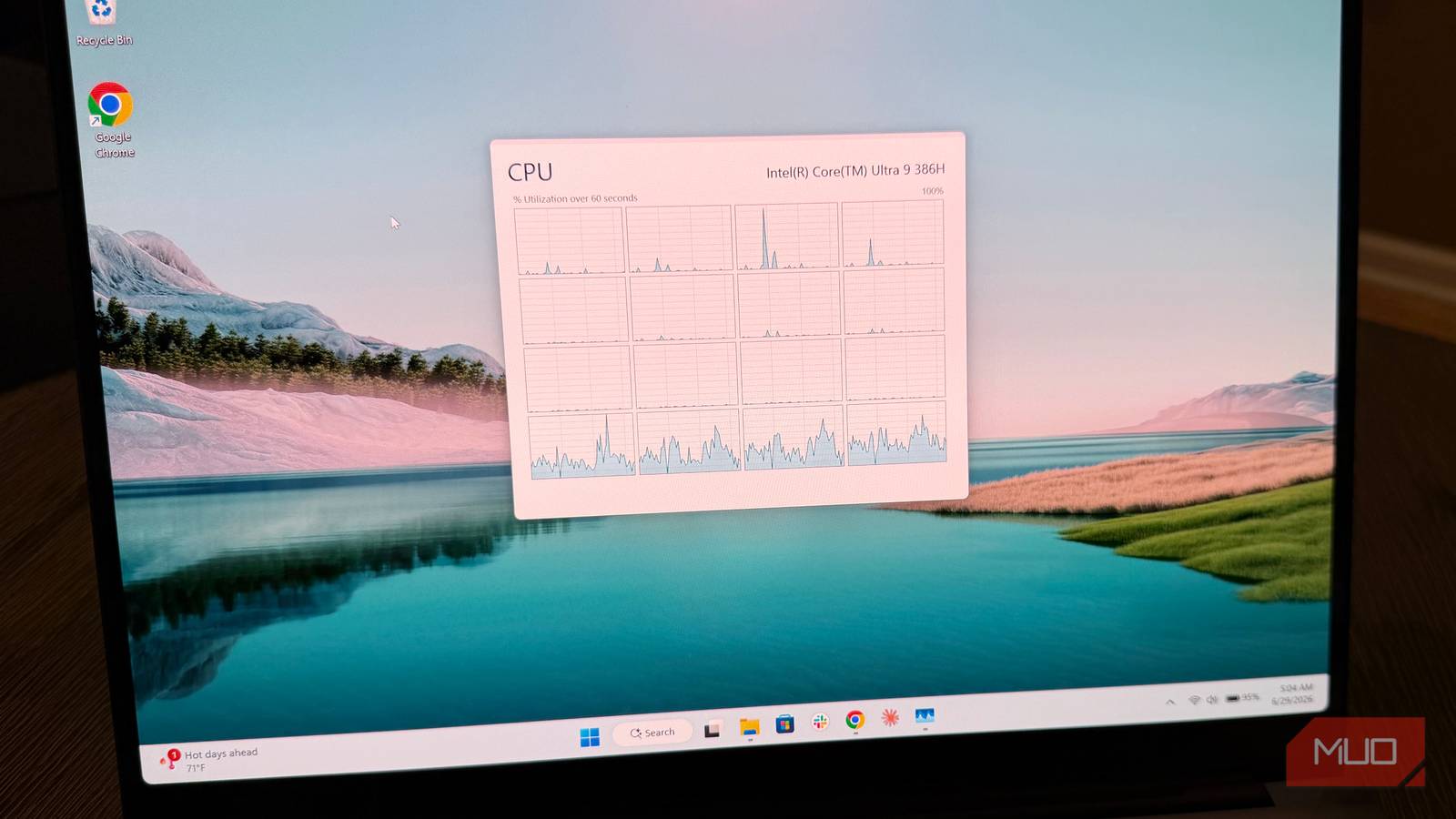
The only way you can really tell it’s working is by opening the CPU utilization graph to notice how the CPU spikes whenever you open an app or open a menu. For me, it felt like every app was already loaded into RAM even if the app had not been opened in a while.
Some downsides

This is a workaround that gets you an upcoming Windows feature early, but you won’t have any way to know LLP is enabled besides the fact that apps will launch significantly faster.
The clear main downside to spiking the CPU every time you do anything (which is something Mac and Linux already do), is that it uses significantly more power, and you’re likely to see some decrease in battery life. Not only that, but using LLP in theory could make your computer run a bit hotter and lead to more thermal throttling, especially if you’re using a laptop. But on a desktop, these downsides are not present to the same extent since power and cooling is less of an issue.
If this profile makes Windows feel faster, why isn’t it just on by default? The answer comes down to a tradeoff Microsoft doesn’t want to make for everyone.
Spiking the CPU on every interaction burns more power and generates more heat, which is fine on a desktop tethered to the wall but a real cost on a laptop running on battery (potentially).
So is it worth it?
In most cases, yes

People with older hardware might only see the benefit; if you’re running a PC with one of the latest ARM-based processors like the Qualcomm Snapdragon X2 (which might make you not want to use Intel ever again), these chips are already designed to instantly spike to faster clock speeds, as they are designed around power efficiency such that CPU spikes use less energy than a comparable Intel X86 chip.
But if you’re like me and want your Windows machine to be a bit faster, this is the rare tweak that’s actually worth doing before Microsoft ships it.