Google’s storage plans aren’t exactly expensive — this isn’t about that. But the thing about cloud storage in general is that it only keeps growing. You start on the free plan, then upgrade to the base $2 plan for 100GB, and a few months later, you’re right back to staring at the same “storage full” warning.
The only sensible way to avoid another upgrade is to do some cleanup, which is what I did. Instead of paying for more storage, I spent some time cleaning up my Google Photos account, since that’s where most of my storage was actually going.
Use Google Photos cleanup suggestions
Start with the big stuff

This one’s a no-brainer, really. The quickest way to free up Google Photos storage is to use the built-in clean-up suggestions.
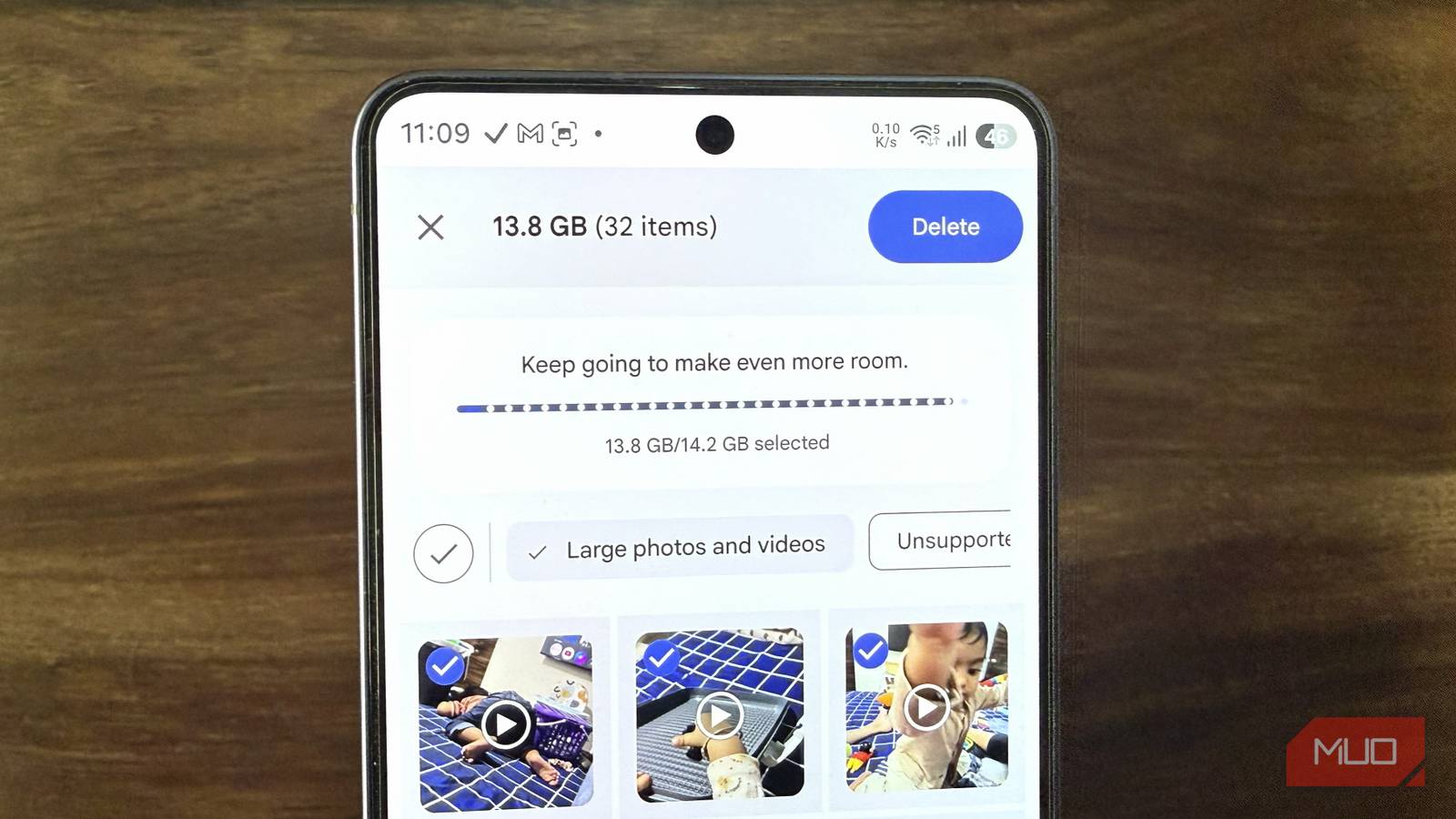
Head to Google Photos, tap your profile icon, and choose Clean up space under the storage status. In the Google One storage manager menu, tap Large photos and videos, and it’ll show you all the large photos and videos that are backed up to the cloud. You can go through these to delete anything you don’t want. Removing a few unnecessary videos is usually enough to free up several gigabytes of storage.
In the same menu, you can also filter results to only show unsupported videos. These are videos in obscure formats that Google Photos can’t play. There’s also a third filter called Clutter, which only shows up in the app, and not on the web. It mostly includes random photos or screenshots that Google Photos feels are unnecessary. I went through these and ended up freeing 13GB of storage within minutes.
Opening cleanup suggestions in Google Photos for the web also shows a Blurry photos filter. This shows blurry and low-quality pictures you probably don’t want to keep.
Switch to storage-saver quality
Quality drop you won’t notice
By default, Google Photos backs up everything in original quality, which makes sense. But with most flagship phones these days, a single photo can be around 4-5 MB, while a minute-long 4K video could easily be 500-600 MB. That means it doesn’t take long before a few hundred photos and videos end up taking several gigabytes of storage.
Google Photos does give you a clever fix for this. You can set the backup quality to Storage saver, which automatically lowers the quality of photos and videos you back up. This doesn’t blindly compress everything, though. If a photo is larger than 16MP, it resizes it down to 16MP, which is still plenty sharp for printing or sharing. Videos are only reduced if they’re above 1080p, in which case they get scaled down to 1080p. That’s a small hit, but nothing that ruins the viewing experience on a phone.
To enable this, head to Photos Settings > Backup > Photo and video quality and choose Storage saver. Once you do, Google Photos will automatically resize the photos and videos as needed. You don’t have to stop here. Google Photos can also shrink photos and videos that are already backed up, though this needs to be done through the web version. Head to Settings > Manage storage and choose Convert existing photos and videos to Storage saver.
If reducing the quality of your photos and videos sounds like a dealbreaker, you can still back up anything important manually from your phone to an external storage drive directly.
Move WhatsApp backup to secondary Google account
Give it a new home
WhatsApp backups are handy, but they also count toward your storage quota. The annoying part is that Google Photos doesn’t show this data separately, so you can’t just scroll through and delete the WhatsApp bloat like you would with regular photos. And if you’re a longtime WhatsApp user, this backup alone can be massive. Mine was sitting at close to 5GB, which is about one third of the free storage Google offers.
Instead of deleting WhatsApp photos and videos manually, you can take the easy route and use your secondary Google account for WhatsApp backup. The switch is pretty easy. First, you have to add your second account to WhatsApp and backup everything there. Head to WhatsApp Settings > Chats > Chat backup > Google Account, tap Add account, and sign in to your second Google account. Now select it as the default account and hit Back up to start the manual backup.
Once that’s done, open the Google Drive app and make sure you’re in your primary account. Tap the menu icon, choose Storage > WhatsApp, and hit Delete backup.
Cloud storage is convenient, but can be expensive
Doing these three things solved my storage problem, but if you’re still tight on space, you can try other things. The most obvious one is to check cleanup suggestions for Drive and Gmail. Gmail, in particular, often flies under the radar, but years of emails with huge attachments can easily end up taking a few gigabytes.