Rebooting your router. Unplugging the cable. Moving the router around your home… sort of. These are all fixes people try when Wi-Fi speeds slow to a crawl.
But the real answer is probably one you’ve not heard of before: it’s your Wi-Fi channels, and everyone on your street is using the same one.
That adds up to a big old pile of congestion, making yours and your neighbors’ Wi-Fi feel slow, sluggish, and like you’re not getting what you pay for.
Your router auto-selects a channel, but so does the whole street
“Auto” doesn’t mean “smart”
The Wi-Fi you use feels like a seamless, continuous stream of data. But Wi-Fi is a little more intricate than you may realize. That’s because each Wi-Fi band consists of a set frequency band, and that band is broken down into 20MHz channels, the number of which depends on the band.
|
Band |
USA (FCC) |
Europe (ETSI) |
Rest of World |
|---|---|---|---|
|
2.4 GHz |
11 ch · ~83.5 MHz |
13 ch · ~83.5 MHz |
Up to 14 ch · ~83.5 MHz |
|
5 GHz |
25 ch · ~580 MHz |
19 ch · ~455 MHz |
~19 ch · ~455 MHz (varies) |
|
6 GHz |
59 ch · 1,200 MHz |
24 ch · 500 MHz |
0 / 24 / 59 ch · 0 / 500 / 1,200 MHz |
|
Total |
~1,865 MHz |
~1,040 MHz |
Up to ~1,285 MHz |
Now, most routers will automatically assign you a Wi-Fi channel, as they ship in “Auto” mode. Sometimes, that works out just fine. But other times, your router will assign you the very same Wi-Fi channel that your neighbors are using, which can cause interference and congestion as your routers “compete” for the same airspace.
A prime example is the 2.4GHz band, the most widely used around the globe because of its age. As per the table above, in the US, 2.4GHz Wi-Fi has just 11 channels, but only three of them don’t fully overlap (1, 6, and 11). That means most of the time, you’ll find your Wi-Fi pushed onto one of these channels.
But the problem is that everyone else’s routers also do the same, which means everything bleeds into one another. It’s a widespread problem. I even read about 2.4GHz Wi-Fi on the Cisco Community where someone with 72 access points, all left on auto, found they kept selecting the same small selection of channels.
This affects all Wi-Fi bands, but 2.4GHz is the most problematic
You can still share channels on 5GHz and 6GHz Wi-Fi

Most modern routers are dual-band. That means they broadcast on two individual spectrums, typically 2.4GHz and 5GHz. The very latest routers that use the Wi-Fi 6E or Wi-Fi 7 standard can broadcast on a whole new frequency: 6GHz.
That opens up a fresh chunk of the airwaves to fill with YouTube videos and memes. It’s also a fresh chunk of broadcasting to try to avoid your neighbors.
While that sounds like an extra challenge, 5GHz and 6GHz have two major positives over 2.4GHz: a larger broadcast frequency and more channels. In the US, the 5GHz band has 580MHz to broadcast throughout, whereas 2.4GHz has just 83.5MHz. That increases to a massive 1,200MHz if you can roll out 6GHz Wi-Fi.
|
Band |
Indoor (typical) |
Outdoor (typical) |
|---|---|---|
|
2.4 GHz |
~150 ft (45 m) |
~300 ft (90 m) |
|
5 GHz |
~50–100 ft (15–30 m) |
~100–150 ft (30–45 m) |
|
6 GHz |
~30–40 ft (10–12 m) |
~60–100 ft (18–30 m)† |
Those figures illustrate why you’re vastly more likely to encounter interference on the 2.4GHz band compared to the 5GHz or 6GHz bands. That said, it’s not impossible, especially in busy areas, but you have a much wider array of other channels to choose from if you find you’re sharing with multiple others.
Range is another reason why you’re likely to encounter congestion or interference on 2.4GHz. The newer Wi-Fi bands deliver faster speeds and other advantages, while venerable old 2.4GHz broadcasts further but isn’t as fast. That distance is what can push you into other folks’ Wi-Fi signals even without you realizing.
Manual Wi-Fi channel selection is how you avoid the overlaps
It’s at least how you try to avoid them
Manual Wi-Fi channel selection, then, is a must. It’s one of the only ways you can truly hope to avoid encroaching on your neighbor’s Wi-Fi, or running away to another channel if they start using the same one as you.
Some routers, in addition to the “Auto Channel” feature, will also have an “Auto Channel Scan” or similar that shows you the competing Wi-Fi signals in your area. That gives you an easy option to figure out where to move your Wi-Fi channel. You’ll need to access your router’s admin panel to find this option.
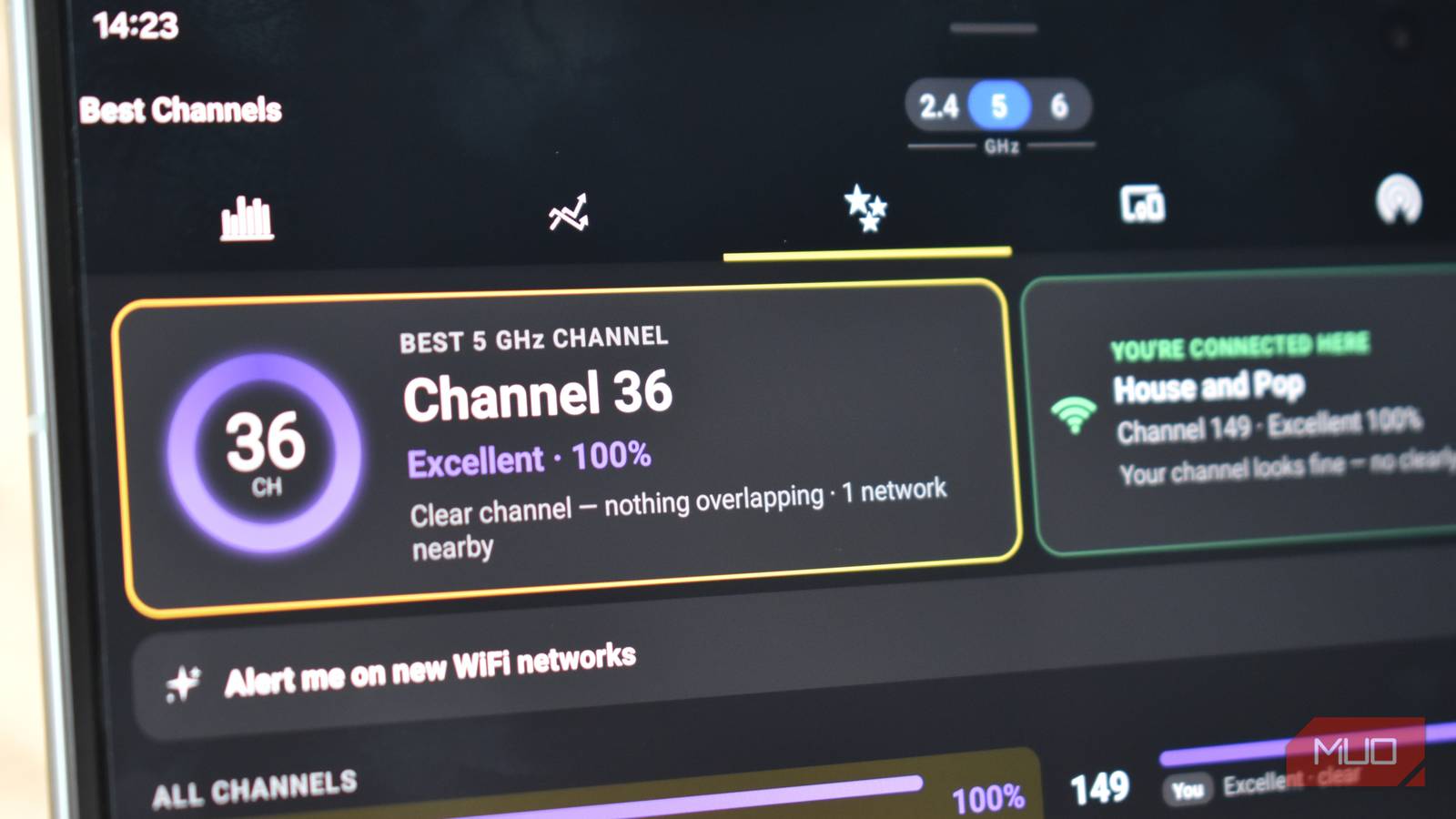
If your router doesn’t have this option, your next best bet is to use an app like Wi-Fi Analyzer to scan the local airwaves and map out what’s taking place. I say map, but it’s more graphs with overlapping broadcast signals, but it’s a really useful visualization.
Wi-Fi Analyzer is one of the best free tools to figure out Wi-Fi issues, and it’s perfect for figuring out overlapping Wi-Fi channels.
Wi-Fi channel sharing isn’t a disaster, but you’re better off alone
If you do end up having to share your Wi-Fi channel with someone else, it’s not the end of the world. One or two connections overlapping isn’t going to cause huge dropouts all of the time, and Wi-Fi features like CSMA/CA stop them constantly talking over each other.
It does mean the Wi-Fi signals basically take turns to talk to devices, but given how fast modern Wi-Fi is, most folks don’t notice the difference.
It’s also worth noting that sharing a Wi-Fi channel doesn’t mean your data will suddenly get lost and turn up on your neighbor’s router. That’s not how Wi-Fi works, so put that at the back of your mind.