My recommendation to every PC owner, regardless of the OS they’re running, is to treat their PC like a car and do maintenance and cleaning every once in a while to keep it performing at its best. Specifically for Windows, there’s a conception that the OS tends to slow down and decay over time.
This popular idea is often called “Windows rot,” and this idea has existed for as long as the OS itself. However, many regard it as a myth because software doesn’t wear out physically. Nevertheless, I decided to test it by not following the very advice I give, and what I found was unexpected.
What does Windows rot mean?
Software doesn’t wear out, but it does pile up
While not an official term, the idea behind Windows rot mirrors disc rot, a phenomenon in which hardware-level degradation of an optical disc’s physical layers makes stored data hard to read.
For Windows, software degradation is practically impossible, despite the notion that every Windows installation slows down after months or years of use.
Windows rot is better described as software accumulation, driven by factors like built-up cache, leftover registry entries, unmanaged startup apps, and background services that add to system overhead.
However, some of these factors no longer apply to Windows 11 because registry bloat logic dates back to the Windows XP era and leftover entries don’t affect speed anymore. Also, Windows 11 runs background maintenance to clean up most of the junk and keep your PC’s performance steady and consistent.
This makes the idea of Windows rot on newer Windows 11 even more confusing; that’s why I wanted to test it.
Setting up the test
Windows has cleanup, but I ignored what it leaves behind

As I’ve mentioned, Windows automatically runs periodic cleanups through features like Storage Sense that clear junk like temporary files, the Recycle Bin, files in the Downloads folder (optional), or cloud content.
Other than that, some of the issues Windows used to address don’t hold up in 2026, like disk defragmentation, the latter of which doesn’t work on SSDs and instead is replaced by TRIM.
Instead, I stopped other routines like background processes, startup apps, cleaning the browser cache, Windows update cleanup, etc. Also, I resumed the startup apps I had already disabled to simulate a real environment where I wouldn’t clean my PC at all.
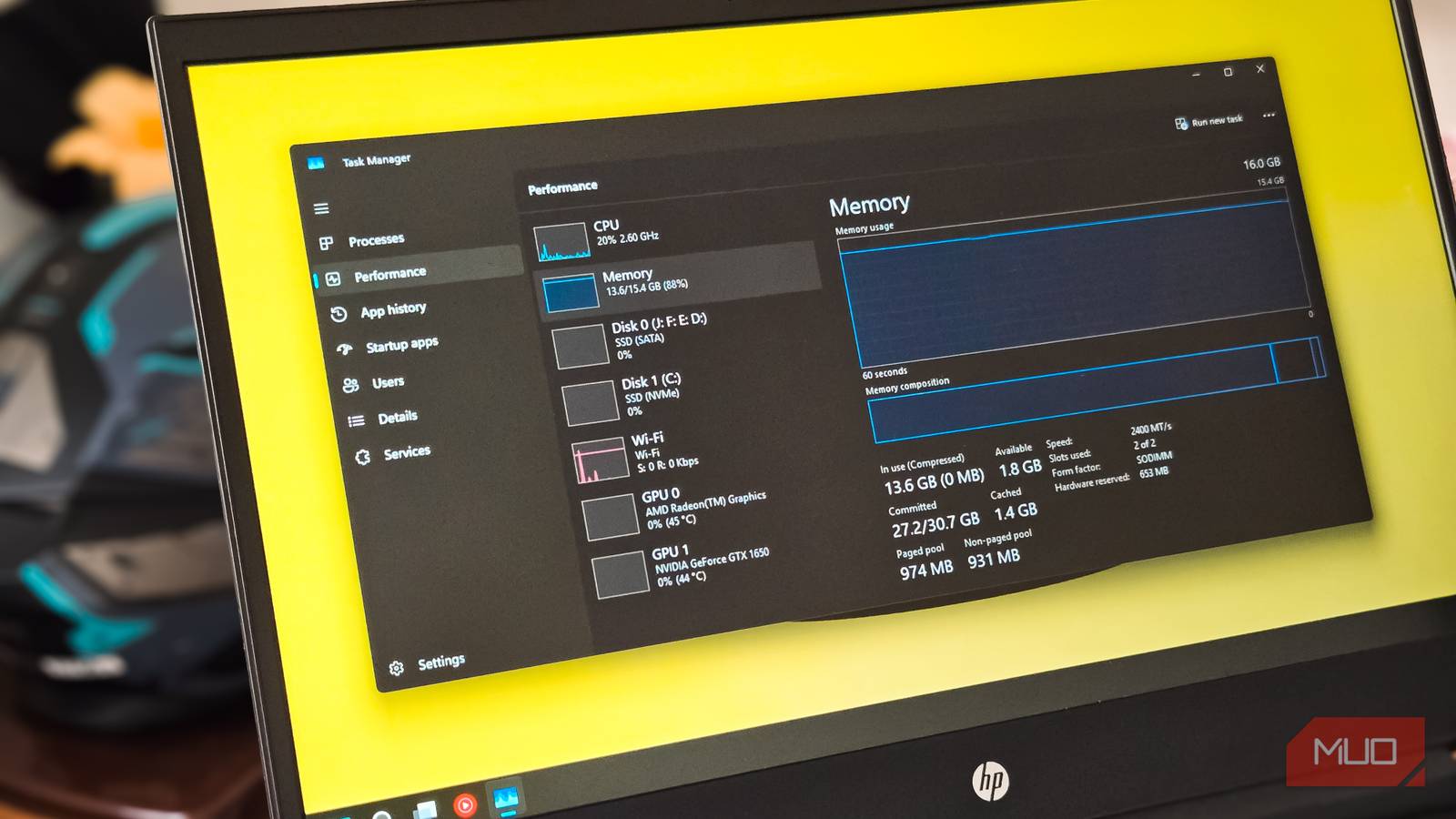
These rituals are already a part of my weekly maintenance to keep my PC fast because, even aside from Windows bloat, Windows 11 is a resource-heavy OS, so there isn’t much left for my 16GB of RAM with everything else accumulated on top of first-party services and apps.
For the testing part, I only benchmarked simple day-to-day tasks like boot times, the time it takes for the programs to load post-boot, and storage, which are changes that an average user will note.
Since I use Windows 11 heavily, I can replicate a month’s worth of junk accumulation in just a little over a week, and it took me 9 days to benchmark and get the results.
What changed after just 9 days of ignored maintenance
Boot time, RAM, and CPU all moved in the wrong direction
As a writer, I’m constantly trying new programs and tools that improve Windows 11’s functionality or make it a bit more tolerable on resources. As a result, my system has a lot of junk programs, and most of them launch at startup.
This causes two problems: first, resource hogs that start as soon as I boot up and Windows 11 loads several programs; second, storage.
Now, just 9 days later, the difference is immediately noticeable. An average user might only need to clear their PC after a month or two, but for me, that limit is shorter because of how heavy my use is. I noticed slower boot times and less free storage on my PC.
Here are the results:
|
Test |
Baseline |
Without Cleaning After 9 Days |
|---|---|---|
|
Time it takes for Windows to boot |
19 seconds |
25 seconds |
|
Time till the PC becomes usable |
30 seconds |
50 seconds |
|
Idle RAM usage |
~4.1 GB |
~6.7 GB |
|
RAM usage under normal workload |
~8.5 GB |
~10.9 GB |
|
Idle CPU usage |
1-3% |
7-9% |
|
CPU usage under load |
10-22% |
20-29% |
Why did the slowdown happen?
Background tasks and daily workloads add up

Idle RAM and CPU usage increased because many background apps were running. Under load, my daily workload is around 10 Google Chrome tabs, with Spotify, WhatsApp, and Slack running in the background; running them alongside many background apps significantly increased RAM consumption.
For storage, I’ve noticed my SSD fills up quickly without maintenance. The drive where I have Windows 11 is nearly filled to the brim because of the browser cache; it’s also because of several programs I don’t need, temporary files, logs, and dumps.
When you fill your drive past a certain threshold, it slows down, which is why I never recommend keeping the drive where you store Windows at least 30% free.
I’m positive that if left unattended for longer, my PC would start to lag and slow down to the point where cleaning up would become much harder altogether.
Real as accumulation, a myth as decay
Windows rot is real, but not in the traditional way people think. It’s real as an accumulation but wrong as a decay because slowdowns come from ignored maintenance, letting junk accumulate in the background, which is guaranteed to hurt your system’s performance.
However, the idea is misguided because the OS doesn’t deteriorate physically, and the slowdown is obvious: by ignoring built-up cache, startup applications, and processes that stack up, you’ll eventually run out of resources. You don’t really have to reinstall Windows to keep the PC fresh after a set period; just don’t ignore the buildup of cache and apps.