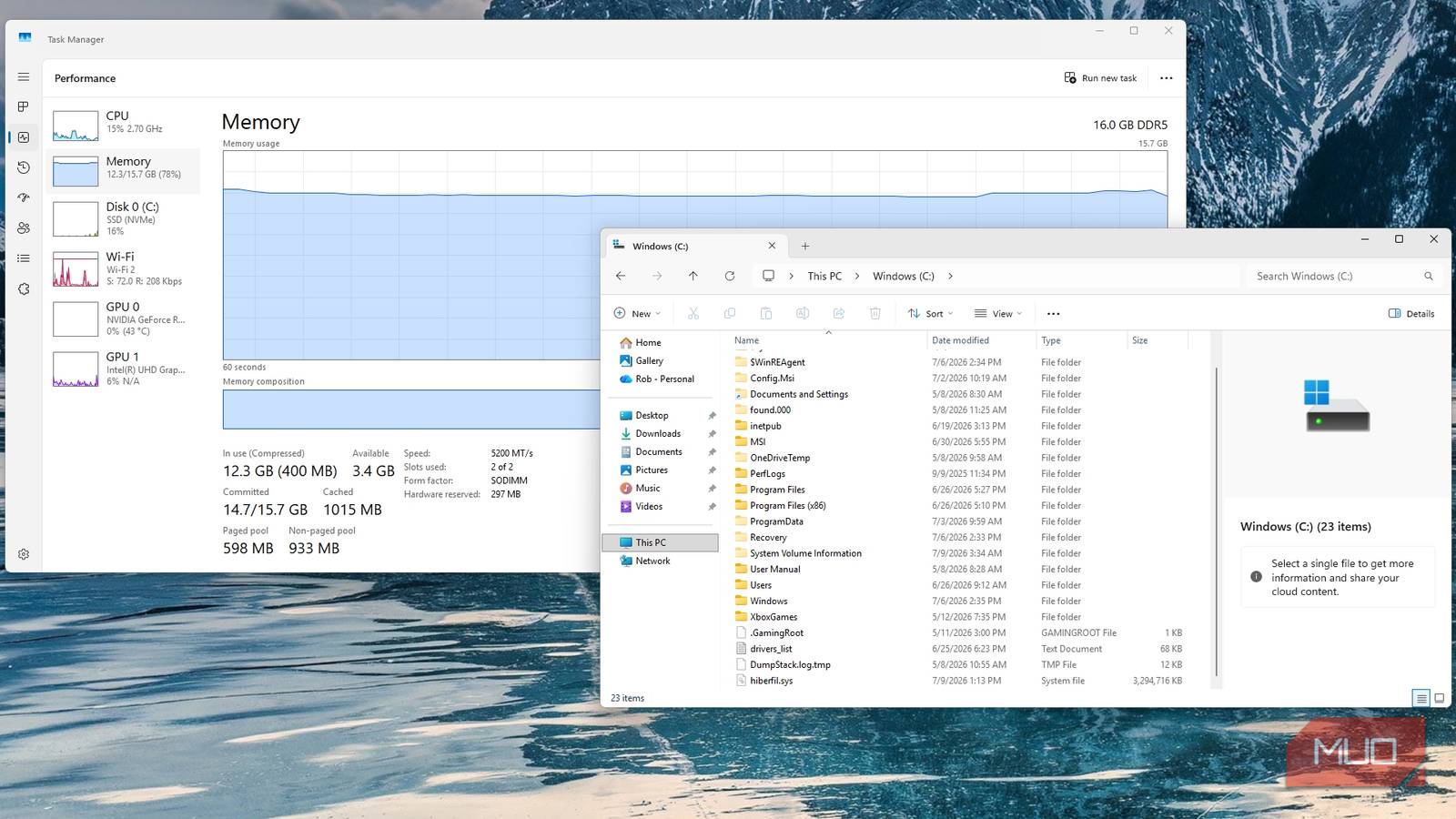
I went digging for space on my MSI Cyborg 15 expecting to find hiberfil.sys, the hibernation file that reportedly eats several gigabytes on most Windows machines. I’ve already gone through my Storage Sense defaults once this year looking for reclaimable space, so hiberfil.sys was next on the list. I turned on hidden and protected system files in File Explorer, headed to C:, and it wasn’t there. No pagefile.sys sitting next to it either. I double-checked the folder options, refreshed, scrolled through all 22 items in the root directory. Still nothing. So before assuming my search was broken, I ran a command that tells you exactly what your machine supports:
powercfg /aThe output solved my concern immediately: Hibernate wasn’t listed as available at all. Windows hadn’t just left the file small, it had never created one in the first place.
What powercfg /a actually told me
Hibernate is a separate switch from sleep
My Cyborg 15 supports Standby (S0 Low Power Idle), the modern always-connected sleep state that many newer Windows laptops ship with. The relevant lines from my own output looked like this:
Hibernate
Hibernation has not been enabled.
This told me that Hibernation was available to my system, just not turned on. After some research, I found out that on systems built around S0 Low Power Idle, Hibernate isn’t automatically bundled in the way it was on older S3-only laptops. It’s a toggle Windows can leave alone entirely, and on my machine, it had.
We’ve covered hiberfil.sys twice this year, once on disabling hibernation to delete the file outright, and again on freeing space by turning the whole feature off. Both are useful, but both assume the file is already sitting on your drive, waiting to be dealt with. That assumption held for years, back when S3 sleep and hibernation shipped together as a package on most laptops. On a growing number of newer machines with Modern Standby, it doesn’t hold anymore. If Hibernate was never enabled, there’s nothing to delete and nothing to shrin
Running powercfg /a first takes about ten seconds and tells you whether the rest of this even applies to your machine, before you spend any time hunting for a file that was never created.
What happened when I turned it on
Testing the default size for myself

Since I wanted real numbers instead of secondhand ones, I enabled it, purely to see what would happen, so I ran:
powercfg /hibernate onThat single command also re-enables Fast Startup, since both features share the same underlying file. It changes how your PC will handle shutdown going forward. I looked at the hiberfil.sys file in File Explorer after enabling hibernation, and saw a file about 6.3GB. That makes sense, as Microsoft says the file should be about 40% of your RAM, and I have 16 GB on this PC. That’s not a horribly large file, but it still just appeared when I turned the feature on.
Shrinking it back down anyway
We’re here already; might as well try it

If you’ve got Hibernate enabled and want to keep Fast Startup without paying the full price in disk space, Windows has a smaller file type built in. Run this as an administrator:
powercfg /hibernate /type reducedOn my machine, the change was quick. Command Prompt returned: “The hiberfile size has been set to: 3373789184 bytes.” That’s about 3.14GB, just about half of the 6.3GB full-type file. I didn’t have to restart or click through a user prompt. Running powercfg /a again showed exactly what changed: Hibernate was now listed as unavailable, with the reason “The hiberfile type does not support hibernation,” while Fast Startup stayed listed as available, working off that smaller file.
Of course, if you want it back, you can run
powercfg /hibernate /type fulland you’ll be back to a full hiberfil.sys file.
The real win here isn’t necessarily the shrink command, though that can be useful if you have a large file and want to use Fast Startup but not deal with hibernation. What matters more is that the file everyone warns about might not even exist on your machine at all, especially if you’re on a more modern laptop with Modern Standby.
Check before you try to fix anything
Run powercfg /a before you go looking for gigabytes to reclaim. If Hibernate shows as unavailable, you don’t have a hiberfil.sys problem to solve, and turning the feature on just to immediately shrink it back down, like I did for this piece, isn’t much of a trade-off unless you actually plan to use Hibernate going forward. If you travel with your laptop and want a zero-power way to preserve a multi-day session, the full type is worth keeping. If you don’t, there’s no reason to create the file in the first place. I turned mine back off once I had my numbers, and my drive is exactly where it started: no hiberfil.sys, no wasted space, and one less thing to wonder about the next time I go looking for storage savings.