
I’ve right-clicked that little USB icon before unplugging a flash drive for most of my computing life. It turns out that Windows stopped requiring it years ago, though, and Microsoft even says so in writing.
Ejecting your drive used to be genuinely good advice
Why the ritual made sense

Windows has long warned us all that pulling any storage without ejecting can cause data loss, and that warning used to have a solid technical basis. The problem was write caching. Windoes parks pending writes in RAM and then flushes them to the drive in the background, so while it says your save is finished, it can still be in transit.
Choosing to Safely Remove your drive forces that flush and tries to close open files on the drive, then it gives you the “safe to remove” message.
All of that to say you were always at risk of losing data when you had caching on.
If you use the Better performance policy, Microsoft still says you must use Safely Remove Hardware or risk losing data.
As a longtime Mac user, I’ve had that habit drilled into me for years. macOS still nags at me with a Finder warning when I pull a thumbdrive or external SSD without ejecting it. Background jobs like Spotlight indexing and hourly Time Machine backups make it important to still follow that instruction.
Windows has defaulted to quick removal since 2018
What Microsoft changed
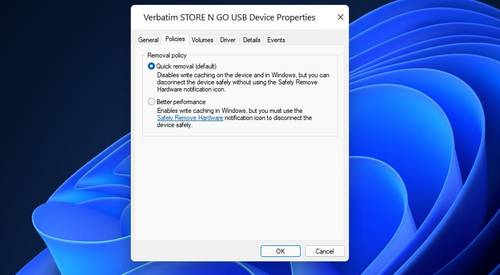
Beginning with Windows 10 version 1809, the default policy for external storage is Quick removal. Earlier versions defaulted to Better performance. The new policy covers Windoes 11 and 10, and says that under Quick removal you cans skip Safely Remove Hardware, since Windows can’t cache dis writes.
The policy is set per device and sticks when you connect the same external drive to the same port.
Windows hardware makers say the same thing: MSI calls Quick removal the Windows default and says standard flash drives can stay on it.
This was seven years ago, but drives set to Quick removal can still appear in the Safely Remove menu. That just means it joins other old PC maintenance rules that aren’t true anymore.
If you’re worried about slower drives due to caching being turned off, modern USB writes are fast enough that caching gains are minimal. Plus, flash drives are much faster than they used to be, with the best of them approaching some SSD speeds.
If you want to check your own drive, it takes about 30 seconds.
Right click Start > Disk Management, right-click the drive’s label in the lower pane, then hit Properties > Policies.
If you don’t see a policies tab, Microsoft says to go to Hardware, choose the drive from All disk drives, then click Properties.
MSI says there’s an alternate path at Device Manager > Disk drives > [your drive] > Properties > Policies.
Quick removal keeps your risk low, but not completely free
Pulling mid-write is still a bad idea
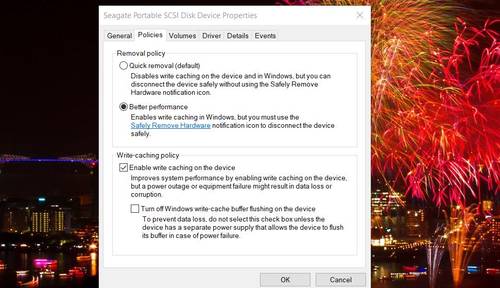
Quick removal only makes it less likely that a drive looks done if it isn’t. Pulling it out of your PC during an active write can still corrupt your data. The risk is minimized, just not eliminated.
If your files are open, too, unplugging while the app is holding the document can lose or damage it.
NTFS logs metadata changes so it can roll back the volume to a consistent state after failure. exFAT relies on a simpler flag (“volume dirty”) that marks a volume as probably inconsistent.
If you’ve built a fast external drive and formatted it exFAT, like in this old laptop SSD conversion, this mid-write warning applies even more.
When to keep the old habit

If you’re using a fast external Thunderbolt SSD and do a lot of big-transfer workloads, MSI recommends switching to Better performance with Enable write cachikng on the device, and then using Safely Remove every time.
The same goes for a Linux or Mac box; both OSes tell you to safely remove drives before unplugging them.
When Windows throws the infamous “device is currently in use” error, PowerToys’ File Locksmith shows which processes are holding files on the drive and can end them for you. It’s a fitting fix for a warning that, like a lot of Windows advice we’ve followed for years, sounds scarier than it is.
The eject icon can stay; my guilt can go
For an ordinary flas drive on a default Windows 11 (or 10) PC, finish the copy operation, close your files, and pull the drive. If you’ve got a speed-tuned SSD or a drive that moves between operating systems, take the extra two seconds to hit the eject button first. I’ll likely skip the eject button when using Windows, myself.