
I use YouTube for videos, Gmail for emails, and Maps for navigation. Yet, I’ve never been able to commit to Gboard as my default keyboard. Instead, I prefer SwiftKey on my phone.
Don’t get me wrong, Gboard is an excellent keyboard, but it’s not comfortable enough for someone coming from SwiftKey. But whether I like it or not, I often need to use it on other Android phones I test. So this time, I decided to tweak the things I dislike most about Gboard. And after a few changes, the keyboard feels much more usable.
The number row is now permanent
And the keyboard is bigger too
Gboard, for some reason, doesn’t show a number row at the top by default. So unless I’m typing into a password or PIN field, I have to either switch to the number pad manually or tap and hold the top row to input digits. That back-and-forth gets annoying fast, especially when I’m entering addresses or mixing text with numbers.
Now, Gboard does support a dedicated number row, but just doesn’t enable it by default, and finding the setting takes more digging than it should. To turn it on, open the Gboard app, tap Preferences, and toggle on Number row. While you’re in there, make sure the Number row for passwords is also enabled.
The other thing that helped was resizing the keyboard. Gboard’s default height always felt a little cramped for me, and I’d end up hitting the wrong keys more often than I’d like. To fix this, tap the drawer icon on the top row of the keyboard, then tap Resize. Drag the keyboard up to increase its height, and tap OK when it feels right. A taller keyboard with the number row on top made a noticeable difference in how often I mistype.
Keep only the shortcuts you use

Gboard by default adds five different shortcuts to its toolbar. You have the settings toggle that works for both getting to the keyboard settings and, with a long press, shows additional shortcuts. Then there’s the shortcut to emoji, undo, and clipboard. That’s a lot of icons sitting at the top, and most of them I don’t use frequently enough to justify the space.
I prefer to arrange them in the order I use them the most, which means Clipboard always takes the first place. Then there’s Settings, One-handed mode, and Translate. To rearrange them, tap the drawer icon on the top row and drag the shortcuts from the bottom panel up into your preferred order.
For emojis, I skipped the toolbar shortcut entirely and enabled the Emoji fast access row instead. To turn it on, open Gboard settings, tap Emojis, Stickers, and GIFs, and toggle the Emoji fast access row option. Now, when I open an app like WhatsApp, there’s a dedicated emoji row showing my frequently used emojis right above the keyboard. It’s a cleaner setup, and I don’t have to hunt for the emoji I want through a toolbar button.
Learning Gboard gestures
Small gestures that save a lot of time
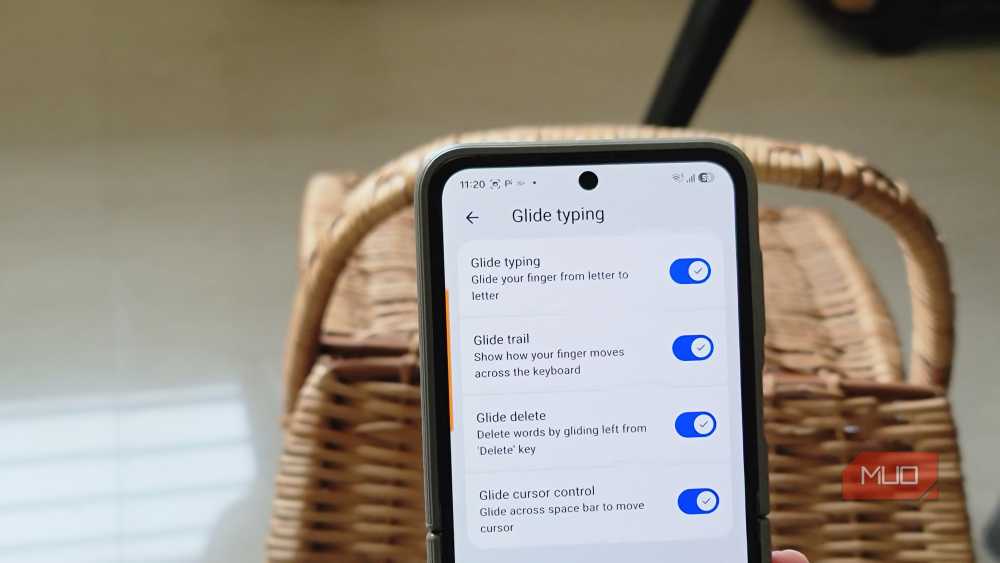
One reason I prefer SwiftKey over Gboard is Flow Through Space, where you can type words without lifting your finger to add a space. Gboard still doesn’t have that feature, but it does have some useful gesture support out of the box. I just had to take the time to learn them deliberately.
For instance, pressing and holding the spacebar and then swiping left or right moves the cursor through the text. Very handy if I need to make a quick adjustment without leaving the keyboard to use the touchscreen’s cursor handle. Similarly, pressing and holding the delete key and swiping left lets me select and remove entire words or sentences at once, instead of tapping delete one character at a time.
Unfortunately, what both Gboard and SwiftKey lack is Samsung Keyboard’s two-finger swipe gesture for undo and redo, which is a lifesaver when you accidentally delete a chunk of text. But both keyboards do have instant undo and redo buttons in the toolbar, so you can fix mistakes without having to retype everything.
Another gesture I’ve come to depend on is flicking keys to enter symbols. You can enable it under Settings > Preferences > Flick keys to enter symbols. It allows you to touch a key and pull downward to enter its hinted symbol, like pulling down on the “e” key to type “3.” It’s a handy shortcut when I’m using the phone in one-handed mode and don’t want to switch between the letter and symbol layouts.
Reviewing my text correction settings
Fine-tuning autocorrect makes a big difference

Text correction is where Gboard can either feel helpful or get in the way. The default settings tend to be aggressive, and I found that turning off a couple of options made it less intrusive.
Open Gboard settings, tap Text correction, and start with Auto-correction. Gboard’s autocorrect has a habit of changing perfectly fine words into something else, especially with names, slang, or words it hasn’t seen before. Turning it off doesn’t mean you lose all help. The suggestion strip still shows word predictions above the keyboard, so you can tap the right word if Gboard guesses it. You just don’t get the surprise edits mid-sentence.
I also turned off Auto-capitalization, since it sometimes capitalizes words after abbreviations or periods in URLs. Show suggestion strip stayed on because the predictions are still useful even without autocorrect. And I kept Next-word suggestions enabled, which predicts the next word based on what you’ve already typed. With autocorrect off but suggestions on, Gboard feels less intrusive and lets me type the way I want.
Bonus tip: Clear Gboard app data
Starting fresh can help fix bad suggestions

Before making my switch to SwiftKey, I noticed Gboard getting noticeably worse with typos and bad autocorrections. I had been using it as my default for almost six years, and over time, it has only gotten worse. It would suggest words I’d never intentionally type and autocorrect common words into nonsense.
A quick fix to this problem was to clear Gboard’s app data. Go to Settings > Apps > Gboard > Storage, and tap Clear data. This resets everything: your learned words, your personal dictionary, your preferences. Now you are starting a fresh install of Gboard, and the keyboard has to relearn your typing habits from scratch.
After clearing the data, I re-enabled my preferred settings, the number row, the resized keyboard, and the toolbar arrangement, and within a few days, Gboard’s suggestions were noticeably better. If you’ve been using Gboard for years and it feels like the predictions have gone downhill, clearing the app data is worth trying before you switch to a different keyboard entirely.

- OS
-
Android, iOS
- Developer
-
Google LLC
Gboard is Google’s free keyboard app for Android and iOS, offering glide typing, voice input, emoji search, GIF sharing, Google Search integration, and multilingual support, all built into one keyboard.
Gboard is better than its defaults suggest
Gboard’s out-of-the-box experience doesn’t do it justice. The keyboard hides some of its most useful features behind menus, ships with aggressive autocorrect, and clutters the toolbar with shortcuts that you specifically may not use. If you’ve been frustrated with Gboard but haven’t dug into its settings, there’s a good chance the keyboard you want is already there, just buried under the defaults.