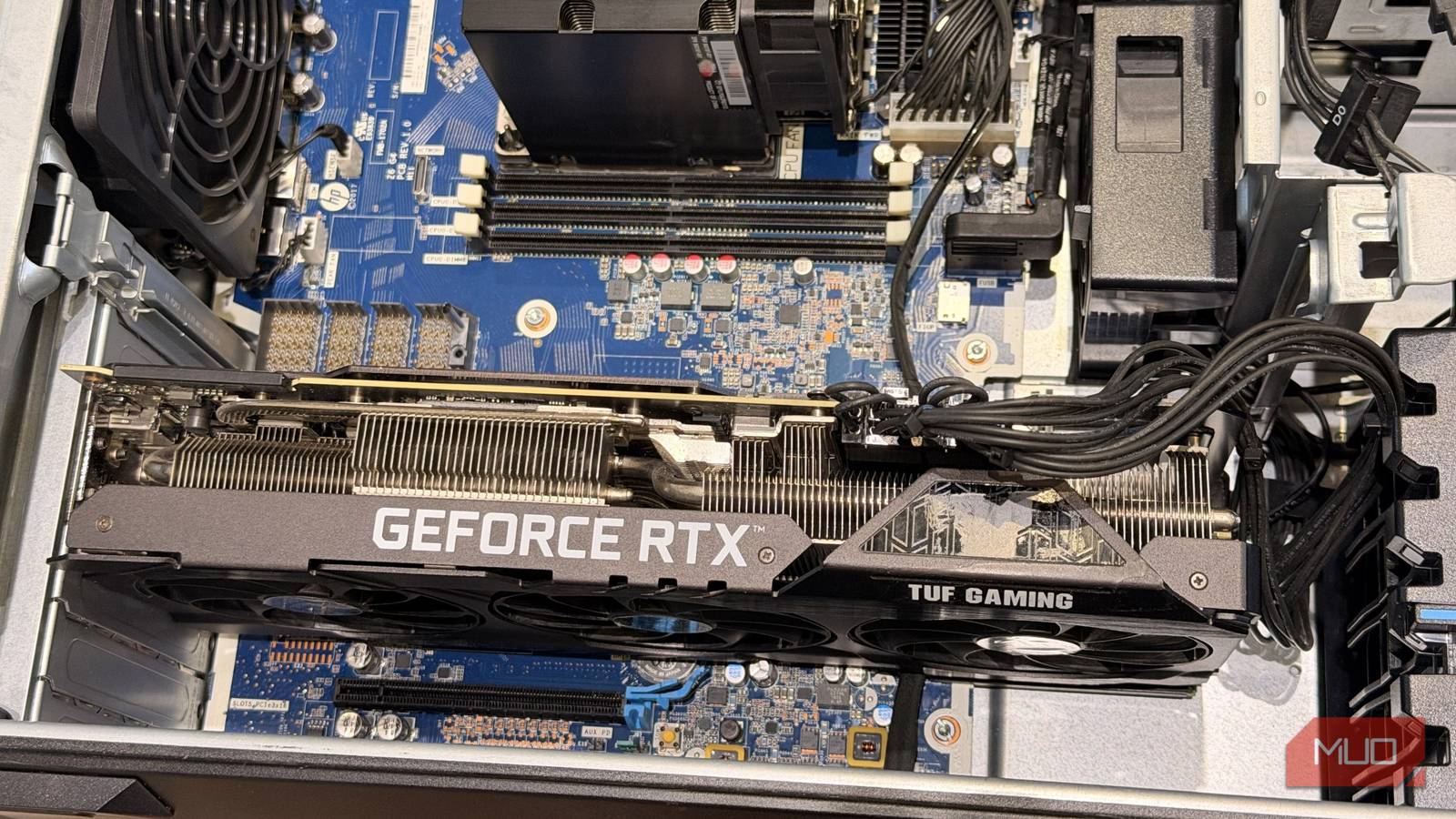
GPU passthrough is a fun little side activity, and essentially lets you allocate an entire (or, in some cases, part of the) GPU to a virtual machine. This gives your virtual machine 3D acceleration capabilities that far exceed what a virtual display driver is capable of — letting you run the most demanding of games with relative ease.
It might sound complicated, but it’s actually quite easy to get up and running, assuming you’re familiar with both virt-manager and QEMU in the first place. I set up mine using an existing, older Dell Latitude, and it’s been a joy to use so far.
How to get started with GPU passthrough
A bit of a long process, but it’s just a one-time setup
GPU passthrough is easy but a bit lengthy. You’d go through a QEMU/virt-manager setup as usual first, so make sure you have that sorted out. Once that’s all done, you’ll want to follow the steps in sequence (using virt-manager for reference):
- Fire up the VMs tab. Don’t start it just yet.
- Under the Add Hardware section, select PCI Host Device.
- This will bring up a menu of your populated PCIe devices. Select both the display adapter for your GPU and its associated audio device. This number will vary from system to system.
Once added to the guest, you can simply boot into the virtual machine as usual (assuming no mishaps are in place), and it should grab the card as intended.
Not all cards behave nicely with GPU passthrough. Research and look into solutions like vendor-reset for your needs. Your GPU must also be bound to the vfio-pci drivers for this to work.
While this is admittedly a rough gist of how to enable GPU passthrough, I promise it isn’t as scary as it seems. It takes a bit of patience, and often a lot of workarounds, but it’s a one-time setup process that is well worth the time investment.
Exploring GPU passthrough
And setting up the virtual machine

Once the vGPUs are configured, we can move on to installing the virtual machine itself. I’ll use QEMU with virt-manager for this example, using Batocera and Bazzite as the guest operating systems of choice.
Bazzite was an obvious pick, since it’s essentially a gaming-focused Linux distribution. It works fantastically well with any GPU you pass through (Nvidia users might need to reconfigure, though) and can play games from both Steam and other frontends like Emulation Station.
Batocera, on the other hand, is a bit of an interesting pick. It’s an incredibly lightweight gaming operating system that comes with its own unique frontend. You might still need a workaround for the display, however.
I managed to pass through one of the vGPUs from the iGPU of my Intel laptop, and it both installed and booted up just fine, provided you followed the instructions on the official wiki page. Alternatively, if you don’t have access to SR-IOV, the default Virtio drivers seem to work just fine for lighter stuff in Batocera.
Configuring GPU passthrough in QEMU
It’s a fair bit complicated

Before you begin, you’ll need an ISO disk image file containing the installer you wish to use. Once you’ve acquired the disc image, it is time to set up QEMU using virt-manager. Fire up the program, and make the following changes using the GUI tool:
- First, create a new virtual machine. You can do this by firing up virt-manager and creating a new virtual machine (denoted by a Play button within a monitor icon).
- The first prompt lets you choose an installer disc. Select Local install media and hit Forward. You’ll now have to select your disc image — this can be done by adding the directory containing the file into the user interface: you cannot select ISO files directly for some reason.
- Double-check whether the ISO’s operating system is properly auto-detected. If not, you’ll need to manually select the operating system before proceeding.
- Next, select the amount of RAM and vCPU cores you can allocate to the virtual machine. This depends largely on the OS you’re using, but make sure to do so in moderation. Passing through too much system RAM and CPU cores will eventually slow your host system to a crawl and is not recommended.
- Next, you’ll create a virtual disk image for the virtual machine. Select the “create custom storage” option, and choose a directory to house your images. Once the directory has been created, hit the + button and assign a virtual disk image. Choose a size, but make sure it is set to the raw format and make sure that the entire space is allocated to the volume.
- We should be mostly done here. The final step involves editing the virtual machine’s name and choosing the network device, both of which are automated.
- Just make sure to check the “Customize configuration before install” button before you finalize. If you skip this, you’ll speedrun through the whole process with some rather strange defaults, and you can’t change many things afterward.
If you plan to do GPU passthrough, bring up the virtual machine’s tab first. From here, click on “Add Hardware” and scroll down to “PCI Host Device”. From here, select the device ID that is allocated to your GPU, then hit Finish, and you should be (finally) done.
Make sure to pass through both the video and audio device for the GPU before starting the virtual machine. Not all GPUs are created equal, and some, like the AMD RX 6000 series, have stability issues, although there are workarounds.
All of which goes to say, your mileage will most certainly vary. This is what works for my system and is the general process to get GPU passthrough working. Experiment for a bit, and try running the virtual machine without GPU passthrough once, which should let you set things up and even play a few older, retro titles without much fuss.
Once you’re ready, you can pass through the GPU, update drivers on the guest, and perform a reboot to complete the whole process.
You might want to seek out an Intel-based machine
SR-IOV is a nightmare to get working otherwise

While you technically can use a regular AMD or Nvidia-powered PC just fine for virtual machine shehnigans, things get complicated once you delve into GPU passthrough.
Ideally, you’ll want at least two GPUs in the same system. This way, both the guest and host have their own physically separate GPUs to hook into. If you have only one GPU, the host server’s session is likely to crash as its sole display-out device is forcibly removed.
Integrated graphics also count as a separate GPU, interestingly enough. This lets you bind the host to the iGPU and dynamically allocate the dGPU to the guest when needed. This makes for a very powerful GPU-accelerated virtual machine.
However, if you’re looking for something more compact and/or on a budget, I’d recommend scooping up Intel-based machines. Unlike both AMD and Nvidia, Intel does offer vGPU capabilities in the form of a patched kernel.
Using a DKMS module package installer known as i915-sriov-dkms, we can achieve the same result with much less hassle. Once installed and configured, the DKMS module lets you split your Intel iGPU into multiple vGPU segments, each of which can be passed through to a separate virtual machine.
Not all Intel iGPUs are supported. Read through the i915-sriov-dkms Wiki to learn more.
This functionality is almost entirely absent on consumer AMD and Nvidia cards and iGPUs, making Intel a desirable alternative for virtual machine hobbyists. You just don’t have to spend a ludicrous amount on an enterprise card you probably don’t even need in the first place.
An older Intel NUC can do wonders as an emulation box
Speaking of, another perfectly valid use case is an Intel-based NUC. These machines are fairly cheap and surprisingly easy to upgrade. They’re also quite compact, quiet, and sip power.
Their iGPUs support hardware decoding and have enough grunt for basic emulation, which in turn makes them great little machines to have around and a great, low-cost alternative to a regular PC or server.