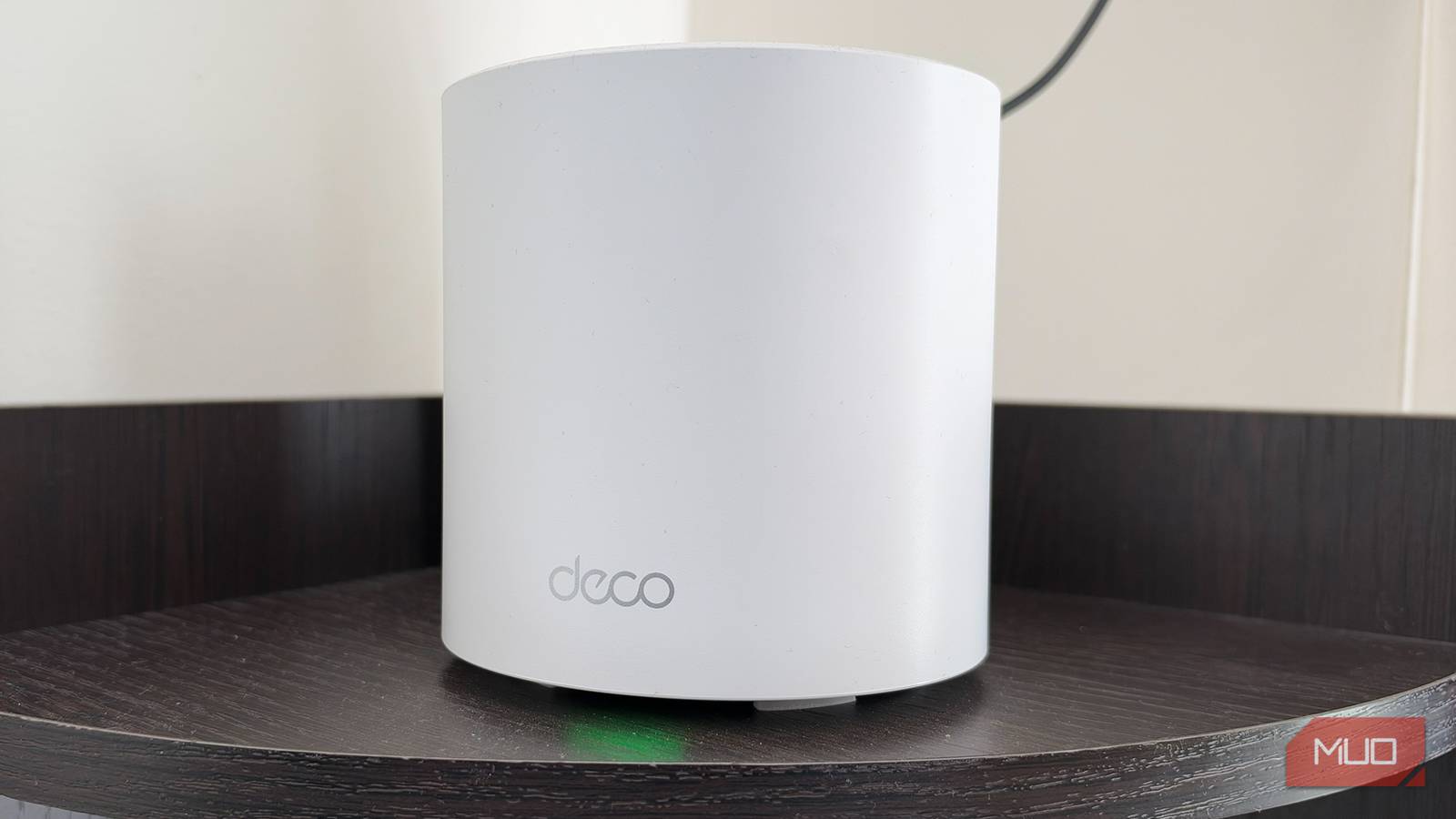
A little while ago, I got a new router after switching ISPs. Everything was going great until I started noticing my internet performance dwindling. On my previous router, I’d already made a couple of tweaks because I was experiencing similar issues. But with my new router, I just left everything as it was.
The thing is, default settings are usually set to make sure the device works immediately out of the box. But that plug-and-play compatibility often comes at the expense of your network’s actual speed, stability, and sometimes even security. So, your router might work perfectly fine with its default configuration, but that doesn’t mean it’s working as well as it could.
Auto-channel selection can put you on a crowded Wi-Fi channel
Manually choosing a less congested channel can improve your wireless connection
Regardless of the frequency band (2.4GHz, 5GHz, or 6GHz) your router uses, the default setting is to automatically choose a channel for you. Each frequency band has a set number of channels it can use to transmit data. And of course, you’ll expect the router to choose the best channel for you, but that’s not always the case.
In fact, routers often auto-assign overlapping channels (like channels 2, 3, 4, or 5 for the 2.4GHz band). Why does this happen, you may ask? Some routers have a basic auto-channel-selection feature that doesn’t always identify the cleanest channel. It might perform a quick scan when it boots up and select a channel that appears quiet at that moment. But that doesn’t reflect interference throughout the day, especially if you live in an apartment building or a populated neighborhood.
That’s why I prefer manually selecting a channel for my router rather than blindly trusting automatic selection. I use a Wi-Fi analyzer app to see which channels are free, then log in to my router’s admin panel, look for the wireless channel settings, and select a less congested channel.
Generally, channels 1, 6, and 11 are good for the 2.4GHz frequency band. Meanwhile, 5GHz and 6GHz have more non-overlapping channels, so you should be good for the most part.
Band steering can keep you on the wrong Wi-Fi band
Splitting your networks gives you more control over which frequency your devices use

Each frequency band has its strengths. For example, the 2.4GHz band offers better range and penetrates walls more effectively, while 5GHz can deliver faster speeds over shorter distances. So, to maximize performance and capitalize on the strength of each band at any given time, modern routers use a feature called band steering (or Smart Connect on some routers).
This feature combines every frequency band available on the router under a single SSID. This way, your device can automatically connect to the most suitable frequency band as conditions change. So, if you’re far from your router, your device uses 2.4 GHz, and when you’re closer, it could switch to 5GHz for better performance.
That’s genius, but the problem with band steering is that sometimes the router can be stubborn. Your router might keep a device connected to a weak 5GHz signal even after you’ve walked to the other side of the house. Instead of switching to 2.4GHz, it clings to the weaker band, resulting in slow speeds and unstable connections.
To combat this, I simply turn off band steering and give each frequency band its own SSID. This lets me manually choose which band to connect to based on what I’m doing and where I am in the house.
Your ISP’s default DNS servers might be slowing things down
Switching to a public DNS provider can sometimes make websites feel more responsive

When you first get internet service installed at home, your router usually uses the DNS servers provided by your ISP. DNS, short for Domain Name System, is basically the internet’s address book. It translates human-friendly domain names, such as makeuseof.com, into the IP addresses computers use to find websites and online services.
But ISPs’ DNS servers often have poor response times, which can cause web pages to load more slowly. Fortunately, you don’t have to be stuck with your ISP’s defaults. You can configure your router to use a public DNS provider instead. Two popular options are Cloudflare’s DNS service at 1.1.1.1 and Google’s DNS at 8.8.8.8.
QoS can help keep gaming smooth when your network is busy
Prioritizing game traffic can reduce the impact of other devices using your bandwidth

I play online games like Fortnite quite a lot, and Quality of Service (QoS) is one router feature I’ve found useful. By default, routers share bandwidth equally among various connected devices.
So I could be in a match, then someone in my house starts streaming a movie in 4K, and suddenly my game starts lagging. But with QoS enabled, that wouldn’t happen because it’s designed to prioritize certain network traffic or devices, so important activities get preferential treatment when your connection is under pressure.
So, all I had to do was put gaming traffic or my gaming device at the top of the QoS list, so it gets higher priority. That way, when my network gets busy, the router focuses more on gaming traffic rather than other activities.
A few router tweaks can make a real difference
Your router’s default settings are designed to get you online with as little setup as possible. That’s convenient, but it doesn’t mean every default is ideal for your devices or the way you use the internet.
Little changes here and there can help improve the quality of your internet connection. But remember, poor connection isn’t always caused by your router’s settings. Your ISP, router placement, walls, interference, and your devices all play a role. Still, before spending money on a new router or a faster internet plan, it’s worth checking whether a few overlooked defaults are holding your current setup back.

- Coverage
-
5,500 sq. ft.
- Number of Devices Supported
-
Not Provided
- Bands
-
Tri-Band
- Speed
-
4804Mbps (6GHz), 1201Mbps (5GHz), 574Mbps (2.4GHz)
- Wi-Fi Protocols
-
802.11ax, 802.11b, 802.11a, 802.11g, 802.11ac
- Security
-
WPA2-PSK, WPA-PSK, WPA-Enterprise , WPA2-Enterprise , WPS support