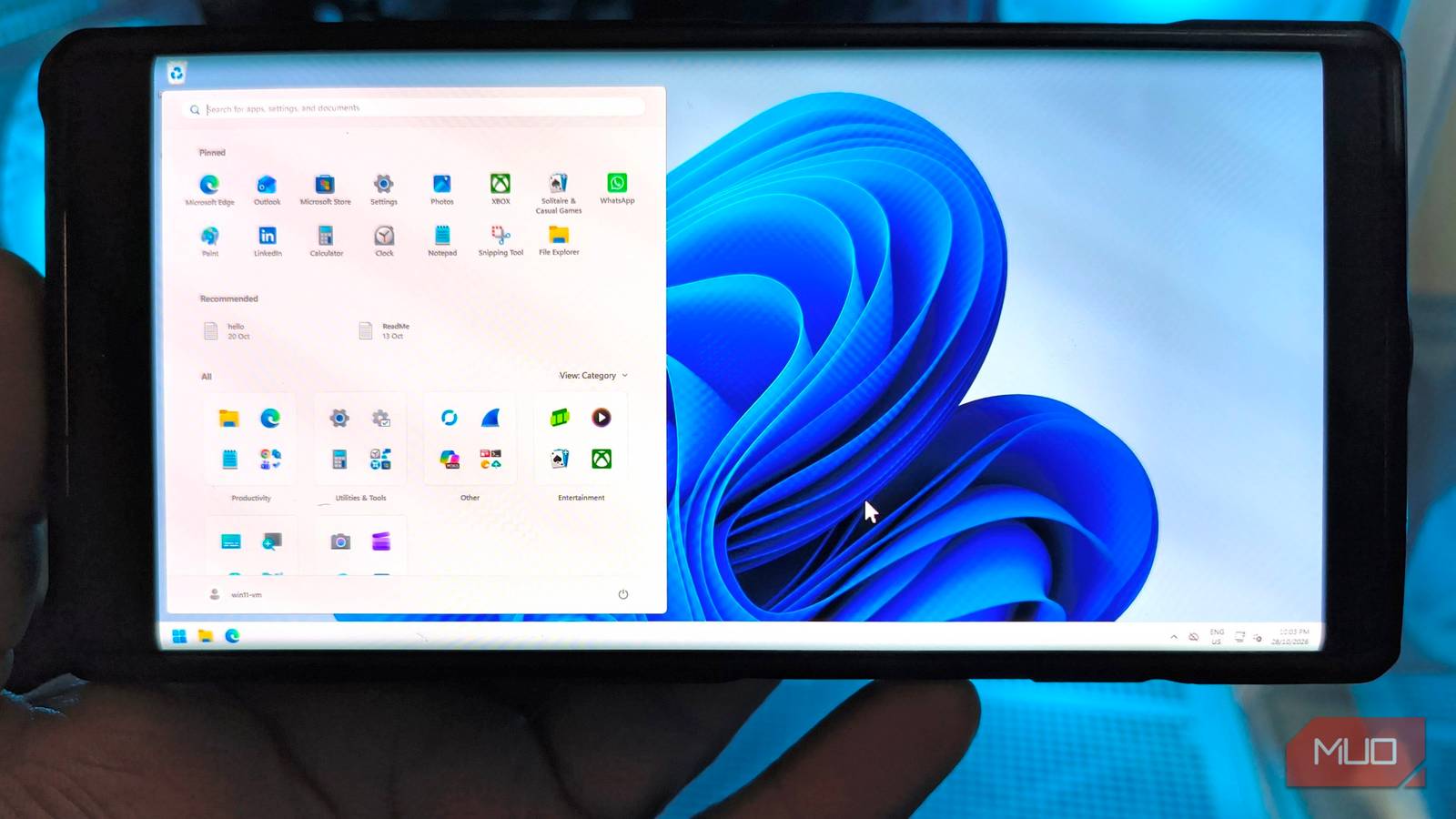
My phone has a 6.9-inch screen, but I’d never looked at it before and thought, “Yep, that’s perfect for managing a server full of virtual machines.”
Between Proxmox’s busy web interface, full desktop consoles, and my fairly big hands, I’d assumed that was always going to be a job for my laptop.
But dragging my laptop with me when I’m away from the house only to check a VM starts to feel a bit unnecessary. I already had a small server providing access to my home network through Tailscale. Adding the Proxmox VE app and aSPICE gave me a way to manage those VMs and open their consoles directly from my Android phone.
The question was how much I could comfortably do with my thumbs while on the move.
Tailscale
My existing subnet router gave my phone a way home
The first part of making this all happen was easy, mostly because I’d already built the networking side. My old Intel NUC was configured as a dedicated Tailscale subnet router and DNS server to handle access to my home LAN through CGNAT.
I didn’t need to install Tailscale on my Proxmox server just to reach every single VM.
On Android, I signed in to the same Tailscale network, connected, and used my usual home IP addresses. I tested everything through a separate mobile hotspot, so my home Wi-Fi didn’t take credit for the local access.
That connection let me:
-
Reach Proxmox through its usual local hostname,
proxmox.home.arpa. - Open my n8n workflow running on the network-ops VM using its local IP address.
- Access other devices on the subnet without needing to give every single one its own Tailscale installation.
There’s a little bit of preparation hiding behind that easy experience, but unlike a VPN or even port forwarding, a Tailscale router is incredibly easy to set up. The only real downside is that the NUC gateway must always be online and available for this setup to work.
My NIC also acts as an exit node, but that’s a separate job to configure. Subnet routing provides access to my home LAN. The exit node routes my phone’s traffic through my home connection, making it a great way around limits imposed by other networks.

- OS
-
Windows, macOS, Linux, Android, iPhone
- Developer
-
Tailscale
Tailscale is a zero-config, VPN-based remote access tool. It’s based on the WireGuard protocol and creates peer-to-peer connections between devices, regardless of location.
Proxmox VE Mobile
Checking my VMs no longer requires a desktop browser
Once Tailscale had me connected, I could open Proxmox in my phone’s browser. Having already spent enough time pinching and zooming into desktop website interfaces, I decided to check if Proxmox had a mobile app.
It turned out they did, and after connecting it to my server using my Samsung’s biometrics, I had a tidy, mobile-optimized list of VMs with clear online and offline labels. Opening my Windows 11 VM brought up its CPU and memory usage graphs, hardware details, and management controls without forcing me to navigate a full web interface.
From there I could easily:
- Check which VMs were running before trying to connect.
- Inspect virtual hardware resource usage and the VM’s hardware configuration.
- Access power controls or open a console from the same screen.
That covered nearly all the quick checks I’d have otherwise dug out the laptop for. Unfortunately, like the default Proxmox console on desktop, the mobile app also used noVNC.
noVNC works reasonably well with a keyboard and a mouse, but gets awkward really fast on mobile with poor scaling, clunky and intrusive menus, and a mouse pointer that’s about as accurate as, well, my thumbs.
The solution to this was going to be the same as I used on my laptop: the SPICE console.
I prepared the SPICE console through Proxmox’s desktop web interface. Under the VM’s hardware settings, I changed Display to SPICE and assigned 64 MiB of video memory (shown as qxl,memory=64). These display settings were unfortunately not available in the Android app.
Back on the phone, the console menu offered SPICE alongside noVNC. Selecting it handed off the connection to an external client, which is where the next tool comes in handy.

- Developer(s)
-
Proxmox Server Solutions GmbH
- Platform(s)
-
Android, iOS, iPadOS
Proxmox VE Mobile lets you monitor and manage your Proxmox servers, virtual machines, and containers from your phone. Check resource usage, control VM power, and review backups and tasks.
aSPICE Pro Secure SPICE Client
Proxmox Mobile’s console issue was solved once I could actually control it
noVNC got the VM’s desktop onto my phone fine. It was just unusable. Viewing is one thing, but I also needed to click things, type commands, and occasionally press a key that didn’t exist on my Google keyboard.
aSPICE filled that gap nicely. There’s a free version of the app, but to work with Proxmox connections, I needed the Pro version. Selecting SPICE in the Proxmox app now opens the connection in aSPICE, letting me move from an essentially view-only desktop to full interaction.
I tried it out with three very different guest VMs:
-
A headless Ubuntu Server, which I logged into and ran
fastfetchandhostnamectlto check system information. It gave me an experience quite close to SPICE on the desktop but with a working clipboard. - I connected to my Windows 11 VM and poked around the desktop and opened the web browser. aSPICE’s on-screen navigation keys gave me access to arrow keys as well as Alt, Ctrl, and Del.
- The Linux distro CachyOS with its KDE desktop loaded comically small when trying to adapt to my Samsung’s native resolution, but this was easily fixed by fixing the scaling in the app.
Zoom helped immensely with readability. On the Ubuntu Server, I could enlarge the console text in portrait orientation and still have the Android keyboard and aSPICE’s extra keys happily sitting under it.
Input modes for the cursor include direct-touch, which is useless for my giant thumbs, and also a simulated touchpad.
There were still a few compromises, though totally forgivable given what the app was trying to accomplish. Zooming in meant I lost most of the terminal screen, and opening the keyboard in landscape mode buried half of the desktop under opaque keys.
CachyOS made these limitations especially obvious, but to be fair, I’ve had issues with Linux VMs displaying correctly on the desktop SPICE client as well.
Try the input modes, scaling, and zoom levels while doing a real-world task like entering a command in PowerShell or trying to navigate a folder. My zoomed Ubuntu console remained readable with the keyboard open, while the desktop session was unusable until I enabled the simulated touchpad. Different tasks are going to have different settings, so it’s best to test the ones you often perform first.

- Developer(s)
-
Iordan Iordanov (Undatech)
- Platform(s)
-
Android, iOS, iPadOS, macOS
aSPICE Pro lets you access and control SPICE-enabled virtual machines, including Proxmox guests. Touch controls, zoom, and on-screen keyboard shortcuts make desktop and terminal consoles usable from mobile devices.
Remote access is useful until I break it
A VM console gives me a way back in when the guest’s network access fails

“Why not just use RDP or RustDesk?” It’s a perfectly fair question. For ordinary remote desktop work, I’d absolutely use remote-access tools. But what if that service stops working, or I lock myself out with one of my famous over-enthusiastic early morning firewall rules?
I want access to the VM’s console so I can see what happened and maybe undo some of my own handiwork.
As long as Proxmox and my Tailscale route are reachable, that console connection doesn’t depend on remote-access software or working networking inside the guest. That’s why this combination of apps and this workflow is so useful, beyond the novelty of having a Windows desktop on my phone.
Of course, I’d still fetch my laptop for any serious troubleshooting or anything that requires substantial typing. But checking resource usage, managing a VM’s power, or opening a console to investigate now feels totally fine with my Android phone.
Tailscale gets me home, Proxmox puts me in charge of my own VMs, and aSPICE lets me work inside them. No, it won’t replace my laptop any time soon, but it handles the jobs that aren’t worth dragging a laptop around for just fine.