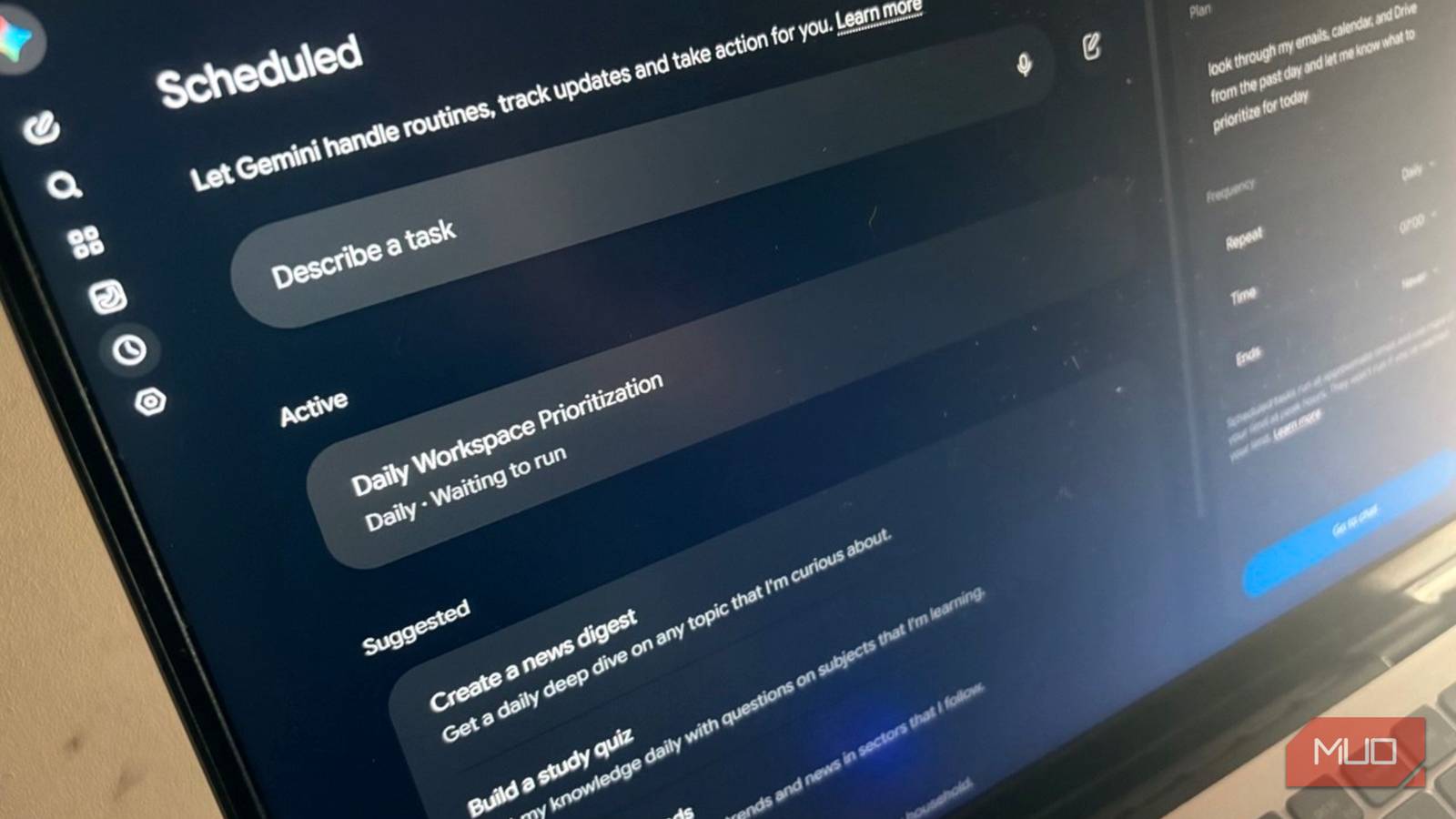
I bet that, like me, you still check Gmail and Google Calendar individually in the morning. Maybe you rummage around Google Drive for some important file. It’s a harmless routine, but old muscle memory makes us jump between apps just to figure out what deserves our attention. Yes, it’s a bit tedious. I wanted to see if Gemini could do this for me. By connecting it to my Google Workspace account and giving it one carefully worded prompt, could I bring information from these services into a single “brief”?
I connected Gemini to my Google Workspace
Give Gemini access to your Google apps
Gemini can access information from Gmail, Google Calendar, Google Drive, Google Docs, and other Workspace services through its Google Workspace connection feature. Instead of going down email threads or opening documents, I can ask Gemini targeted questions about information already stored in my Google account.
To get started, I open Gemini and make sure I’m signed in with the same Google account I use for Gmail and Drive. I then open Settings > Personal Intelligence > Connected apps > Google Workspace and enable the connection. You can click on the individual apps on the Google Workspace list to see what’s possible with Gemini and the prompts you can try.
For this to work, Keep Activity must be enabled in settings. Google also requires Smart features in other Google products to be turned on in Gmail. With those done, I can now explicitly mention Gmail, Google Calendar, or Drive in my prompts. I don’t have to connect each service separately.
I use one prompt to get my morning briefing
Ask Gemini to connect the dots

I can always ask disconnected questions about my inbox and schedule. But what I want is a bird’s-eye view of stuff I need to get to today. It tells me what needs attention and also spots potential conflicts. For instance, an urgent email task from the office can clash with an already scheduled event on the calendar.
Gemini works best when you name the source. So, tag each app, then spell out the specific sections you want. As always, Google prefers the use of keywords from the content for precise searches. The prompt is simple:
@Gmail @Google Calendar @Google Drive Give me a morning brief. List today’s meetings with times. Then list unread emails received in the last 24 hours that need my reply today, sorted by urgency. Lastly, find Drive files related to today’s meetings. Keep it under 200 words.
In case you want to tweak the brief, you can explicitly ask it to organize the response under Gmail, Calendar, Drive, and Today’s Priorities. Other Gemini instructions can include the use of bullet points, dates and times where relevant. When there’s too much information, try asking Gemini to link to the original sources whenever possible. Also, I sometimes add an “ignore promotional emails” to prevent the brief from becoming a cluttered mess.
I usually end up refining this basic prompt as I learn what Gemini misses or gets wrong. For example, I might ask it to prioritize messages from specific people or ignore certain types of recurring tasks. Gemini has made organizing Google Drive files easier, but here it’s a weak link. Gemini can find the relevant and/or related files if you follow strict file-naming conventions or attach it to the tasks on the calendar. You do need to double-check. For instance, in my scenario, it found a taxation PDF which wasn’t important for organizing my financial sheet task.
Scheduled actions make it run by itself
Set the prompt once and let it repeat

Scheduled actions turn that prompt into a recurring one. Type “every weekday at 7 a.m.” into the chat, and Gemini sets the schedule. Daily, weekly, and monthly schedules all work, and each sends notifications.
I have found that the timing isn’t exact. Google says scheduled prompts run within an hour of the set time. So schedule it earlier than you need it. A 7 a.m. brief might land at 8, which is useless before an early call.
Gemini summarizes the schedule in its reply, so read that first. For maintenance, use the Scheduled page in Gemini’s menu to pause, edit, or delete any action.
Gemini Live is the hands-free version
Ask about your day while you make coffee

Gemini Live skips the typing. Open it and ask, “What’s my day look like?” Google’s Daily Brief page suggests a similar voice prompt: “Brief me.” Live can also add or change entries in Calendar, Tasks, and Keep, so you can fix your day as you hear it.
Live has limits, though. Google says only some Workspace services work in Live chats. It prioritizes Calendar, Tasks, and Keep; I’m unsure about Gmail and Drive. My voice brief so far is skipping important emails and files, though I can get it to find the starred emails.
That’s fine for a quick schedule check. Use Live for Calendar on the move, and let the scheduled text brief handle email and files. In each new chat, name the service you want.
Google’s built-in briefs haven’t reached me
Daily Brief and Spark both come with catches

Google’s Daily Brief summarizes Gmail, Calendar, and Gemini chats each morning. It splits them into “Top of mind” and “Looking ahead.” But Google lists it as US-only, English-only, and personal accounts only. Its help page doesn’t mention Drive either. To get past the restrictions, build your own scheduled prompt. It’s the great equalizer for now
Spark, Google’s background agent, is the other option. Google includes it with AI Pro and Ultra, not Plus. Unlike a scheduled action, it can start when something happens, such as an email arriving. Google is renaming it Task mode (or Task) in the app, though help pages still say Spark. I’m tempted to upgrade for that, as I’m on the Plus account.
But a simple morning brief only needs a time trigger. Upgrade if you want Gemini Spark to react to events. Otherwise, a time-based scheduled action does the job.
Try making your mornings less distracting
I don’t need another complicated productivity system. I want to spend less time figuring out what I should be doing and more time actually doing it. Try running this briefing prompt every morning for a week, check its sources, and refine the instructions based on what it misses. Gemini won’t replace my judgment, but it might make the first 15 minutes of my workday feel considerably less rushed.