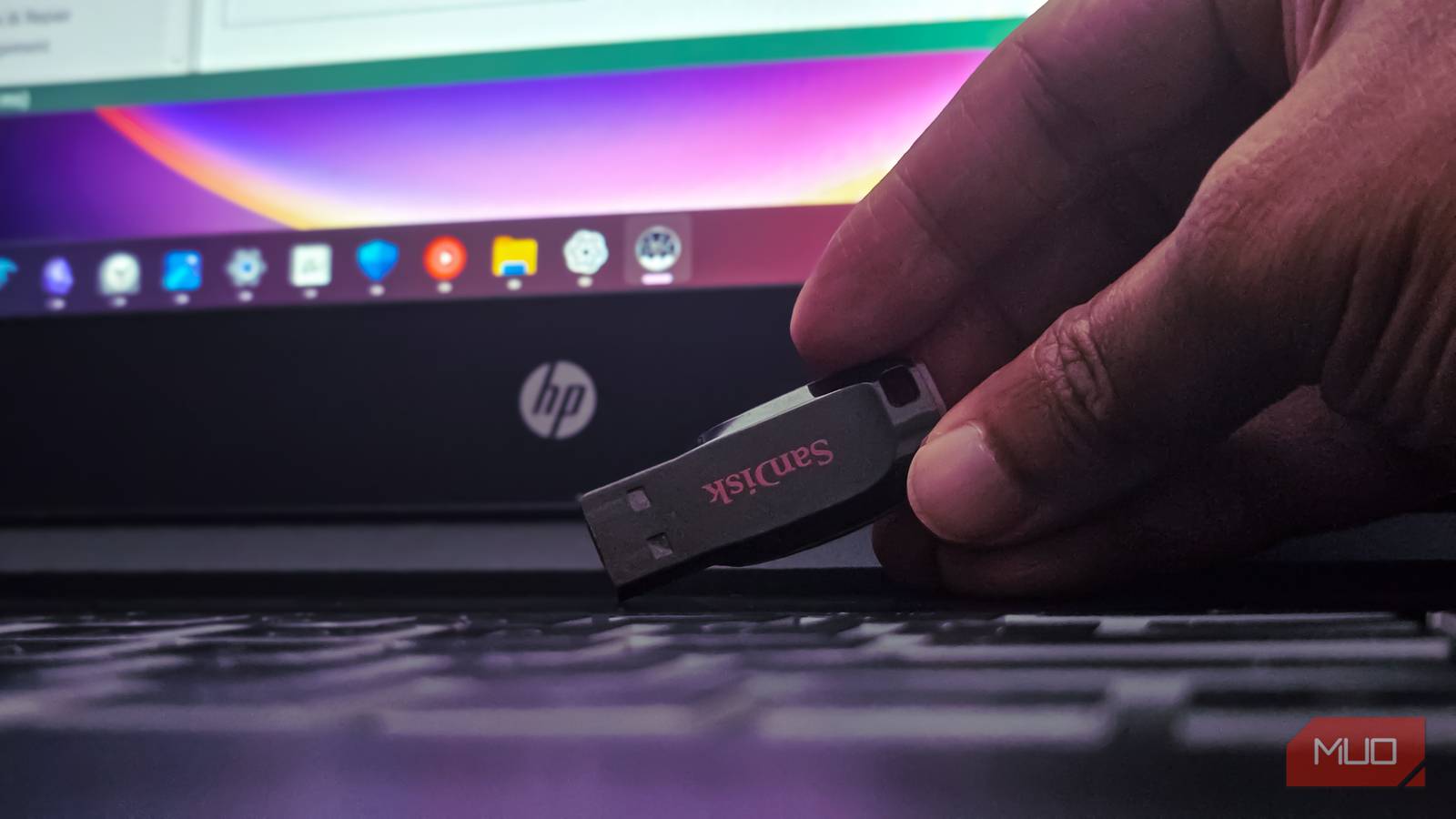
I’ve got this 16GB USB drive that has been to every corner of my apartment. I open my wardrobe, and it’s there. I open my drawer, and there it is. I open my fridge and… there it is again (JK).
The last time I used it was about six months ago, when I needed to reinstall Windows 11 on my laptop and turned it into a bootable drive. Ever since then, it’s been pretty much forgotten. I could’ve used it to store a few files, but honestly, I have better options for that.
Recently, I decided to turn it into a launcher for portable apps that run directly from the drive. And now, I have a much better reason to keep carrying it around.
Meet PortableApps
A Start Menu-style launcher, with my apps, files, and settings all on the drive

PortableApps isn’t an operating system or anything like that. It relies completely on the host computer’s actual operating system to function. But once I installed it on my USB drive, it gave me a Start Menu-like interface that pops up on top of my existing Windows screen.
The menu has a few things you’d expect from a regular operating system menu, including shortcuts to Documents, Videos, Music, and Pictures, along with a collection of apps I can launch straight out from the drive. Those folders are stored on the USB drive, too.
So, if I save a document or download a file through one of the portable apps, I can keep it on the drive instead of leaving it on the host PC. The folders open in Windows File Explorer (or whatever file manager your OS uses) rather than inside the PortableApps launcher, but the files themselves are still stored on my USB drive.
Apart from files and apps, all settings, bookmarks, and saved information remain on the USB drive. So whenever I plug the USB drive into any PC I like, the setup stays the same. But some apps still write data bits to the host PC (temp files, registry entries that are normally cleaned up on exit), and ejecting the drive without closing apps can corrupt data.
You get a repository of more than 400 portable apps
Only free and open-source apps
The main appeal of PortableApps is its repository of portable apps; you can already tell from its name. As of the time of writing, the platform offers more than 400 apps that you can launch directly from wherever you keep the platform. But the repository focuses only on free and open-source software.
You won’t find apps like Microsoft Word or Photoshop. Still, there are free alternatives, including LibreOffice Writer for documents and GIMP for image editing. You can also find browsers like Chrome, media players like VLC, utilities, games, and plenty of other tools.
PortableApps automatically categorizes apps based on their use cases, making it easier to find what you’re looking for. If that’s not how you prefer to organize things, you can change the setting and sort your apps alphabetically instead.
But the thing I like most about the tool is how easy it makes keeping my apps up to date. Normally, I’d have to check for app updates and install them manually. With PortableApps, though, I can do it all from one place. Just click the Apps option in the launcher and choose Check For Updates. The platform checks which apps are out of date and lets me update them together.
Microsoft Defender may sometimes flag or interfere with an app installer from the repository, preventing it from downloading or installing. If that happens, check the detection and make sure you’re using the official PortableApps source before deciding what to do. I wouldn’t recommend disabling Defender just to install an app, especially on a computer you don’t own.
I can use PortableApps in the cloud or locally, too
My portable app collection doesn’t have to live on a USB drive

The USB drive is what got me interested in PortableApps, but it isn’t the only place I can keep the launcher. I can also install it in a folder on my PC or store it in a synced cloud folder, such as OneDrive.
Running it locally means I can keep my portable apps in one place on my computer without installing each one separately. And when I use cloud storage, I can sync my app collection and data across multiple PCs, giving me access to the same setup from different computers.
I chose to keep a copy of mine in OneDrive. That way, I can access my portable app collection even when I don’t have my USB drive with me. The cloud copy gives me flexibility, while the USB drive is still handy when I want to plug into another Windows PC and take my apps and files with me.
Your own apps on any PC
I can’t count the number of times I’ve been in a situation where I need to use a PC that’s not mine, only to find myself changing settings, adding files, or installing apps just to get things done. But now, my almost-forgotten USB drive, alongside PortableApps, gives me a much easier way to get around that.
I can plug in the drive, launch my familiar apps, and access my files without having to set everything up from scratch. It isn’t a replacement for a full OS experience, and it won’t make every computer feel exactly like my own. But for quick access to the tools I use often, it works pretty well.

- OS
-
Windows
- Developer
-
PortableApps.com