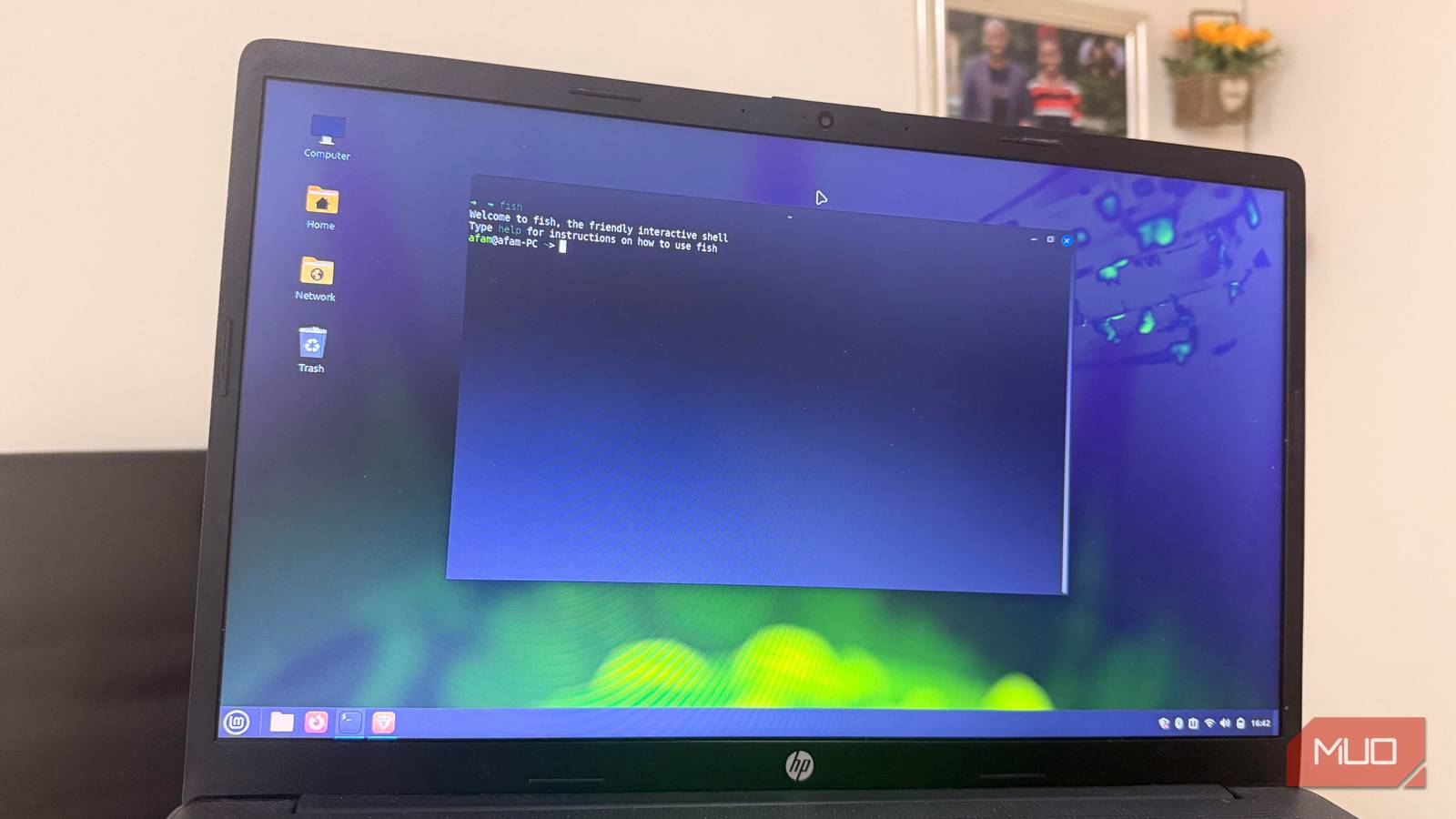
When it comes to bringing older machines back to life, Linux is most definitely a viable choice — provided you pick the right flavor. Ironically, Linux’s biggest strengths (being customization and user choice) also prove to be a barrier against its mass adoption. There’s just too many distros to count.
But what if you don’t want to switch from your existing installation? Switching to something like MX Linux, for example, might offer a substantial boost in performance, but I’d personally never stray from the familiarity of an Arch Linux environment. This puts me in a bit of a pickle.
Thankfully, there do exist ways to fine-tune your Linux machine and squeeze out every bit of performance possible, no matter how old the hardware might be.
Set up swap and zswap first
A must for machines with 8 GB or less RAM to spare
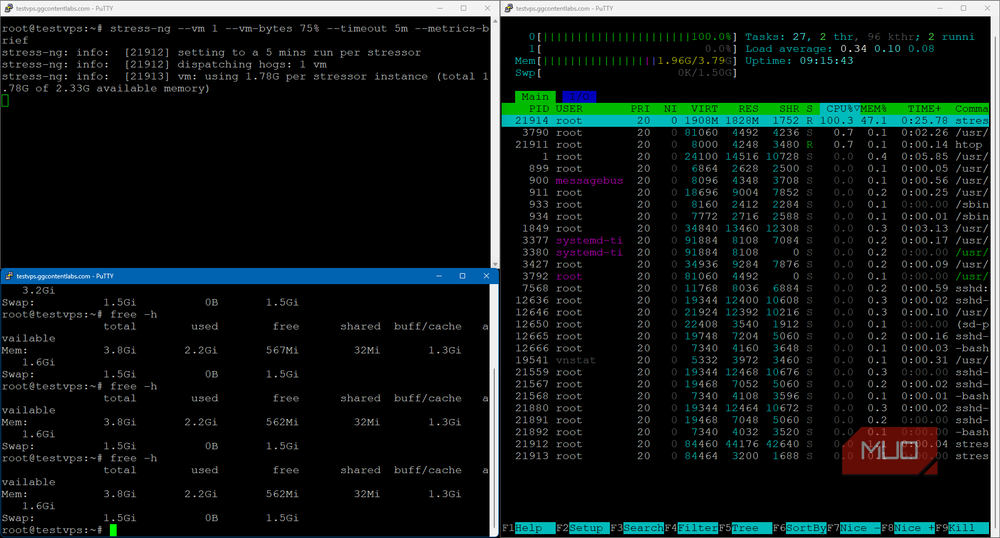
If you run a machine with 8 or less GB of system RAM, swap becomes a necessity very quickly. In fact, I’d still recommend setting a conservative 12 GB of swap space on your SSD even if you have 16 GB of RAM to spare.
That extra swap won’t hurt and might come in handy. Another thing to keep in mind is where you put your swap file onto. Swap essentially uses your storage as an extended RAM pool, and as you can imagine, the faster the storage, the better it performs. Try placing swap partitions exclusively on your NVMe drive.
There still is a way to supercharge swap, and that involves zram. Zram lets you compress swap into RAM, which is a lot faster than traditional swap. The general rule of thumb is to set your zram size to half of your total system RAM in Megabytes, along with setting the swappiness value to around 100, for a more responsive system. Zram-generator is available and works fine on most Linux systems, on top of being very easy to configure.
CPU power tuning and power profiles
The bulk of your hardware tweaks start here

Default power tunings can be wonky at best, especially on older AMD/Intel CPUs. Most AMD machines work best with the pstate set to active. Make sure to append amd_pstate=active in the bootloader options to enable the same. For Intel machines, there’s not much to tweak here, and the defaults should be good to go, for the most part.
Intel users might also want to disable mitigation to boost overall performance. Older Intel CPU generations seem to be most affected by these bugs, and the mitigations can easily be disabled by passing the split_lock_detect=off kernel parameter at boot.
This has real world security compromises. Use at your discretion.
If you’re on a laptop, try installing the power-profiles-daemon package and enabling its SystemD service. PPD automatically tunes your CPU clock speed between Performance, Balanced and Power Saving modes, which can make for a substantial difference in battery life and performance.
Most weaker machines do not fare well with anything other than the Performance profile enabled, with CPU boost being a necessity. If you notice your computer thermally throttle or heat up too quickly, it might be time for a clean-up and repaste as well.
Switching to a custom kernel and schedulers
The Zen kernel is a good place to start

While the stock Linux kernel is fine for the most part, there are moments when you might need a custom kernel, maybe for additional performance gains or to install some un-merged module. There have been a number of alternative kernels available for Linux systems, with the Zen kernel as the most common (and easily accessible).
The Zen kernel includes a series of patches on top of the vanilla Linux kernel, and I’ve seen them to make older machines feel faster. It’s easy to build, and most distros do ship a binary, so there might not be a need to waste hours compiling it.
Zen isn’t the only option here though, and there are many newer alternatives like the CachyOS kernel.
Combine this with something like a custom scheduler, you’ll end up with a significantly more responsive machine. The scx-scheds package is a fantastic place to start, and has a lot of options to choose from.
I’d recommend switching to the lavd scheduler, set to Auto. It’s a decent, balanced preset that works especially well for games.
Switch to a lighter desktop environment
And make sure to restrict any fancy animations
Your Linux desktop environment (DE) can make all the difference in terms of how well your computer performs. Not all DEs are created equal, though, and some are significantly heavier than others in terms of resource usage.
GNOME, KDE, and COSMIC are not particularly well tuned in this regard, and I’d recommend throttling down all the fancy effects and animations if you insist on using it on a lower-end machine.
Simply disable all animations, and keep visual effects to a minimum. It might also be worthwhile to remove a few plugins to not overwhelm your system. GNOME users beware.
Alternatively, you could also consider switching to a much more lightweight desktop environment, like Xfce. Xfce may not be the prettiest desktop out there, but it is very functional and sips resources, making it run on virtually anything.
You could also consider using a tiling window manager like Hyprland instead. Tiling window managers aren’t particularly resource intensive and retain superior visual effects. Still, they can be rather tedious to configure.
Swap your boot drive for an SSD if you haven’t already
The difference is significant

The biggest upgrade you can give to your old machine is a brand-new SSD. Switching over from an HDD to an SSD will make for an impressive jump in system responsiveness. Apps will open quicker, and there is generally a lot less waiting around for tasks to complete.
Even a regular, cheap SATA SSD is fine for most use cases. An NVMe works best, but those are ridiculously expensive nowadays. Not to mention, not all of these older PCs support NVMes, with some forced to use mSATA instead.
Whatever you do, make sure to have your operating system installed on the SSD first, instead of on a hard drive (or an older SATA-based SSD). This ensures that your system stays on top of everything and so that nothing slows down to a crawl. It’s also a lot more power efficient, generating less noise and heat.
Don’t go overboard
There is only so much you can tweak before you eventually end up hitting a performance wall. Newer hardware is always going to be a lot more efficient and performant. No amount of optimizations will bridge the gap.
All things considered, though, there still is a ton of mileage to get out of an older machine, and tweaks like these help it kick along instead of being trashed into the pile of glorious E-waste.