Windows updates are supposed to improve a PC in the background, but mine developed a habit of leaving the Wi-Fi connection technically alive yet practically useless. The signal stayed strong, yet downloads lost momentum, video calls stuttered, and local transfers moved in unpredictable bursts.
Restarting the router sometimes made the timing seem convincing, but the problem kept returning after subsequent updates, making the coincidence harder to believe. I worked through the usual things to check when Wi-Fi is slow, but something in the update process was changing how the laptop handled its wireless connection. Finding it took more than resetting the network settings, but once I traced the pattern, the slowdown made sense.
I traced the slowdown to a driver update
My router had an alibi

Device Manager was where the evidence showed up, but I didn’t get there until I’d ruled out the obvious. Router congestion, a weak signal, and aggressive Wi-Fi power management can all produce similar symptoms, and none of them involve a driver. What convinced me this was different was the timing. The slowdown started after an update finished installing, every time, on a laptop that sits a few feet from the router. At that point, it made more sense to look at what Windows had changed than to keep blaming my ISP or router.
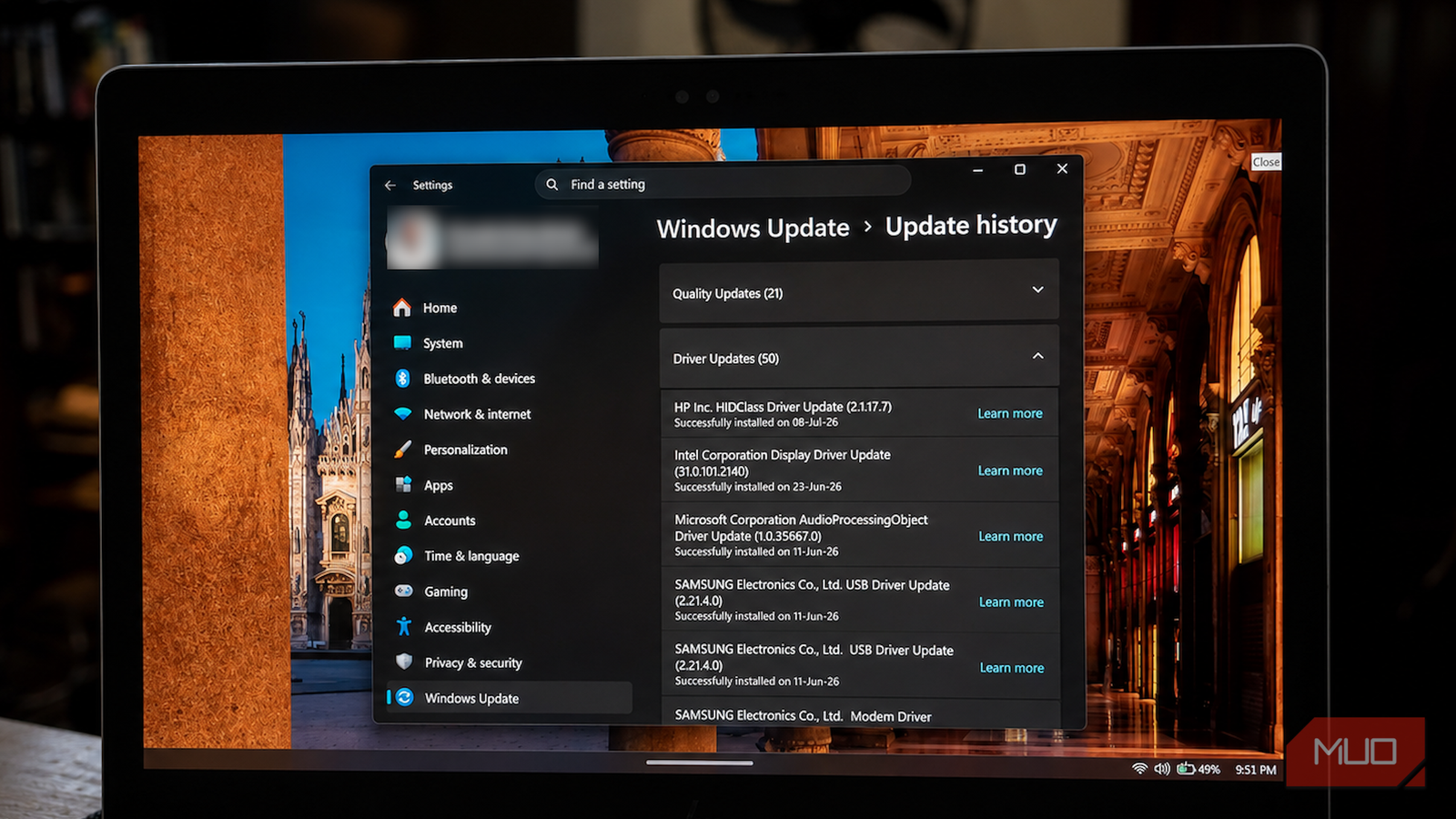
I opened Device Manager, expanded Network adapters, right-clicked my wireless card, opened Properties, and moved to the Driver tab. The provider, date, and version differed from those of the package that had been working reliably for months. Update History completed the timeline. Under Settings > Windows Update > Update history, installed updates are grouped into categories, including Driver Updates. One driver entry there matched the same day my Wi-Fi started misbehaving.
Once I knew what had changed, the fix was simple enough in my case. Device Manager has a Roll Back Driver button, and rolling back a Windows driver restores the previous version when Windows has kept it available. Mine had, so I went with that and restarted the laptop. If Roll Back Driver is unavailable, download the correct package from the laptop manufacturer and run its installer. If the package contains extracted driver files, choose Update driver > Browse my computer for drivers. If Windows refuses the older package, select “Let me pick from a list of available drivers.” When the package is not listed, select Have Disk and point Windows to its INF file.
The difference showed up immediately.
The difference showed up immediately. Downloads that had been stalling finished in a single pass again, video calls stopped freezing every few minutes, and network file transfers stopped doing that annoying surge-and-drop routine.
This isn’t as strange as it sounds. Laptop manufacturers can package and validate wireless drivers around the hardware they ship, including model-specific power behavior, firmware dependencies, and configuration settings. A driver delivered through Windows Update is not automatically inferior or generic.
Manufacturers submit driver packages for distribution there, and automatic drivers are evaluated before broad deployment. Still, a compatible package can behave differently from the version an OEM tested and published for a particular laptop. Windows Update has also been known to automatically replace preferred AMD graphics drivers, so the general problem is not unique to wireless hardware. On my machine, the older OEM package worked more reliably, thanks to its combination of wireless adapter, firmware, BIOS, and power management.
Getting Windows Update to leave my drivers alone
I gave Windows Update a smaller job description
Reinstalling the working driver restored normal performance, but it did not prevent Windows Update from replacing it again. Before changing anything, save the installer somewhere permanent and note its version number so you can recognize the package if Windows offers or installs it again.
Windows provides several ways to stop automatic driver updates, but the appropriate method depends partly on your Windows edition. On Windows 11 Pro, Enterprise, and Education editions, the policy lives in the Local Group Policy Editor. Open gpedit.msc and navigate to:
Computer Configuration > Administrative Templates > Windows Components > Windows Update > Manage updates offered from Windows Update.
In some older versions of Windows 10/11, this might simply be under the parent Windows Update folder
Open Do not include drivers with Windows Updates and set it to Enabled.
Windows 11 Home does not include the Local Group Policy Editor, so I applied the same policy-backed value manually through the registry. Navigate to:
HKEY_LOCAL_MACHINESOFTWAREPoliciesMicrosoftWindowsWindowsUpdate
If the WindowsUpdate key does not exist, right-click the Windows key, select New > Key, and name the new key WindowsUpdate.
Inside it, right-click an empty space, select New > DWORD (32-bit) Value, and name it:
ExcludeWUDriversInQualityUpdate
Set its value data to 1.
Before editing the registry, create a restore point or export the specific key you are about to change. To export it, select the WindowsUpdate key and choose File > Export. Knowing how to back up and restore the Windows Registry gives you a straightforward route back if the change causes an unexpected problem.
The important caveat is that this switch is system-wide. It does not block only my wireless adapter. It excludes driver-classified packages that Windows Update would otherwise install automatically alongside quality updates, such as graphics, Bluetooth, audio, and other hardware drivers.
It also does not permanently pin one driver version. A major Windows upgrade, an OEM update utility, a manual installation, or another device-management process could still change the driver later. I therefore check Device Manager after major Windows upgrades or whenever the connection starts behaving strangely again.
This setting does not eliminate every driver-related option from Windows Update. Manually offered packages may still appear under Settings > Windows Update > Advanced options > Optional updates, where I can decide whether to install them. The particular automatic driver package I blocked is not guaranteed to appear there.
I haven’t disabled Windows Update itself, and I wouldn’t recommend doing that. Windows operating-system security and quality updates continue normally. However, driver updates, including any security fixes classified and distributed as drivers, now require separate attention.
Three updates later, the drama has not returned
I did not disable Windows Update or reset the entire networking stack. I restored the driver that had already proved stable and stopped Windows quality updates from replacing it automatically.
As a result, Windows no longer installs those driver-classified packages automatically, so I now review meaningful releases for graphics, Bluetooth, audio, chipset, and network drivers myself instead of freezing every component indefinitely.
Over the next three monthly quality updates, repeated tests from the same room remained within my usual range of 170 to 190Mbps, and the adapter stayed on the working driver version. Windows Update still handles the operating system, but I now review driver updates separately instead of accepting every automatic replacement. It simply no longer gets to improvise with the driver that keeps me connected.