A while back I wrote about how I gave Windows’ built-in backup features a chance instead of relying on third-party backup apps. While I didn’t end up ditching my third-party backup app, I did observe that, albeit fragmented, Windows’ backup tools are much easier to use than third-party tools that overwhelm you with the sheer number of options they have. Fast-forward to now, this observation has come to roost, because I found a third-party backup app that is feature-packed without being cumbersome to use.
The app is called Genie Backup Manager AI. Refreshingly enough, the AI feature proved quite useful in helping me choose the right backup approach for my needs. New users will particularly like it because it can help them set up a backup plan where the only thing they have to do is approve, instead of building one from scratch.
Creating a backup plan in Genie Backup Manager
Genie AI makes it quite simple
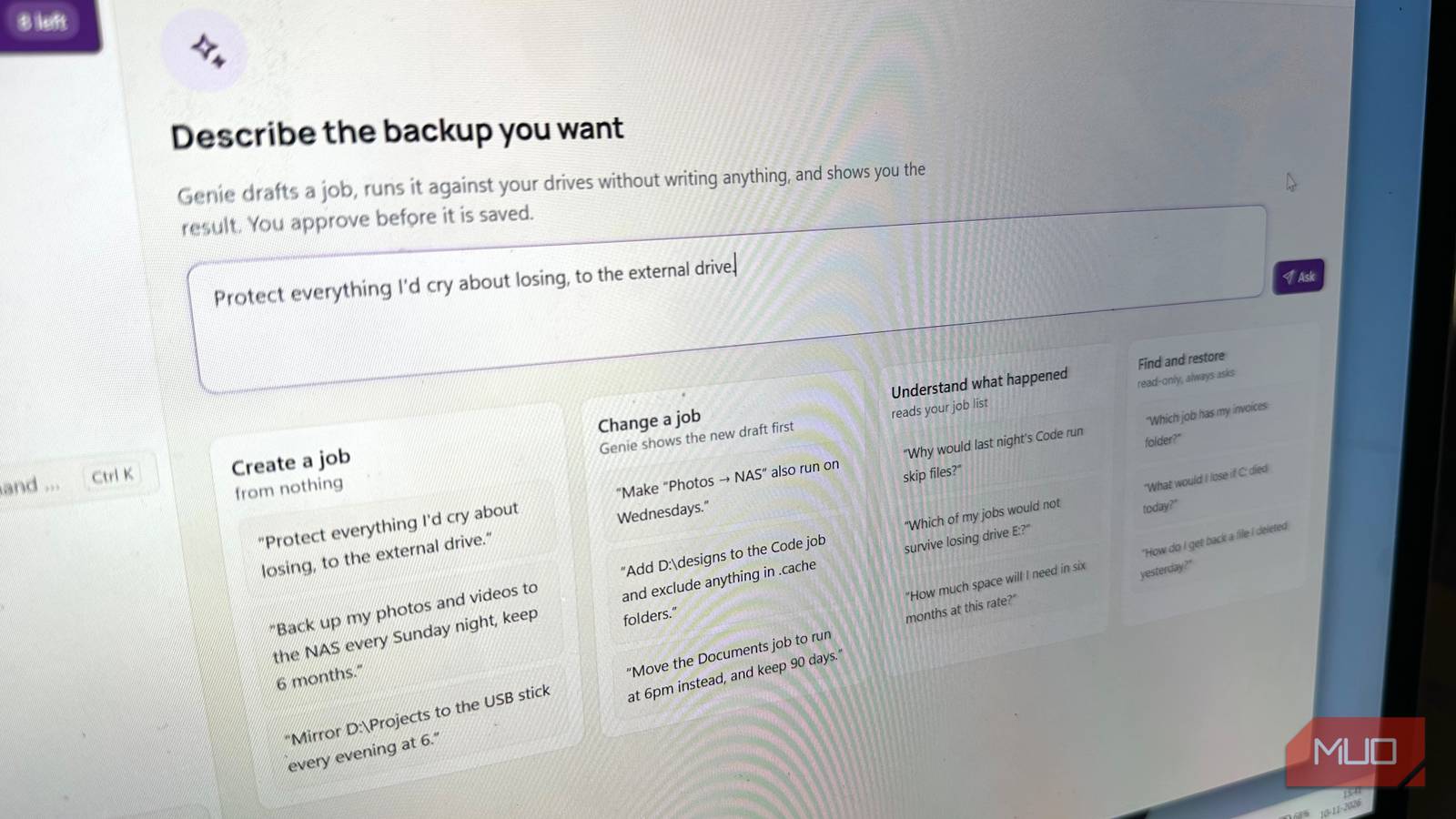
The star of the show in Genie Backup Manager AI is the integrated Genie AI. Once you download the app, you’ll be asked to create a backup job via the wizard or via Genie AI. Both options are pretty user-friendly, but if you don’t know anything about backing up (like which backup rule to follow, which folders to back up, which backup type fits, and where to store it) Genie AI is a better choice. You can ask it to create a backup job for the folders you’d hate to lose, or simple questions like “Which folders to back up” and “What’s the best backup approach for me.” If you know exactly what to back up, and where, you can just type “Back up X Folder to Y location every day at 10 AM.”
The best part of Genie AI is that it won’t give you instructions on how to create the backup job: it will create one for you, and you just need to approve it. If you’re okay with the job, just click the Save and run now button. Modifications needed? Click the Edit in wizard button instead. You can also click the Dry run option in the backup job to see exactly what folders will be backed up, the file types, number of files, and the read/write size.
Genie AI does have some usage limits. On the free version of Genie Backup Manager AI, you can only run 10 prompts a month. The Home and Pro versions allow you 40 or 100 prompts per month, respectively. This is fair enough, because you won’t really need more than a couple of prompts to set up a new backup job, or learn about backing up in general.
With some that exceed expectations

Genie Backup Manager’s primary strength is its ease of use, because when it comes to features, it’s on par with any other good third-party backup app. The free version lets you choose between Full and Incremental backups. Buy the Home, or Pro version, and you’ll get access to Differential and Mirror backups as well.
Regarding backup locations, you can back up to local storage drives (internal or external), network locations or a NAS, or S3 compatible cloud. However, you’ll need to purchase the Home version to unlock network locations and the Pro version to unlock S3 cloud. While the backup location support is nothing to write home about, there is something that other backup apps need to take note of: support for a second backup location. You can add another backup location in the same backup job in Genie Backup Manager, unlike other backup tools where you need to create a separate backup job.
The scheduling features are as detailed as you’d expect from a good backup tool. You can even schedule backups when you’re signed out, using the GBM AI service. This requires a one-time setup and Administrator privileges. Should you opt for the Pro version, you can manually set the CPU usage and bandwidth limits. I also like the pricing approach of Genie9, the developer. The Home and Pro licenses cost $39 and $79, respectively, and they are a one-time purchase instead of yearly subscriptions.
The tool still isn’t perfect
While Genie Backup Manager is a capable backup tool in its own right, there is a glaring miss in its feature set: it lacks disk imaging. You’ll still need to use another backup tool, or the Backup and Restore (Windows 7) feature if you want to create a disk image of your PC. Without disk imaging, Genie Backup Manager isn’t the best tool for disaster recovery, but for your day-to-day backup needs, it’s more than enough.