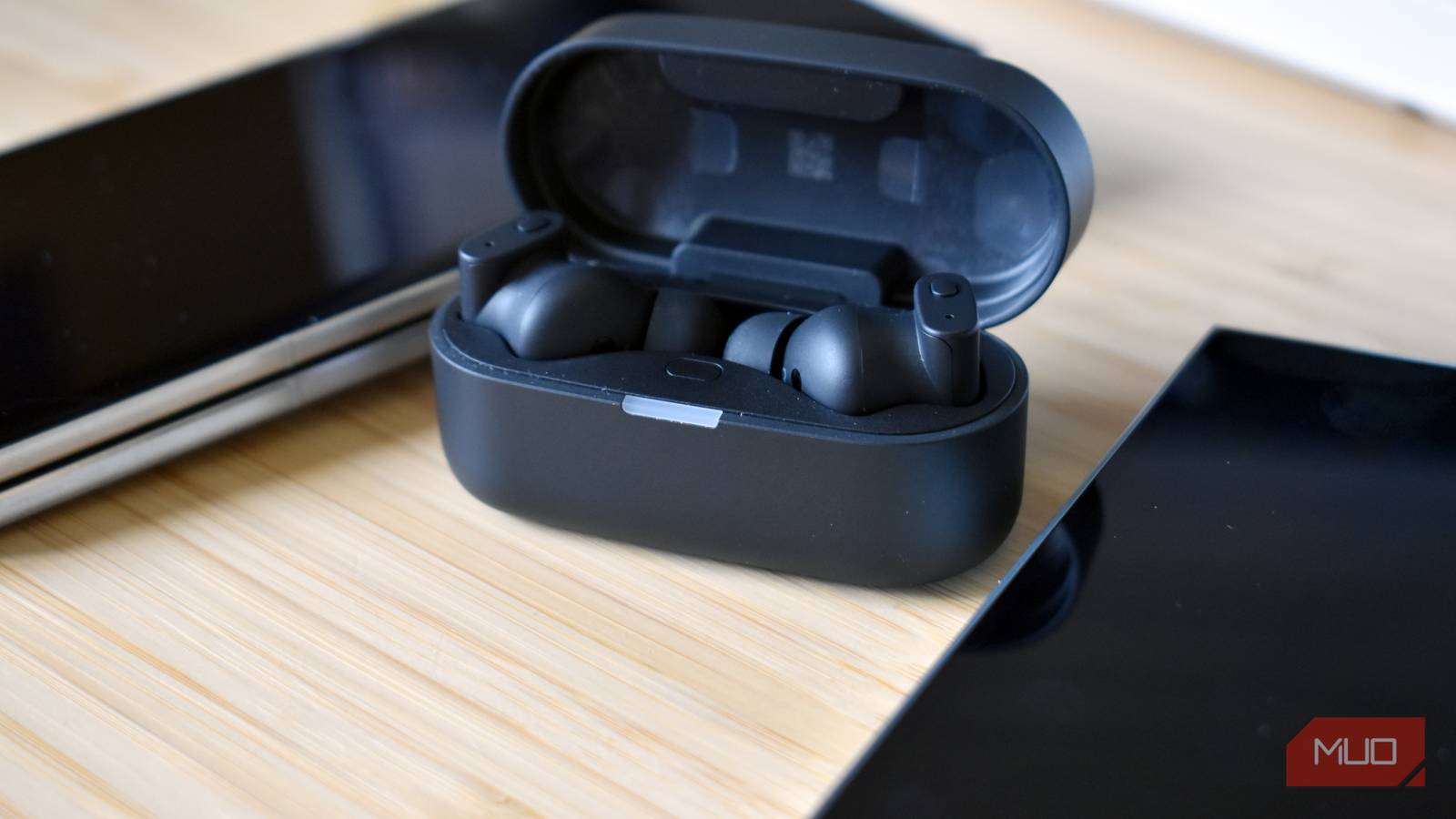
Before blaming your earbuds for mediocre sound quality, you should understand that it might not actually be your earbuds at fault here. Your phone’s Bluetooth settings could be holding them back. Notably, your phone quietly handles how they sound by picking the audio codec. So you might never hear what your earbuds can really do. If you don’t know about it, it’s easy to blame the hardware. Thankfully, that’s not the actual case; you can absolutely take control of the sound quality for your earbuds. Each takes a few taps, and switching your Bluetooth codec alone can change both sound quality and lag.
Codec override
Take control of how your music travels
Every time you connect a pair of earbuds, your phone and earbuds settle on a codec, which is the best codec both sides support. But your phone’s maker decides which codecs it tries first. That ranking isn’t always the best one, and might not be something you’d choose for yourself.
Android 8.0 and newer can use AAC, aptX, aptX HD, and LDAC on top of the basic SBC codec, as long as your earbuds speak the same language. Samsung owners get a shorter menu, and you get to pick from SBC, AAC, LDAC, and Samsung’s own Seamless Codec. I use Galaxy Ultra phones, so LDAC and the Seamless Codec are the two I’d try first.
Here’s how you override the codec:
Connect your earbuds first. Android only shows codecs that both your phone and your earbuds support, so you won’t see your options until the earbuds are connected. Then follow these steps:
- Open Settings > About phone and tap Build number seven times to unlock Developer options.
- Inside Developer options, tap Bluetooth Audio Codec and pick one from the list. You will see options such as SBC, AAC, aptX, aptX HD, and LDAC.
Make sure to keep the main switch at the top of Developer options turned on, because most options are disabled when it’s off. If the codec you want isn’t there, open your earbuds’ companion app and check it. Sony, for one, hides LDAC inside its app. However, LDAC isn’t magic either. At its lowest speed, it can sound worse than the older aptX codec, so a weak signal can cancel out the upgrade.
Absolute volume
The toggle that can cap your earbuds
Absolute volume lets your phone’s volume buttons control your earbuds’ own volume. Since Android 6.0, your phone sends the music at full strength, and your earbuds handle the volume change. It’s on by default, so you only see one volume slider.
When it works, you won’t notice it. However, when it doesn’t, your earbuds can sound too quiet because Android thinks they’re already at maximum. Sometimes, you will notice the volume jump from too quiet to too loud in one step. This happens because the phone’s volume steps don’t match the earbuds’ own.
After running into this myself, I researched and understood that absolute volume was the culprit, and turning it off fixed the problem after one restart. Here’s how you can turn it off:
- Before you do anything, disconnect your Bluetooth earbuds.
- Open Developer Options. It will be the last option in the Settings menu.
- Under the Networking section, you will find the Disable absolute volume option. If you have a Samsung phone, you can directly search for it using the search bar inside the Settings menu.
- Toggle off Disable absolute volume and restart your phone.
Once you do this, your phone and earbuds now control their volume separately. Turn things up slowly, because with absolute volume gone, your earbuds can get seriously loud.
LE Audio
Longer battery life, with a catch
LE Audio is the next generation of Bluetooth audio, for which Android 13 has built-in support, and its default codec, LC3, replaces SBC. According to listening tests cited by the Bluetooth SIG, LC3 can beat SBC’s quality even at half the bit rate. That gives earbud makers room to stretch battery life.
That’s why turning on LE Audio can make earbuds last longer on a single charge. It also powers Auracast broadcasts, where one device streams to an unlimited number of listeners. Since there is no global LE Audio switch on phones, you need to turn it on separately for each device. If you have a phone that doesn’t support it, it’ll never show you the option.
On top of this, your earbuds also need LE Audio support for this to work. Here’s how to check and turn on LE Audio:
- Connect your earbuds and navigate to Settings > Bluetooth. On a Samsung Galaxy phone, that’s under Connections.
- Tap the gear icon next to your earbuds.
- Find the LE Audio option and switch it on.
Don’t see it even though your gear supports it? A developer option called Bypass Bluetooth LE Audio Allowlist tells Android to try LE Audio with any compatible product. Still, the toggle carries an experimental label, so expect an occasional quirk or two.
Dual Audio
Share the music, keep your earbuds

Dual Audio lets a Galaxy phone play the same music on two Bluetooth devices at once. Our earlier Dual Audio guide covers the basics, and here’s the quick version:
- Pair both Bluetooth devices with your Samsung Galaxy phone.
- Swipe down to open Quick settings and tap Media.
- Tick the circles next to both devices.
- Use the volume keys to change both at once, or the sliders to adjust each one separately.
There’s a two-device limit, and connecting a third one disconnects another. Samsung says the feature needs a supported Galaxy phone with Bluetooth 5.0 or later. Delays also differ between Bluetooth devices, so two speakers in one room can drift out of sync. Two pairs of earbuds work best.
Your earphones can do more
You don’t need new earbuds to get better sound. A few taps in Developer options, one LE Audio toggle, and Dual Audio on a Galaxy can change how your current pair behaves, and you unlock some features that you’ve otherwise never bothered to use. If you ever feel like the tweaks are not worth it, you can turn them off easily. If you want more ways to improve your headphone audio, Samsung’s Adapt Sound is worth a few minutes too.