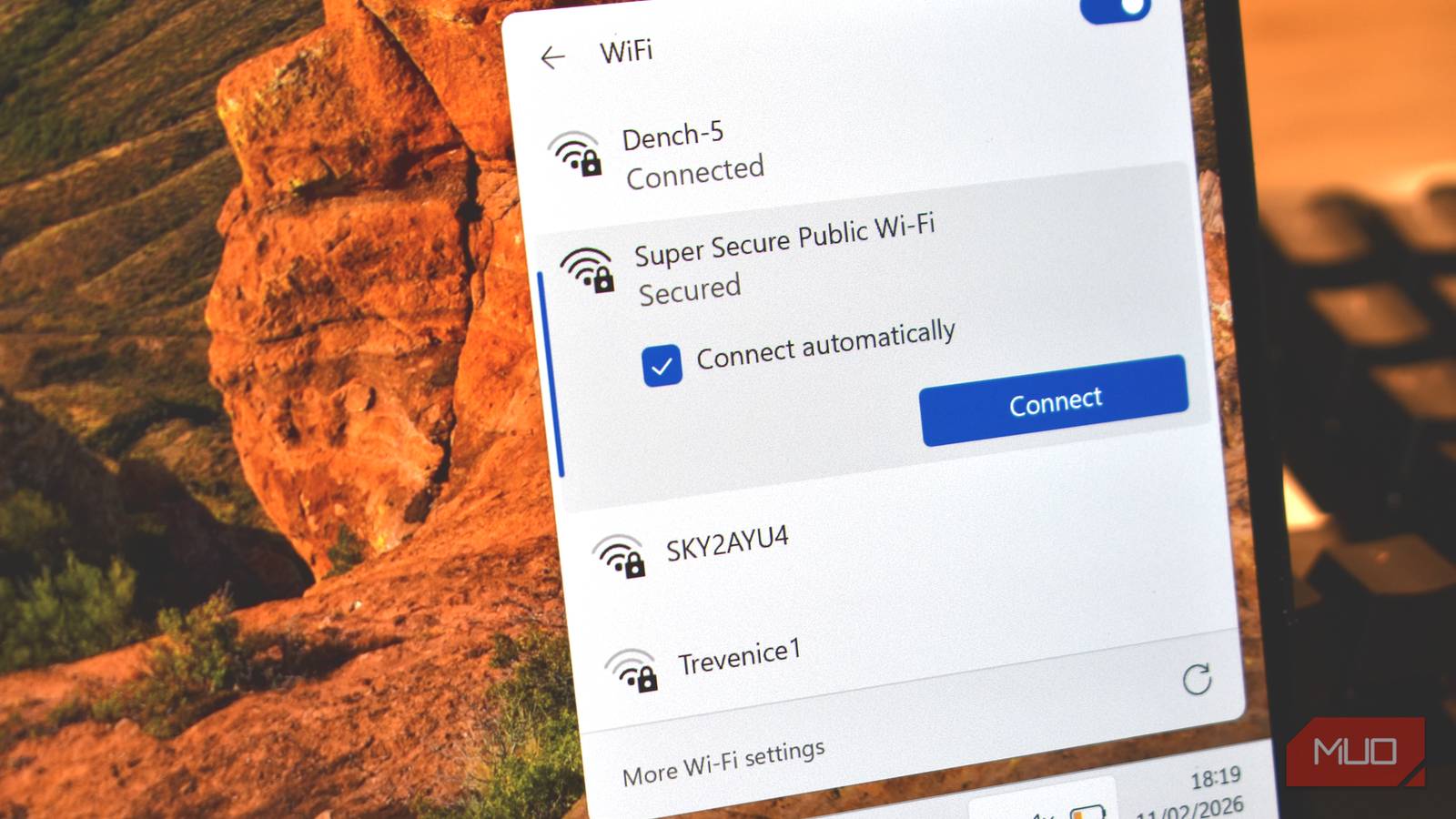
I’ve had video calls freeze mid-sentence just after a speed test showed full speed. This paradox of having fast internet while experiencing painfully slow connections is quite annoying.
The culprits aren’t always as obvious and may lead to a lot of frustration. Here are the ones you’ll most likely miss; their fixes often lie behind a single setting.
One upload, everyone lags
Bufferbloat turns one big transfer into lag for everything else
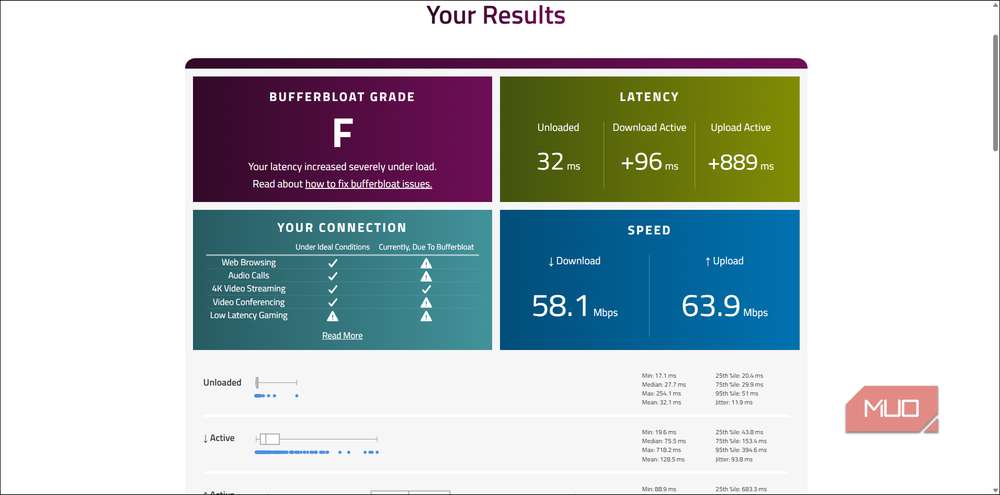
Most routers have a buffer. It’s a small waiting area that holds packets that can’t leave right away. When it’s full, new packets must queue behind what already exists. Running a large cloud backup may be sufficient to hog the front of the queue. This can make every other process that needs instant transmission wait. You may notice it as a stutter in your video call. That’s a delay called bufferbloat.
A speed test wouldn’t typically catch this because it measures how much data you can move, and not the wait time tiny requests may experience. Hence, you can get a great speed test result and a broken video call simultaneously.
The common trigger on home networks is uploads, since there is usually far less upload capacity compared to download.
Your photo sync or game update will usually fill the buffer quickly. But you can see this for yourself by running Waveform’s bufferbloat test during an upload. This test will grade your connection from A to E.
The fix on your router is often hidden under a setting called SQM or Smart Queues. The exact steps will depend on your specific router, but they may be similar to this (these are steps for the GL.iNet Flint 2) :
- Log in to your browser’s admin page.
- Select FLOW CONTROL from the left-hand menu.
- Select SQM and enable it.
- Enter your measured download and upload speeds in Mbps under WAN Bandwidth.
- Within Queue Discipline, select CAKE.
- If you notice serious fluctuations on your internet, enable Cake Autorate, then apply and save the settings.
Not all routers have this setting, but capping your speed slightly below what you actually get when your router permits it can help
Blank tab, then instant
Slow DNS stalls pages before they even start
When you visit a new site, it usually needs a DNS lookup before the website’s content loads. Your device first asks a DNS server for the site’s IP address, then it waits for a reply. Since a single page may pull content from several different servers, slow DNS lookups can quickly become noticeable, delaying the start of page loading.
This may be why you notice a new site hanging on a blank tab before its content appears all at once, while there’s no delay on sites you regularly visit because they are cached.
It usually takes milliseconds for a healthy DNS lookup, so you shouldn’t expect dramatic speed improvements by changing servers. But if a server is sluggish, it delays the start of the page, especially for unfamiliar domains.
You may compare your current DNS server with public alternatives using GRC’s DNS Benchmark. This tool allows you to spot a resolver struggling with unfamiliar domains by measuring cached and uncached lookup times separately.
If one DNS server is consistently faster, you may update this in your router so that every connected device may benefit.
- Open the Settings app and navigate to Network & internet > Wi-Fi (or Ethernet).
- Select your connection, then click Edit under DNS server assignment.
- Select Manual from the dropdown, then pick IPv4 or IPv6.
- Enter your preferred DNS server address and save.
These are the steps for Windows 11, but you can change your DNS configuration options on almost every operating system.
Wi-Fi bars mean less than you think
Signal strength isn’t the same as signal quality

Connection bars show signal strength, but they don’t indicate how busy the surrounding air might be. Even at full signal, you may run into some problems because of your neighboring networks and several devices competing for the same 2.4GHz channel. This interference may cause devices on your Wi-Fi to retransmit data. This causes delays and can lead to dropped packets.
The cleanest test is temporarily replacing your Wi-Fi with a wired connection. This way, you can verify if Wi-Fi is responsible for the network problem.
If it is, proceed with the simplest fixes first. Move the router out into the open, then place the nearby devices on 5GHz or 6GHz. If the connection still feels rough, try a channel that is less crowded. Also, consider keeping devices that don’t move, like a desktop or a console, on a wired connection.
Choppy calls on a clean line
Packet loss and jitter hide behind a healthy average

Data that never arrives is referred to as packet loss, while packets arriving at uneven intervals are referred to as jitter. Since many downloads use TCP, everything that was lost ends up being resent; you may only experience slightly slower pages. In the case of calls and games, which often prioritize timely delivery over retransmission, you’ll get glitches.
I run a simple test to verify packet loss and see where it’s happening. I open my terminal and ping my router 100 times (on Windows, ping -n 100 192.168.1.1 or ping -c 100 192.168.1.1 on Mac or Linux), after which I ping 1.1.1.1 the same way.
I then look at the loss and the variation between the minimum and maximum response times. If the loss happens at the router, it’s a problem with my home setup. If the router test is clean but the second shows loss, the problem may be further upstream.
Only count loss that carries through to the final hop. Traceroute and pathping can show apparent loss at intermediate routers simply because those routers ignore or deprioritize ping requests.
The readings for jitter will vary by tool, so use the same tool to compare results, and also test at different times of the day. You wouldn’t learn much from just one clean result.
Find the bottleneck before changing your plan
If your connection already has enough bandwidth, faster internet won’t fix it. If you feel inclined to upgrade, first test the current network with a device connected directly to the router and compare the experience with your usual Wi-Fi. You’ll be able to separate the problems caused by your home network from those introduced by the ISP.
Also, don’t change multiple settings at once. It’s best to fix a single bottleneck and test the connection again before moving to something else. This will allow you to identify what actually improves the network.