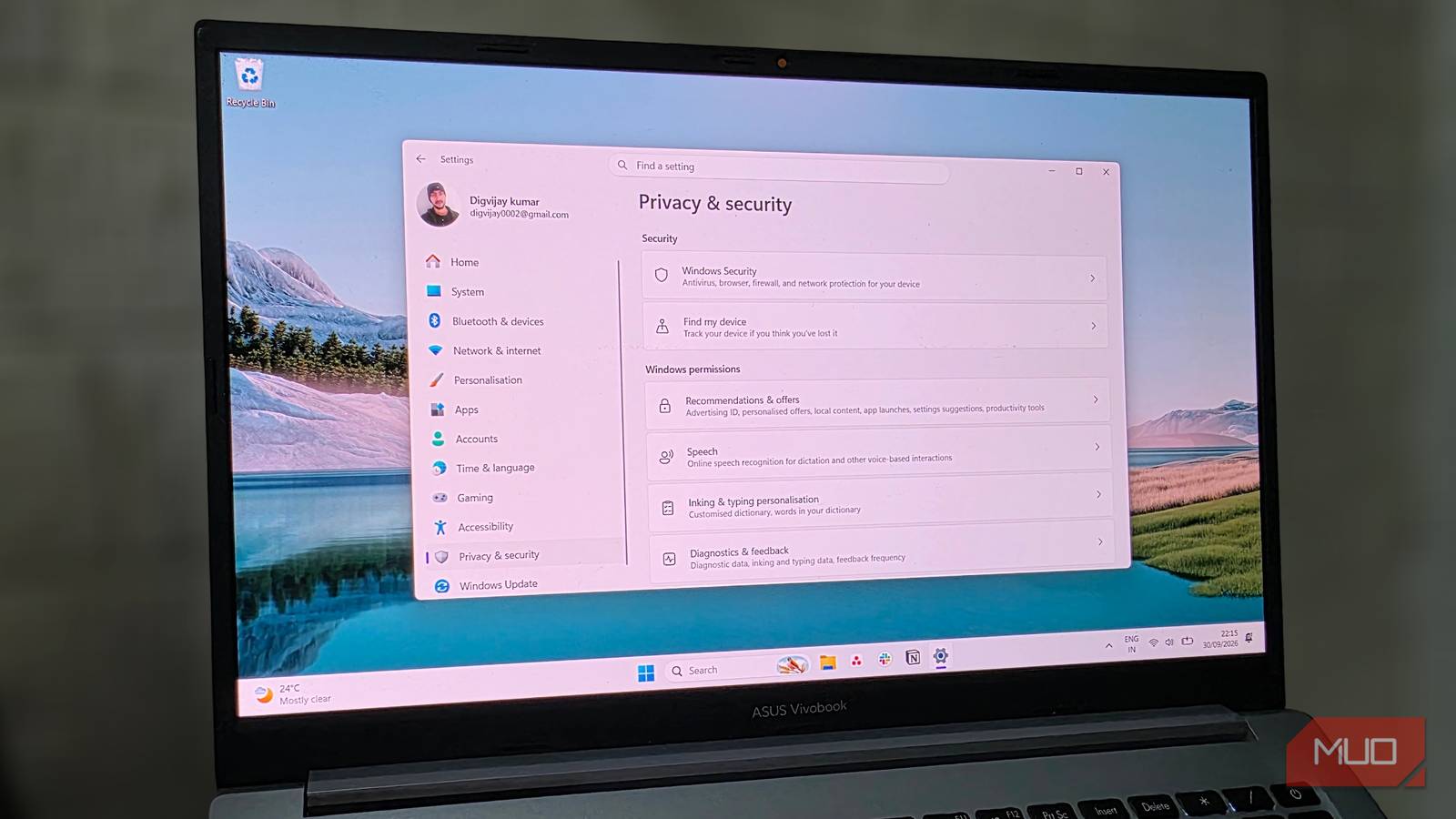
Aside from the bloat, Windows 11 has another big issue: privacy. By default, Microsoft collects telemetry and user data, claiming it needs them to improve the Windows and hardware experience, but the tech giant downplays how much its “data collection” covers.
Windows collects this data through the DiagTrack service and the Diagnostic Data Viewer, the only built-in app that lets you see it. When I opened the app, I found that it was sending way more data than I was comfortable with, with no way to fully opt out.
Turning on a viewer most people never open
The setting, the download, and the export
Microsoft automatically collects data from Windows 11 PCs over a period that varies for each user. Fortunately, Microsoft has a first-party tool that clearly shows what data is being sent over, yet nobody installs it. To find out what Microsoft is collecting, follow these steps:
- Go to Settings → Privacy & Security → Diagnostics & Feedback.
- Expand the drop-down for View Diagnostic Data, and then turn it on (it may take up to a GB of space).
- A new option to download Diagnostic Data Viewer will appear and redirect you to the Microsoft Store.
Once downloaded, you can either open the Diagnostic Data Viewer app yourself or select View my data in the Diagnostic Data Viewer in Diagnostics & Feedback.
The raw log is unreadable without help
Making the JSON readable

Once inside the Diagnostic Data Viewer app, the data shown might overwhelm the average user because it’s displayed in JSON. Then, there are individual categories for data types like app usage, browsing activity, device activity, search activity, and more. Again, data collection for every PC might be different, so you’ll have to check it out for yourself.
To translate the JSON-formatted text into readable text, follow these steps:
- Open the Diagnostic Data Viewer app.
- In the top right corner, you’ll see a three-dot menu. Click it and select the option to export data.
- Save the data in a .csv format.
- Now, upload the .csv file to a local LLM to break it down. Uploading to a cloud-based model means sharing your data elsewhere.
With a much clearer breakdown of the data being sent over, Microsoft was logging details of what I downloaded, installed, and plugged in. There wasn’t any trace of personal files, messages, or documents being sent over, though.
71 events, and not all of them were routine
Installed apps, downloads, and USB devices all showed up

Overall, I found 71 diagnostic events across 27 different data types in the file I exported. It included my system’s configuration, which makes sense, so Microsoft categorizes users based on hardware specifications. Then, other activities were related to Xbox gaming, Microsoft Store update statistics, application installation statistics, and optional telemetry consent changes.
However, the rest of the events were where things got interesting. Microsoft was recording way more than basic system errors or data for improvements.
Tracking installed applications: Windows recorded information about WhatsApp Desktop, including the package name, Microsoft Product ID, installed version, Microsoft Edge WebView2 version, app-specific identifier, installation source, and configurations.
Application Activity: The Microsoft Store quickly logged every update for installed applications, Microsoft Store product information, and other activities. This information was much more detailed than I expected because it tracked each step of the update, installation settings, and more.
Download activity: Windows was logging download activity in detail as well, including the most recent one, where I downloaded the Diagnostic Data Viewer app itself. There were sections for the download size, whether it failed, the time elapsed, and more. Overall, I counted 25 different events in downloads alone.
Connected Devices: Keeping track of my PC’s specifications is one thing, but logging connected peripherals and devices is much more than I am comfortable with. According to the logs, Microsoft tracked every USB device instance, including the instance ID, vendor ID, product details, and device problems. There were error logs where a few of my devices had failed and then cleared.
Cutting back what Microsoft collects
One ID ties every event together
I was under the impression that the telemetry being shared involved crashes and specifications. However, the exported data suggested otherwise and was more personalized, recording my behavioral patterns.
Microsoft attached a device-specific identifier to diagnostic events, allowing it to associate all reports from the same PC. This lets Microsoft link every event on one PC instead of isolating them separately.
Fortunately, there’s a very simple way to stop Microsoft from sending the required diagnostic data as well. It requires changing only a single value in the Registry Editor. Here’s how to do so:
- Open the Registry Editor.
-
Type in the address:
ComputerHKEY_LOCAL_MACHINESOFTWAREPoliciesMicrosoftWindowsDataCollection. -
If there’s no value named
AllowTelemetry, create a DWORD (32-bit) value and set it to 0.

Don’t forget to remove the diagnostic data Microsoft has already collected from your PC; you can do this under Settings → Privacy & Security → Diagnostics & Feedback → Delete diagnostic data.
Also, the viewer doesn’t show data from Microsoft’s first-party apps, which have their own separate telemetry. I’d check Edge, Office 365, and other Microsoft apps individually.
Optional diagnostic data is where it gets personal
Every Windows 11 user sends some required data back to Microsoft to help improve the OS, but you can also send optional data by manually toggling the setting. As the setting suggests, this goes a bit further than the already-loaded data being uploaded.
The toggle details state that this setting tracks data about the websites you visit and how you use apps and features. Leave it off unless you don’t care about your privacy and want your detailed activity recorded on Microsoft’s servers.
Optional diagnostic data is also turned on by default if you’re on a preview/insider build of Windows 11. The point of being on a beta build is to help improve the OS and find bugs before it’s ready for public release.