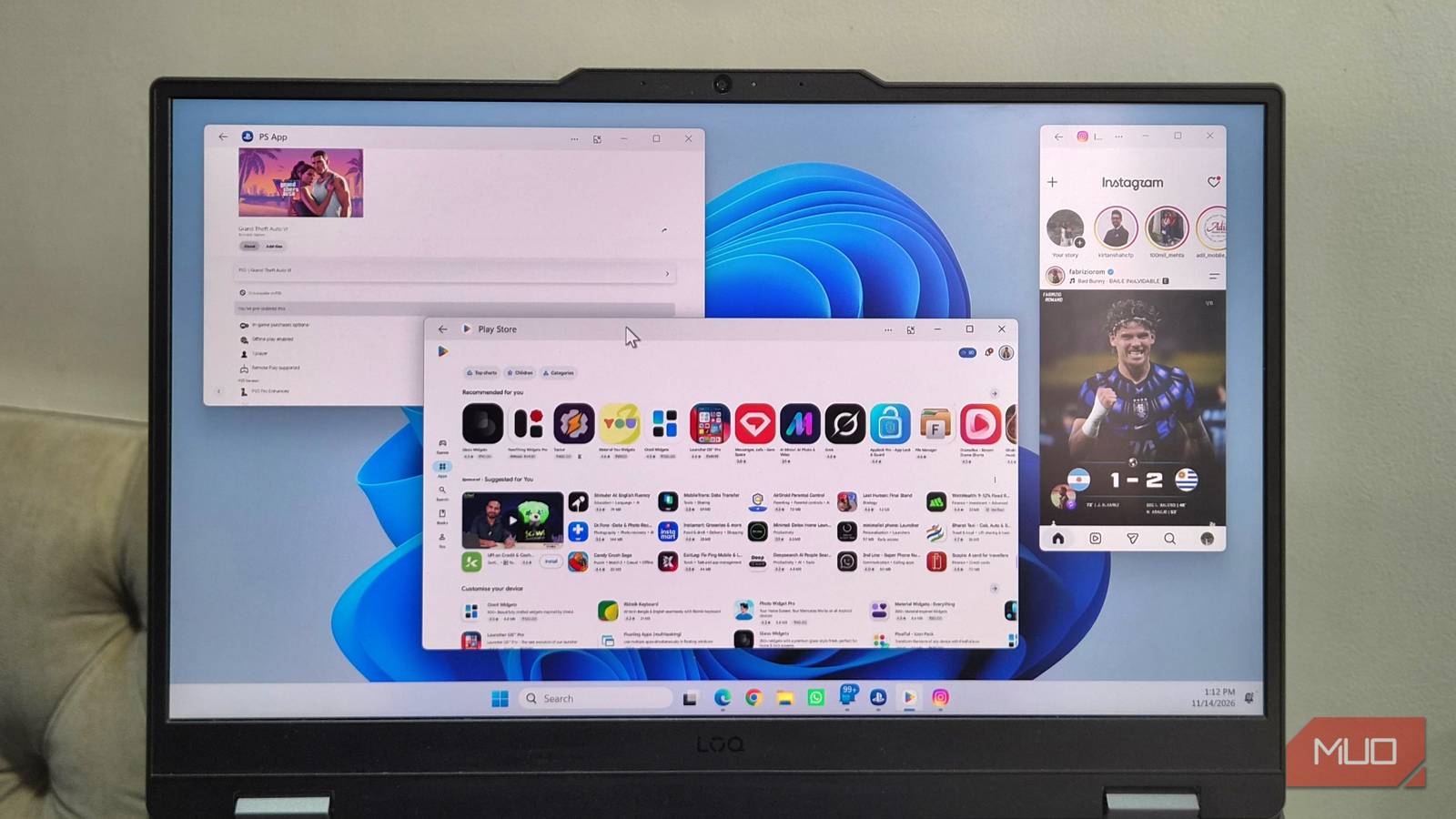
Running Android apps on Windows has always been tricky. Google offers Play Store games on PC, but there’s still no easy way to run regular Android apps. Microsoft’s Phone Link fills that gap. It can bring any app on your phone to your PC and even expand it into a horizontal layout, so it feels like a native desktop app.
Phone Link can now open Android apps in an expanded layout
No need to mirror the screen

Phone Link has offered the option to run mobile apps on your PC for some time. But until now, those apps would strictly open in a portrait, phone-style layout. It worked, but it did feel a bit wasteful since PCs have a wide screen. That’s not the case anymore with Phone Link version 1.25112.36.0.
Phone Link can now open Android apps in an expanded mode and cover up to 90% of the total screen. The Expanded Screen option basically lets Phone Link open your Android apps in a large, tablet-style layout. And once you’ve switched to this wider layout, it feels like any other Windows app. You can resize it, move it around, and snap it to the side. The main benefit here is that you can open multiple apps and use them at once.
This only works if you’re using a phone that supports launching apps directly via Phone Link. This includes most phones from Samsung, HONOR, OPPO, ASUS, vivo, and Xiaomi. You can confirm this by heading to Phone Link settings > Features. If you don’t see the Apps option here, it means you’re using an unsupported phone, so you’re still stuck with screen mirroring for now.
Running Android apps on a PC has never been this easy
Mobile apps on a big screen, who says no?
Phone Link’s Apps section lets you launch any app on your phone directly. All you have to do is scroll through the grid and pick whatever app you want. By default, it launches the app in a vertical layout where it feels just like it is on a phone. Clicking the Expanded screen button on the title bar lets you switch to a horizontal view. You’ll need to unlock your phone to verify your identity and launch the app. The phone will remain unlocked until you lock it manually, though Phone Link does turn off the display to avoid draining the battery.
The only catch is that some apps won’t switch between vertical and horizontal without restarting first, so you’ll get a little alert warning you about that when you try to switch. It’s not a big deal, and if you don’t want to see that pop-up every single time, just tick the Don’t ask again box, and you’re sorted.
If you already know you’ll want the bigger view every time, go to Phone Link Settings > Features > Apps, and turn on Always open apps in expanded screen. Also, if there’s an app you need to open constantly, you can add it to your favorites by right-clicking its icon. You can even add it to the Start menu to open it like any other Windows app.
It’s not perfect, but it’s a great start
The fine print you should know about

Expanded view for Android apps is great, but I don’t want to oversell it. It’s the easiest way to run Android apps, yes, but it’s not perfect. For starters, not every Android app supports this view, so you might come across a few that don’t show the Expanded screen option at all. Some might open in expanded view, but not look great if they’re not optimized for a wider layout. That’s not the case with popular apps, but it’s something to keep in mind.
The biggest issue is that the expanded view does make the app look slightly less crisp than the usual, vertical layout. Since Phone Link is essentially rendering a bigger canvas on your phone and streaming that over, image quality takes a hit, and it gets worse the more you stretch the window. Thankfully, there’s no lag, so interacting with the app doesn’t feel as bad if you can ignore the image quality.
Being able to run Android apps on my PC is incredibly convenient. For me, the biggest benefit is that it cuts out the need to install a bunch of redundant apps on my PC just to check something quickly. For instance, if I want to see whether my GTA VI download has finished, I can simply open the PS App and check in seconds. The same goes for Instagram. There’s no need to open a browser tab and log into my account every single time I want a quick scroll.