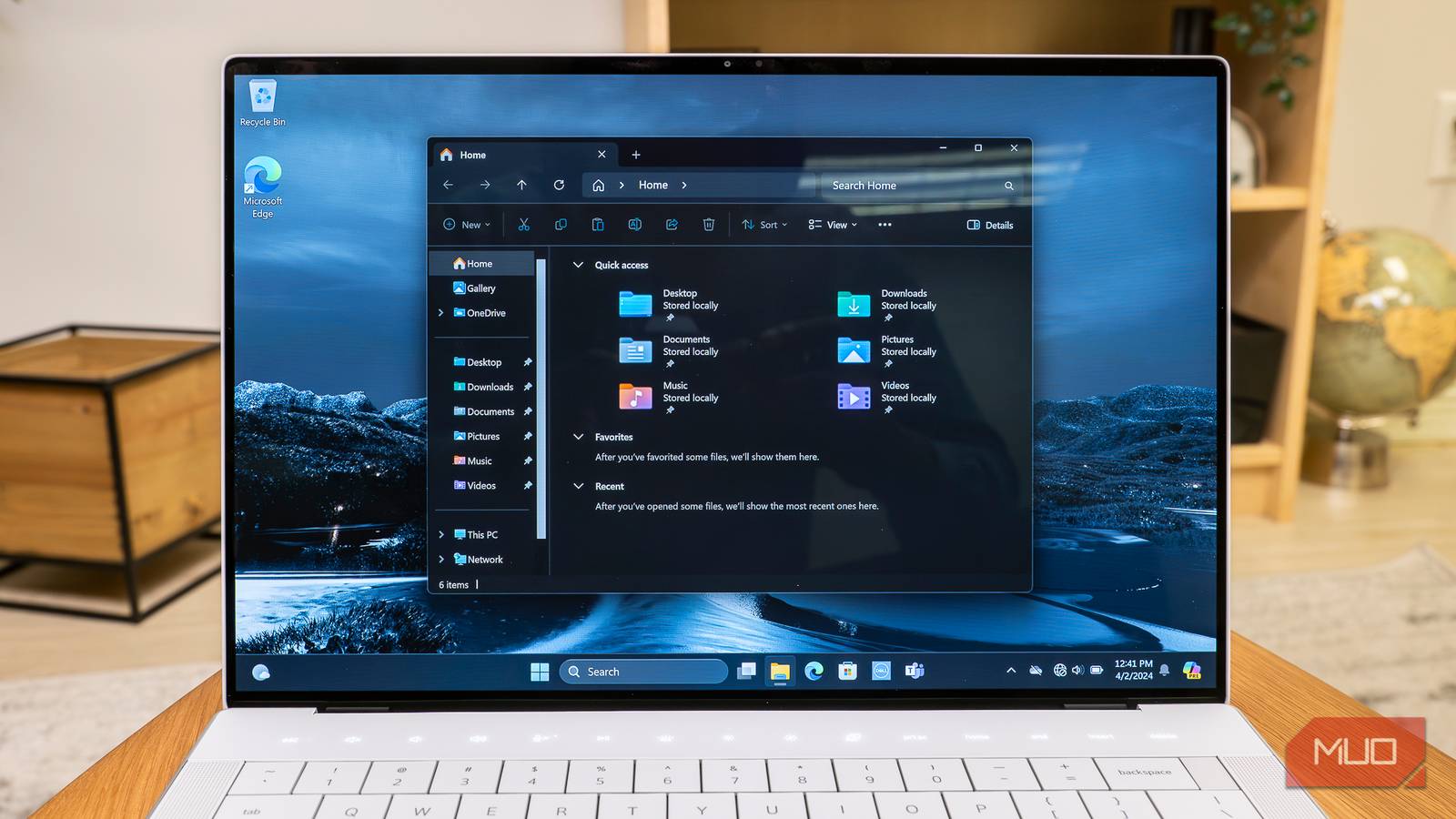
File Explorer works. It just doesn’t work well enough. Search is slow, file transfers are unreliable, there are no easy previews, no folder sizes, and no way to automate file organization. The list goes on. The good news is that there are enough third-party apps available that address every one of those shortcomings. They’re all free and don’t force you to ditch File Explorer.
Listary
The search bar that doesn’t disappoint

One of the biggest annoyances of File Explorer is its search bar. It’s slow, inefficient, and unreliable. And that’s even when you know all those File Explorer search hacks. With Listary installed, though, you barely have to rely on it anymore.
It’s a search tool that you can bring up any time by pressing Ctrl twice. Search for a file or a folder, and you can open the results in File Explorer. You can use the same search bar to do web searches, launch apps, and run commands too.
And if File Explorer is already open, you can start typing straightaway — without pressing a hotkey or clicking the search bar first. That last bit is why I like Listary more than Everything.

- OS
-
Windows
- Price model
-
Free, Premium
Listary is a Windows utility that instantly finds files, folders, and apps with smart, fuzzy search while boosting productivity across File Explorer and dialogs. It’s fast, intuitive, and deeply integrated.
File Converter
Convert anything without leaving File Explorer
It’s almost strange that even after all these years, Windows doesn’t have a native file converter tool. That means any time you need to convert an MP4 to MP3 or a PNG to JPG, you have to use different apps or, worse, rely on those online file converter tools.
File Converter is a free, open-source tool that fixes this. Once you install it, you can convert any image, video, audio, or document to your preferred format from the right-click menu. Simply right-click the file, choose File Converter and choose a format. You can convert files in bulk and even trim their file size by adjusting their quality.
- OS
-
Windows
- Price model
-
Free
File Converter adds a convert option to Windows context menu so you can easily convert audio, video, and documents to other formats.
TeraCopy
Copy and move without the anxiety

Another File Explorer add-on that integrates seamlessly is TeraCopy. Its main job is to make copying and moving files around less stressful. It’s faster than File Explorer and shows time estimates you can actually trust.
You also don’t have to do anything extra to use it either. Right-click the file or folder you want to copy or move and choose TeraCopy instead of the default option. The best thing about TeraCopy is that you can even queue file transfers, so you don’t have to wait for something to finish, or worry about everything slowing down at once.
Unlike File Explorer, TeraCopy also doesn’t pause the transfer any time an error appears. It simply skips the problematic file and keeps going. Once the transfer is done, you can retry the failed files or skip them.

- OS
-
Windows, macOS
- Price model
-
Free
TeraCopy replaces Windows’ default file copy dialog with a faster, more reliable tool that pauses, resumes, verifies transfers, skips problem files, and handles large batches without crashing mid-copy.
DropIt
The app that tidies up after you

Before DropIt, my Downloads folder used to be a mess with all kinds of things. At any time, it was full of app installers, random ZIP files, icons, images and whatnot.
DropIt is a simple app that lets you create rules that automatically organize files based on type. For instance, you can set PDFs to move to Documents, images to Photos, and audio files to Music. You just have to set up a rule that pairs each file type with a specific location.
Even better, you can set DropIt to organize files as soon as you download them, or manually on your schedule. Beyond simply moving files, DropIt can also copy, rename, compress, and delete them based on the rules you create.

- OS
-
Windows
- Developer
-
Lupo PenSuite Team
DropIt is a lightweight Windows utility that automatically organizes files using rules, moving, renaming, compressing, or extracting content based on file type, name, or folder triggers to save time daily.
Windhawk
The customization Windows lacks

File Explorer looks decent out of the box, but it’s not exactly customizable. Microsoft doesn’t offer any tools that let you customize the look and feel of it, which is exactly why I like Windhawk. It’s a free tool that offers several modules for customizing Windows.
I personally use the Windows 11 File Explorer Styler module to try out different themes and colors. There’s also a module called Better file sizes in Explorer details. It forces File Explorer to also show folder sizes in the Details view, which is something File Explorer doesn’t do by default to reduce CPU overload.

- OS
-
Windows
- Developer
-
Ramen Software
- Price model
-
Free, Open-source
Windhawk is a Windows customization tool that lets you tweak system behavior with lightweight, install-and-forget mods.
PowerToys
Preview, rename, and resize
PowerToys is a great app that can do a lot of useful things, but three of its features specifically make File Explorer better. The first is Peek, which brings macOS-like spacebar previews on Windows. Simply select any photo, video, or document, hit the Spacebar key, and the preview pops up. It’s way faster than opening dedicated apps and even supports file types that File Explorer can’t preview natively.
Another one is PowerRename, which does exactly what you think. It lets you select a bunch of files and rename them all at once. You can add sequential numbers, standardize filenames, or change the text case. It even shows a preview so you can see how the filenames will turn out before committing.
PowerToys’ Image Resizer works similarly. Select a bunch of photos at once, right-click on them, choose Resize with Image Resizer, and pick a size.

- OS
-
Windows
- Developer
-
Microsoft Corporation
- Pricing model
-
Free, Open-source
Microsoft PowerToys is a set of free Microsoft Windows utilities for power users to tune and streamline their Windows experience for greater productivity.