Windows feels incomplete out of the box. Many of the apps Microsoft includes are unnecessary and rarely used, and they leave out the tiny, lightning-fast, high-utility tools that make the OS complete. After several years of installing Windows, I have come up with a list of six absurdly small apps that fix some of Windows’ most common annoyances. They take very little drive space and take just a few minutes to install.
WizTree
It shows what’s eating your storage before Windows finishes scanning
Most people have repeated these steps: right-click a file, click Properties, and watch your computer calculate a file’s size, especially for very large items.
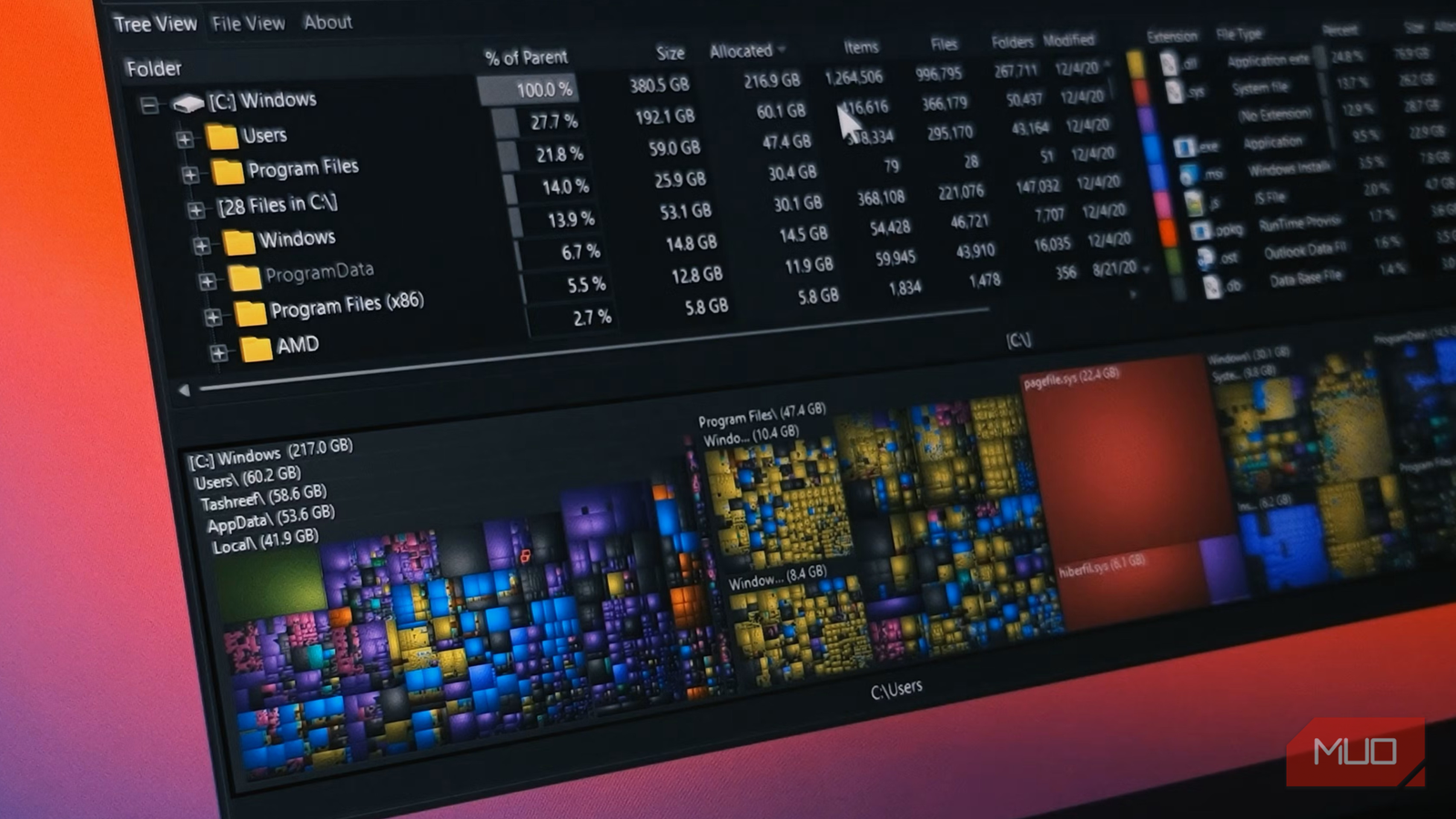
WizTree reads the NTFS Master File Table (MFT) directly, the drive’s own index of everything on it. It doesn’t walk through every folder one after the other like Windows normally does. This lets it provide an almost instant view.
The download size is about 4.9MB. It practically maps out all folders and files on my fairly packed 1TB drive in under two seconds. The first time I ran WizTree, it uncovered a 40GB folder from an old Windows installation that I no longer needed. It’s extremely fast on NTFS drives, since it’s designed to read the MFT. It’s not as fast on FAT32 or exFAT drives.
Every time I’m unable to install a feature update because I’m low on storage, WizTree comes to the rescue, giving me the storage overview I need.

- OS
-
Windows
- Developer
-
Antibody Software Limited
- Price model
-
Free/ Business License
WizTree uses the NTFS Master File Table to scan your drive at incredible speed, revealing your largest files instantly. It is the ideal tool for anyone who needs accurate, real-time insight into disk usage on Windows.
QuickLook
Preview files instantly without opening them

So many times I open a PDF or photo just to be sure I have the right file, then close it. It feels like a tiny waste of time, but it’s a process I shouldn’t be doing in the first place.
QuickLook lets you select a file and get a preview. Now, when I’m sorting photos from my camera dump or when I have to find old invoices from a bunch of PDFs, I rely a lot on this tool. It rarely uses more than 30MB of RAM while idle. Also, it has plugin support, especially for code files, 3D models, and other file types it doesn’t cover by default.

- OS
-
Windpows
- Pricing model
-
Free
QuickLook provides instant, full-size file previews for images, documents, and videos. It gives you access to the previews when you press the spacebar.
Flow Launcher
One search box replaces four Windows habits

I used to have a chaotic workflow for most things. I was relying on four different tools to do essentially the same thing: the Start menu to find apps, Win+R to run quick commands, the Calculator app for basic math, and my browser for web searches.
Flow Launcher replaces all these. Despite being only a 97MB download, it collapses all these functions into one search box you open with Alt+Space. I run simple math, unit conversions, and web searches directly in this search box. When I type “chrome” and hit Enter, Flow Launcher launches Chrome far faster than the Start menu.
|
Windows Search |
Flow Launcher |
|
|---|---|---|
|
Launch speed |
Slower on indexed searches |
Near-instant |
|
Math/conversions |
No |
Built-in |
|
Plugin support |
None |
Extensive |
I use two plugins with it. The first is Any Video Downloader for instant downloads of videos from YouTube, Instagram, Facebook, and X; the second is a clipboard history plugin.

- OS
-
Windows
- Price model
-
Free
Flow Launcher is a free, open-source launcher for Windows that replaces the Start menu with a fast, keyboard-driven search bar to launch apps, find files, run commands, and extend functionality with plugins.
Twinkle Tray
External monitor brightness finally works as it should

I find it a bit frustrating to adjust the brightness of an external monitor either by using its physical buttons or through the clunky display menus. With one monitor, it’s tolerable, but if you have to do this dance on three different monitors, it can be annoying.
Twinkle Tray is the tiny tool that fixes this inconvenience. It takes advantage of DDC/CI, which most monitors support. This protocol lets PCs send brightness and contrast commands over the same cable that already carries the video signal. Twinkle Tray gives you a system tray slider for all connected monitors where you can individually or collectively adjust the displays. You can even skip the mouse entirely using its keyboard shortcuts. At idle, it uses less than 30MB of memory.
Ditto
It remembers more than the one thing you just copied

It’s easy to copy something, then accidentally copy another thing over it. When I do this, I only realize it when I go to paste it.
Ditto allows me to access a searchable clipboard history. I pin my email signatures, common file paths, and my most-used snippets. Windows has clipboard history too, but Ditto is different in some significant ways:
|
Windows Clipboard History |
Ditto |
|
|---|---|---|
|
Searchable history |
Limited |
Yes |
|
Pinning/organization |
Basic |
Folders and pinning |
|
Persistence |
Clears on restart (by default) |
Stays indefinitely |
|
Sync across PCs |
Limited |
Yes, via its own sync |
Ditto stores everything you copy in a local database, and I typically exempt specific apps from being tracked since I’m regularly copying passwords and other sensitive data. After you use Ditto, it’s impossible to go back to a single clipboard.

- OS
-
Windows
- Developer
-
Scott Brogden
- Price model
-
Free, Open-source
Ditto is a powerful Windows clipboard manager that remembers everything you copy and lets you paste it later with a quick shortcut.
File Converter
Right-click almost any file to convert it

I always searched for a file conversion site whenever I had to convert photos, documents, and other files. Many of these conversion sites request your email to complete the process, and a few are so cluttered with ads that it becomes hard not to click on the wrong thing.
Now I get file conversion right in the right-click (context) menu with File Converter. The conversion process runs offline. I select the photo, right-click it, and choose the conversion format. This tool is built on top of FFmpeg for audio and video conversion and is only a 57MB download.
- OS
-
Windows
- Price model
-
Free
File Converter adds a convert option to Windows context menu so you can easily convert audio, video, and documents to other formats.
The perfect tool stack doesn’t always hog system resources
Every single one of these apps has quietly fixed tiny frictions I found in my default Windows installation. Yet they’re small enough that they hardly affect CPU usage and consume very little memory.