Any time sites take longer than usual to load, the blame usually goes to one of two places — your internet connection or the site itself. Sometimes, though, it’s neither of those two things, but the browser itself that causes the slowdown. Honestly, I wouldn’t have believed this if you told me last week, but Chrome’s built-in speed test tool proved me wrong. It exposed exactly what was adding four seconds to every site I visited — and it had nothing to do with my Wi-Fi.
It’s not just for developers

Chrome’s Developer Tools menu is something you only open by accident. It’s overwhelming and mostly for developers for testing and editing code. But among those developer tools, there’s something called Lighthouse that can be particularly useful to you. It’s Google’s open-source auditing tool that can tell you a lot about how sites are loading on your end. Yes, it’s primarily for developers, but that doesn’t mean you can’t use it for diagnosing your own browsing experience.
Lighthouse can run a full diagnostic on any page you point it at. The way it works is quite simple. It loads the page, measures how long different parts of it take to appear, and spits out a performance score. More usefully, it gives you a breakdown of exactly what slowed things down. It could be render-blocking scripts, third-party trackers, and even extensions getting in the way.
Of course, the issue isn’t always on your end. Sometimes the slowness comes from the site itself. It could be due to the type of ads it’s loading, analytics scripts, or those social media embeds. All of it can slow things down and leave you blaming your internet or the browser. Lighthouse even clarifies those things. Still, it’s usually best to run it on a few different sites before jumping to conclusions because these scores can vary a lot.
One Lighthouse report exposed the real culprit
The problem wasn’t my internet or the site
Lighthouse may be a developer tool, but running it is as easy as it gets. Open any page you want to test, hit F12, and you’ll see the Developer Tools menu on the right. Look for the Lighthouse tab (you may have to click the >> icon first) and click Analyze page load. Chrome will reload the page, run its analysis, and hand you a report in about 30 seconds.
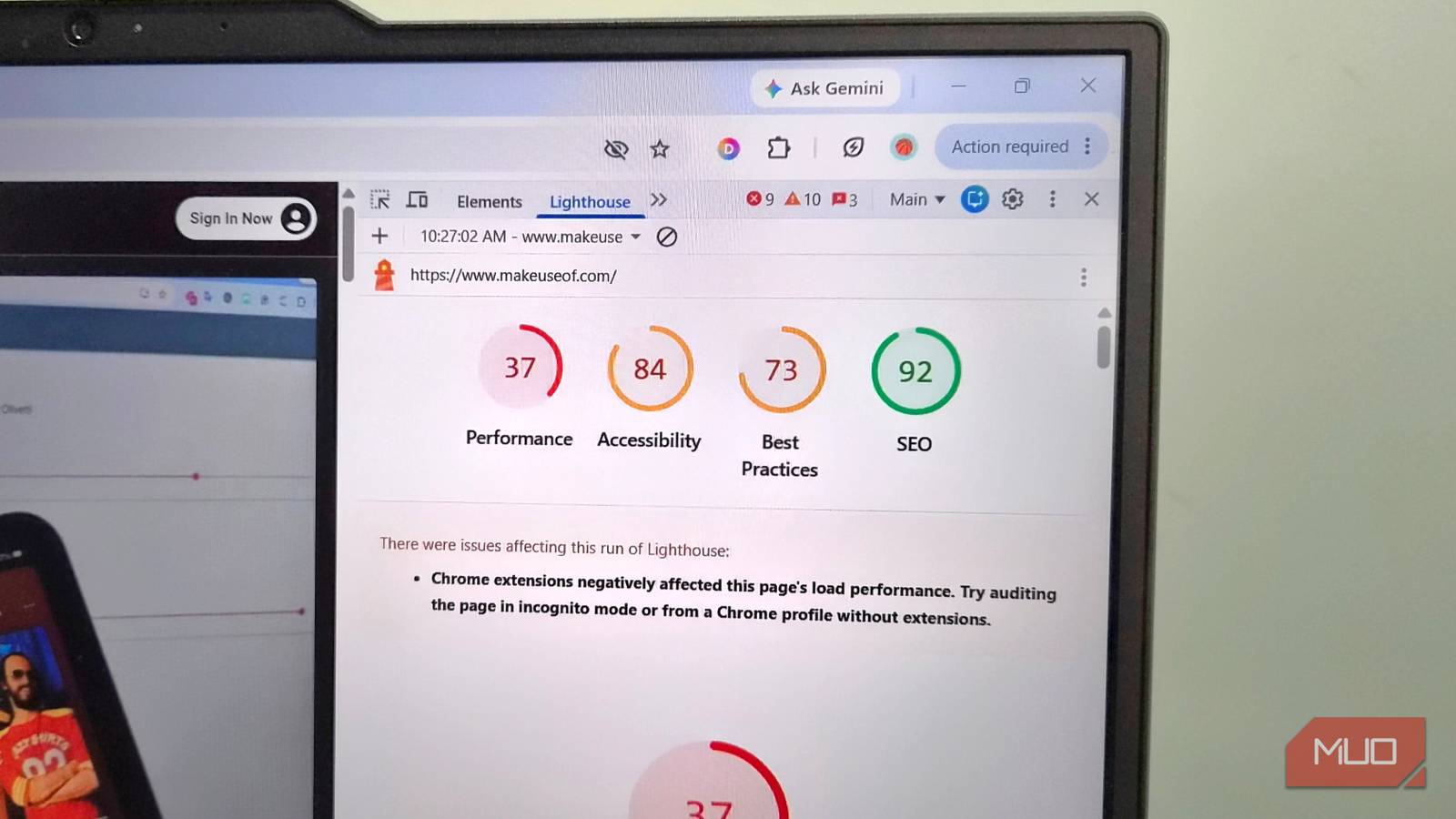
The first thing you’ll notice is the performance score, which basically tells you how fast the page loaded overall. Anything below 50 is bad news. It even flags any issues that may have caused problems with the page loading. Scroll down a bit, and you’ll see the Speed Index, which basically tells you how many seconds it took for the page to fully appear. Of course, this number will vary depending on how heavy the page is, so don’t read too much into a single result.
The best way to get useful data is to run Lighthouse in both normal and incognito windows and compare. When I did this on a few sites I visit regularly, the numbers revealed everything. On average, I was seeing around 4 seconds of extra delay in my normal window. Lighthouse even gave me the reason, so I didn’t have to guess. It was the extensions. I had quite a few extensions installed for blocking ads, dismissing cookie consent popups, forcing dark mode, and a few other things.
Every one of those was adding a few milliseconds of delay on every page I loaded. So yes, the problem wasn’t Chrome, my internet, or the sites themselves. It was what I was using to browse.
A few small changes made all the difference
Faster loading times, just like that

Once Lighthouse pointed at my extensions, the fix was obvious. I opened chrome://extensions and disabled things I either didn’t need anymore or could live without. I ended up disabling extensions like Dark Mode, Vimium, Volume Master, Tab Session Manager, and a couple of others. I also ran the Lighthouse test after disabling each extension to see how much difference it made.
The cleanup brought down the loading times significantly, but I didn’t stop there. I also switched away from my ISP’s default DNS server, which is almost always the worst option available. DNS lookup time is one of those invisible delays that can hurt more than you think. And more importantly, there are plenty of fast, free alternatives available. I ran a DNS speed test inside Chrome itself and decided to go with NextDNS. Another thing I did was clear Chrome’s cache, which was long overdue. Lighthouse can’t catch either of those things, but they sure did help me with the page loading times.