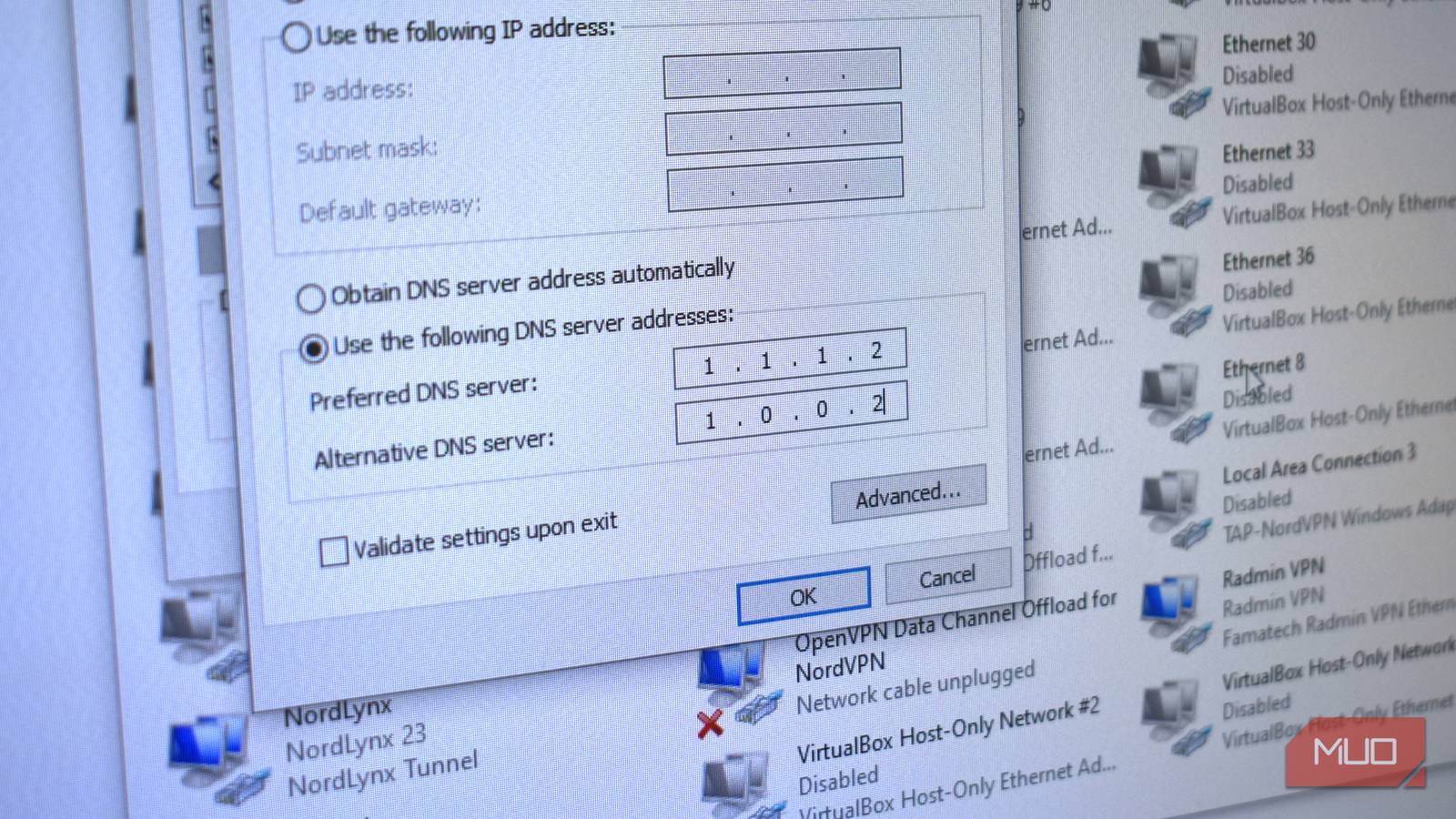
Changing your DNS address comes with a host of benefits, especially if you switch to a provider with additional encryption, malware protection, and so on.
What most folks don’t realize is that most DNS providers also provide a second configuration that offers a different set of features. Quad9, Cloudflare, OpenDNS, CleanBrowsing, and many others all provide a secondary address that isn’t just a backup to the primary DNS — it can provide a whole different level of protection.
Cloudflare operates three different options
Each builds on the last
I previously explained how changing a single digit on your DNS will help block malware, and Cloudflare is a prime example of this in action.
- 1.1.1.1: Cloudflare’s standard resolver is fast and unfiltered, giving you the “full internet” experience.
- 1.1.1.2: Changing the final digit to “2” adds malware and phishing protection.
- 1.1.1.3: Switching the final digit to “3” adds an additional adult content filter.
In each case, you’re still using the same Cloudflare infrastructure. But with each change, Cloudflare uses its vast knowledge of dangerous content and its associated addresses to filter most of it out.
It’s not foolproof, mind. Malware and phishing campaigns constantly use new URLs and domains to stay ahead of antivirus protection, and Cloudflare (and the other DNS providers) are no different.
Quad9 flips the pattern, but still delivers the protection
Want protection? Use the primary address

Quad9 is one of the best DNS resolvers around. Most of the time, you’ll be directed to 9.9.9.9, the primary address, which is no bad thing.
Unlike Cloudflare, Quad9’s primary address contains malware and adult content filtering, checked against a malware and phishing blocklist pulled from more than a dozen threat intelligence providers, with DNSSEC validation running alongside it.
Whereas 9.9.9.10 is the unfiltered version that allows you unfettered access to the web, but still with faster DNS resolution. In that, Quad9 stands out ever so slightly because its secondary address removes restrictions rather than adding them, like the rest.
AdGuard also offers three different options
You can still opt for the fully unfiltered web

Similar to Cloudflare, AdGuard also offers three different DNS resolvers with varying levels of protection.
- 94.140.14.14: AdGuard’s primary DNS comes with advertising and tracker blocking, helping to boost your online privacy.
- 94.140.14.15: Changing the final digits to “15” gives you AdGuard’s Family Protection, which adds adult content protection and enforces Safe Search if the setting exists on the device.
- 94.140.14.140: This is AdGuard’s unfiltered DNS resolver, switching off the additional protection.
Note that the Family Protection DNS also includes the same advertising and tracker blocking as the primary DNS, along with additional malware and phishing protection.
You can also take it one step further with AdGuard, too. I replaced my default ISP DNS with a self-hosted instance of AdGuard Home, and it’s been a great upgrade for my entire home network.
OpenDNS Family Shield blocks it all
But the primary DNS needs an account
OpenDNS operates a pair of DNS resolvers, with its Family Shield DNS providing a solid option when it comes to additional protection from malware, adult content, and so on, out of the box.
The biggest difference between OpenDNS Family Shield and other DNS resolvers is that this isn’t customizable in any way, unlike OpenDNS Home, which you can customize with an OpenDNS account.
In that, if you want some of the protections but not others, the standard OpenDNS Home option may better suit you.
- Head to OpenDNS, then scroll down and select OpenDNS Home
- Input your information to create an account and press Sign-up
- Validate your email, then you can sign in to the OpenDNS Dashboard. Add the network address of the device you want to customize in the Settings tab, then select the device.
- From here, you can choose between varying filtering levels on a per-device basis.
OpenDNS Home is a little more involved than just switching to OpenDNS Family Shield, but the per-device customization is a really handy option. But if you want the “set it and forget” option, OpenDNS Family Shield does a great job.
Unfiltered isn’t completely unprotected when it comes to DNS
And where does Google feature in all of this?
It’s worth noting that in all cases, moving to the “unfiltered” DNS addresses doesn’t mean you’re completely without protection. The so-called “unfiltered DNS” just means that it’s not applying additional filtering on top of what it already blocks, such as known malware and phishing sites, flagged content, and so on.
In all cases, the unfiltered DNS option still validates DNSSEC (Domain Name System Security Extensions), the protocol that adds and handles encryption for DNS records.
And on the Google question: it simply doesn’t provide a secondary DNS that adds more protection, ad blocking (go figure), tracking, or anything. Now, that’s not a huge problem, it has to be said. Google’s Public DNS remains one of the most popular, and it’s considered fast and secure by default, given the company’s incredible global reach.
But if you want something a little more, you know where to look!