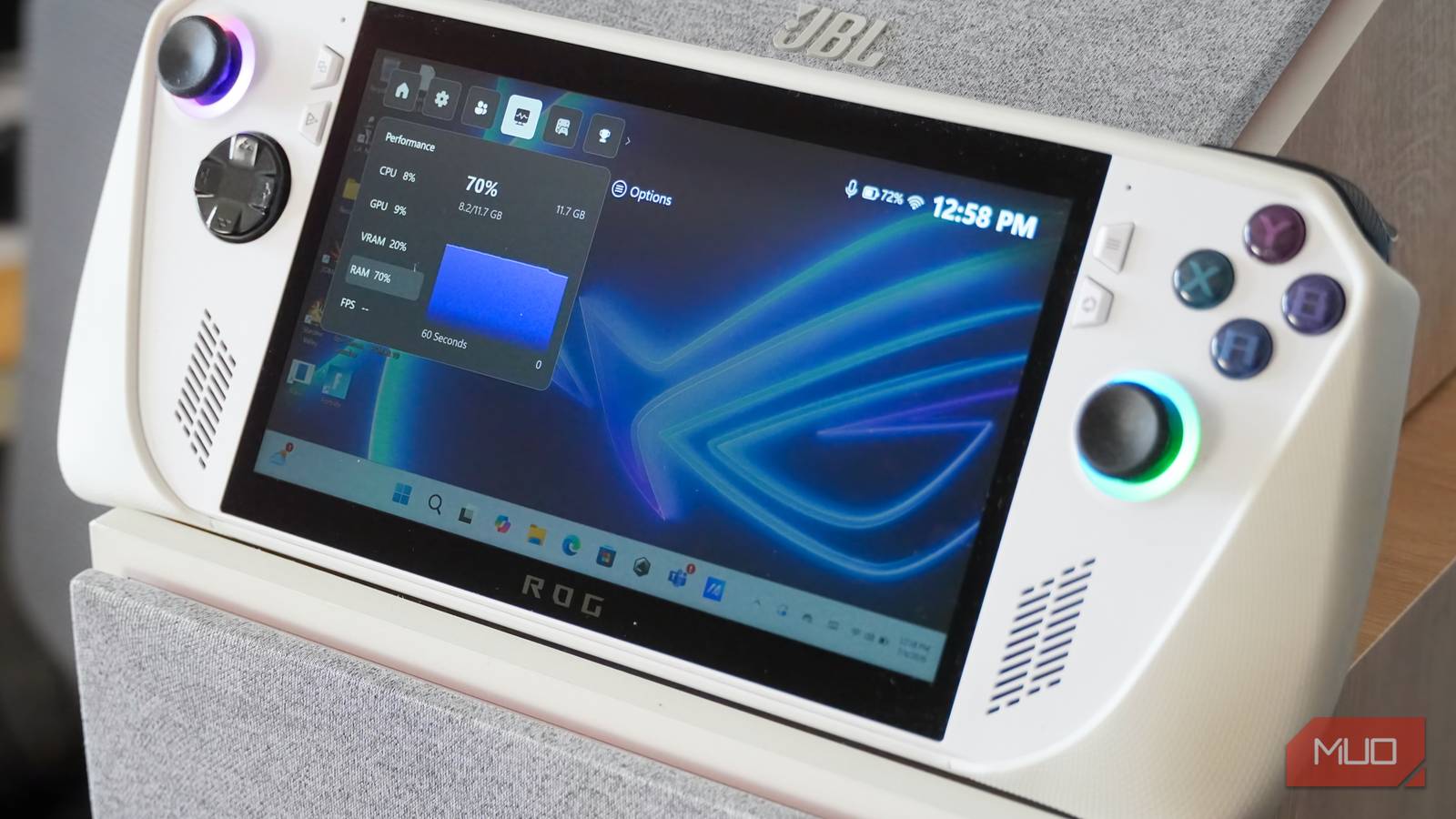
Microsoft wants to make Windows 11 the perfect platform for gamers and the Xbox brand, but sometimes, its additions can do more harm than good. The bloat in Windows 11 is well-documented, particularly for gamers. There are background features like Xbox Game Bar that are constantly running, and they consume system resources.
If you don’t use Xbox Game Bar or already have an alternative — such as OBS, Lenovo Legion Space, or Asus Armoury Crate — you might be missing out on better performance and more frames by leaving it enabled. Usually, disabling Xbox Game Bar can recover system memory, as well as CPU and GPU resources.
I tweaked these 3 Windows settings and my gaming lag disappeared
Your network settings could be holding you back.
I turned off Game Bar and reclaimed memory
For systems light on RAM, this move could improve performance
Xbox Game Bar is the handy visual overlay that provides quick access to games, settings, and resource monitors in Windows 11. You can launch it by pressing the Windows + G keyboard shortcut from anywhere. It’s enabled by default, and is always working in the background — even when you don’t use it. There’s also a compact mode for Xbox Game Bar that makes it easier to navigate on a PC gaming handheld or with a controller.
The unseen cost of letting Xbox Game Bar work silently behind your apps and games is wasted memory usage. The exact Game Bar memory consumption will vary based on your system and usage, but you can expect to surrender somewhere between 30MB and 400MB of RAM when it’s running in the background. Of course, when invoking the Game Bar overlay or using its features, your system will allocate more memory to its processes.
Disabling the Xbox Game Bar expectedly frees up memory, but the actual performance improvement you’ll get from it can depend on your PC’s specs. Older gaming PCs, gaming laptops, and gaming handhelds will benefit most from stopping Game Bar in its tracks. This is particularly true when only 8GB or 16GB memory is available in the first place. Systems with low available memory turn to overflow memory (virtual memory/pagefile) quicker, which is slower than your physical memory.

I avoid this entirely by disabling the Xbox Game Bar in my Windows 11 settings. Open the Settings app, find the Gaming page, and select Xbox Game Bar. Then, flip the toggle beside Xbox Game Bar to the Off position, and you’re done. After you’ve made the change, it’s worth playing a few games or running a few benchmarks to figure out how big of a performance improvement (or lack thereof) disabling Game Bar made. You can decide whether to keep the feature off or turn it back on based on the results.
Disabling Game Bar stops this performance killer
Game DVR eats resources to provide features you might never use

Xbox Game Bar isn’t the real performance killer hurting your Windows 11 gaming PC, it’s something hidden beneath it. Game DVR is a Windows feature that lets you record moments of your gameplay after they’ve happened, and it is built into Xbox Game Bar. It works by constantly recording your gameplay in the background, looping the saved videos at your selected intervals (the default is 30 seconds). Then, hitting the Windows + Alt + G keyboard shortcut saves the video recording of your gameplay of the past 30 seconds, or up to a few minutes if manually configured.
Game DVR is extremely helpful for people who love to share game clips of their play, but the constant background recording strains your gaming PC far more than the basic Xbox Game Bar overlay. It could consume 200MB to 600MB of memory usage on its own, depending on the video recording length you’ve selected. Moreover, Game DVR uses CPU and GPU resources to encode and process the clips as they come in, putting a bit of extra pressure on your entire system.
Of course, we’re still talking in the megabytes here. If you have an enthusiast gaming PC with plenty of RAM and VRAM, your rig will probably perform fine regardless of whether Xbox Game Bar or Game DVR is disabled. Turning off these features will benefit those with older or weaker gaming PCs most.
To turn off Game DVR individually, open Game Bar, click Settings, and select the Capturing page. Then, uncheck the box beside Record in the background while I’m playing a game. If you turn off Xbox Game Bar entirely, you don’t have to do this. However, this setting allows you to turn off the performance-hungry feature in Game DVR while leaving the rest of the Game Bar overlay active.
Why you might want to keep Game Bar
Some manufacturers rely on it for performance optimizations

While turning off Xbox Game Bar will free up system resources for most, it could actually hurt overall gaming performance for some. This is because certain components, like dual-CCD CPUs, use Game Bar to allocate advanced resources (for example, 3D V-Cache cores). Without Xbox Game Bar, your gaming PC’s components might not be using the features and processing tech required to deliver the best performance.
That’s why it’s best to try playing your favorite games with Xbox Game Bar enabled and disabled, comparing the results. Think about how much you use Game Bar, and whether it’s worth the marginal performance hit. One thing is for sure — with Game Bar and Game DVR enabled, your gaming PC’s resources are working on background processes that have nothing to do with your game.

- Chipset
-
AMD Ryzen Z2
- RAM
-
16GB RAM
- Storage
-
512GB SSD
- Operating System
-
Windows 11
The Asus ROG Xbox Ally is a Windows 11 gaming handheld with an ergonomic controller design. While not the fastest handheld on the market, the Xbox Ally nails game compatibility and in-hand feel at an attractive price point. It’s a worthy successor to the original ROG Ally I own. If I was in the market for a gaming handheld today, this is the one I’d buy.