Windows 11 has gotten pretty good at hiding the plumbing I’m not supposed to touch. That made it all the stranger when I ran dir /a C: and spotted a name I hadn’t expected to see outside an old Windows XP machine: Documents and Settings. The command even identifies it as a junction pointing to C:Users.
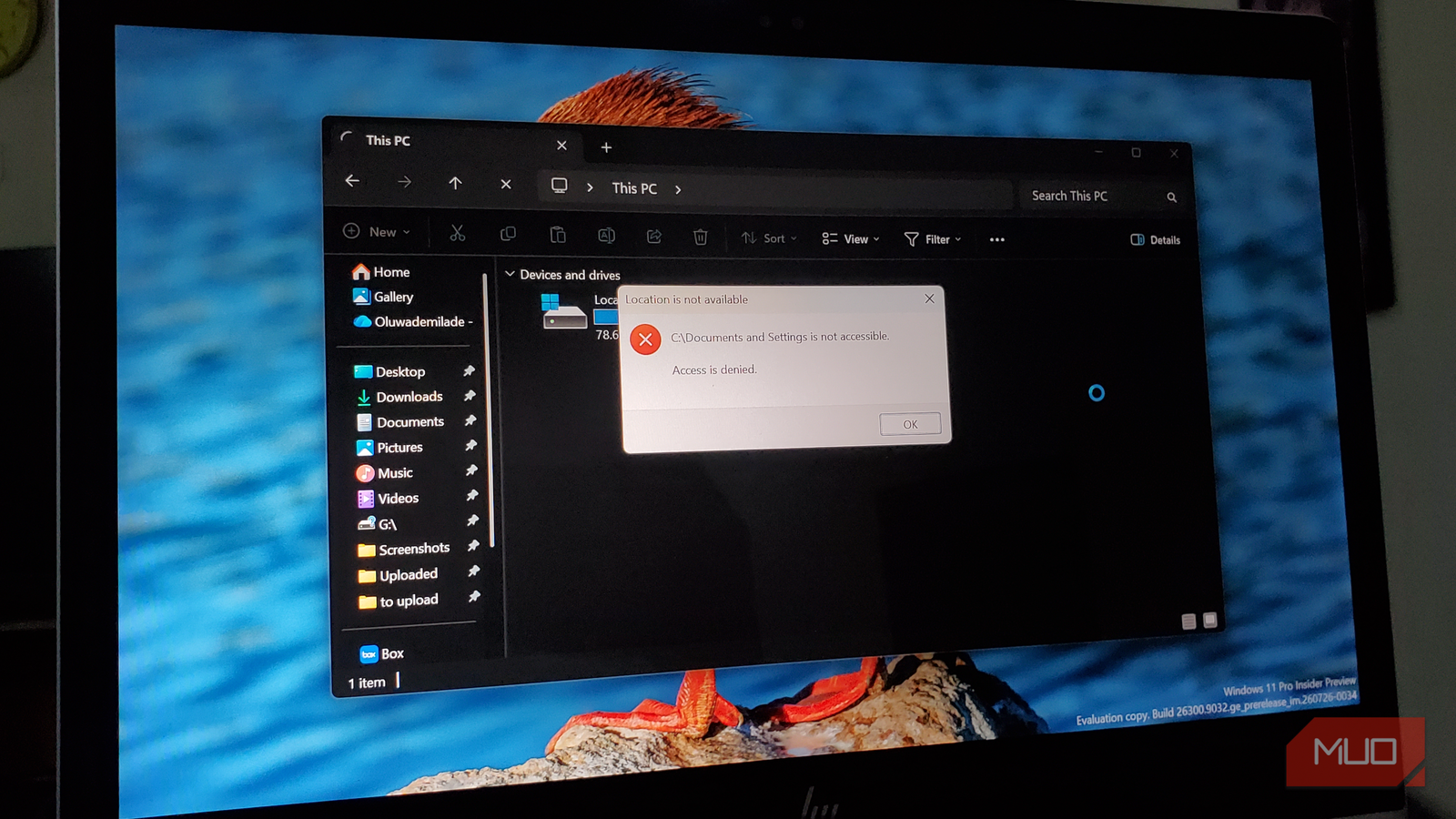
I tried opening it in File Explorer anyway, but got an “Access is denied” message. The message looks like a permissions problem at first, but Windows is doing exactly what Microsoft designed it to do, and the explanation goes back to one of the messier parts of keeping old Windows software alive.
Windows 11 is still forwarding mail from the XP era
The address changed, but Microsoft kept the forwarding order

Back in Windows XP, user profiles lived under C:Documents and Settings. A typical profile might have been C:Documents and SettingsOluwademilade, with the user’s documents, settings, and application data sitting underneath that path.
Windows Vista cleaned up the layout by moving profiles to C:Users, but Microsoft couldn’t just erase the old path and hope for the best. Plenty of software had been written around the assumption that C:Documents and Settings would always exist, and some programs had that address hard-coded. Windows still goes to considerable lengths to keep old programs built for earlier versions of Windows working, and removing the path outright would have risked breaking anything still looking for an address Windows had used for years.
Microsoft’s workaround was to leave a forwarding address behind. On modern Windows, C:Documents and Settings is an NTFS junction built with a filesystem feature called a reparse point. Microsoft’s own documentation uses this exact example, describing Documents and Settings as a compatibility junction that redirects to C:Users. Windows junctions can transparently redirect one folder path to another, which is exactly what happens whenever software still points to the old location.
So there isn’t another stash of user profiles consuming disk space under that old name. Documents and Settings simply gives older software another route to the location that Windows now uses.
You can see the setup yourself without installing anything by running this command:
dir /a C:
Windows marks the entry as C:Users as the target. If you open an elevated Command Prompt, fsutil reparsepoint query "C:Documents and Settings"lets you inspect the reparse-point data attached to it.
Leaving the old address in place makes plenty of sense. The weirder part is that Microsoft also put a locked gate in front of it.
Access Denied is part of the compatibility trick
Windows built a detour, then put a fence across it
If Documents and Settings points to C:Users, you’d expect double-clicking it to take you there. File Explorer has other ideas.
Microsoft deliberately set up these compatibility junctions so their contents can’t be browsed normally. The junctions use access-control lists that deny read access to Everyone, which means software trying to enumerate whatever sits underneath one gets stopped at the door.
That sounds unnecessarily hostile until you consider what would happen without it. Imagine an old backup program starting at C: and walking through every directory it finds. It reaches C:Users and backs up all the profiles. A little later, it encounters C:Documents and Settings, follows the junction straight back to those same profiles, and potentially backs everything up again.
Microsoft explicitly warns about that behavior. Software that blindly follows compatibility junctions can process the same files multiple times, while certain junction layouts can even create circular references. A recursive scanner could keep wandering back into folders it already visited through a different old path.
Those permissions also allow the compatibility layer to keep doing its job without turning File Explorer into a maze of duplicate folders. Software that asks for a specific legacy path can still be redirected when it has the right access, while programs that simply crawl through directories can’t freely enumerate every compatibility signpost they run across.
There’s also very little upside to changing the permissions just to poke around. Taking ownership of Documents and Settings, or stripping away its access restrictions, won’t reveal a forgotten second copy of your profile. The junction leads back to data that already lives under C:Users, so all you really accomplish is removing a safeguard Microsoft put there on purpose.
Windows keeps a surprising number of old addresses alive
Backward compatibility has a very long memory

Documents and Settings was only one piece of Microsoft’s migration plan. Vista introduced a whole set of compatibility junctions for folders whose names or locations had changed, giving older software a familiar path even after Windows reorganized the underlying filesystem.
Microsoft documents per-user junctions alongside system-wide ones, and old names such as My Documents could redirect software toward newer locations. You can still encounter legacy paths such as Application Data and Local Settings within a Windows profile. The basic idea stayed the same throughout, letting software ask for yesterday’s address while Windows quietly forwarded it somewhere current.
Nearly two decades later, Microsoft probably has very little to gain by ripping those junctions out. There could still be some ancient installer, script, utility, or corporate app out there that assumes one of those paths exists. That part is inference, but it fits Windows’ long-running approach to backward compatibility in software. Keeping a tiny redirect around is cheap, while discovering which forgotten piece of software still depends on it can get expensive fast.
That habit reaches even further back than Windows XP. Windows still preserves some folder-name restrictions inherited from DOS for much the same reason, another tiny piece of ancient behavior that remains because changing it could break software that expects the old rules.
Some Windows fossils are still doing useful work
I have no real reason to open Documents and Settings, and Windows has made sure I won’t casually stumble through it anyway. I still kind of like that it’s there, though.
Few things sum up Windows quite as neatly as finding an address from the XP era still sitting on a Windows 11 PC, steadily forwarding traffic to its modern replacement after all these years.