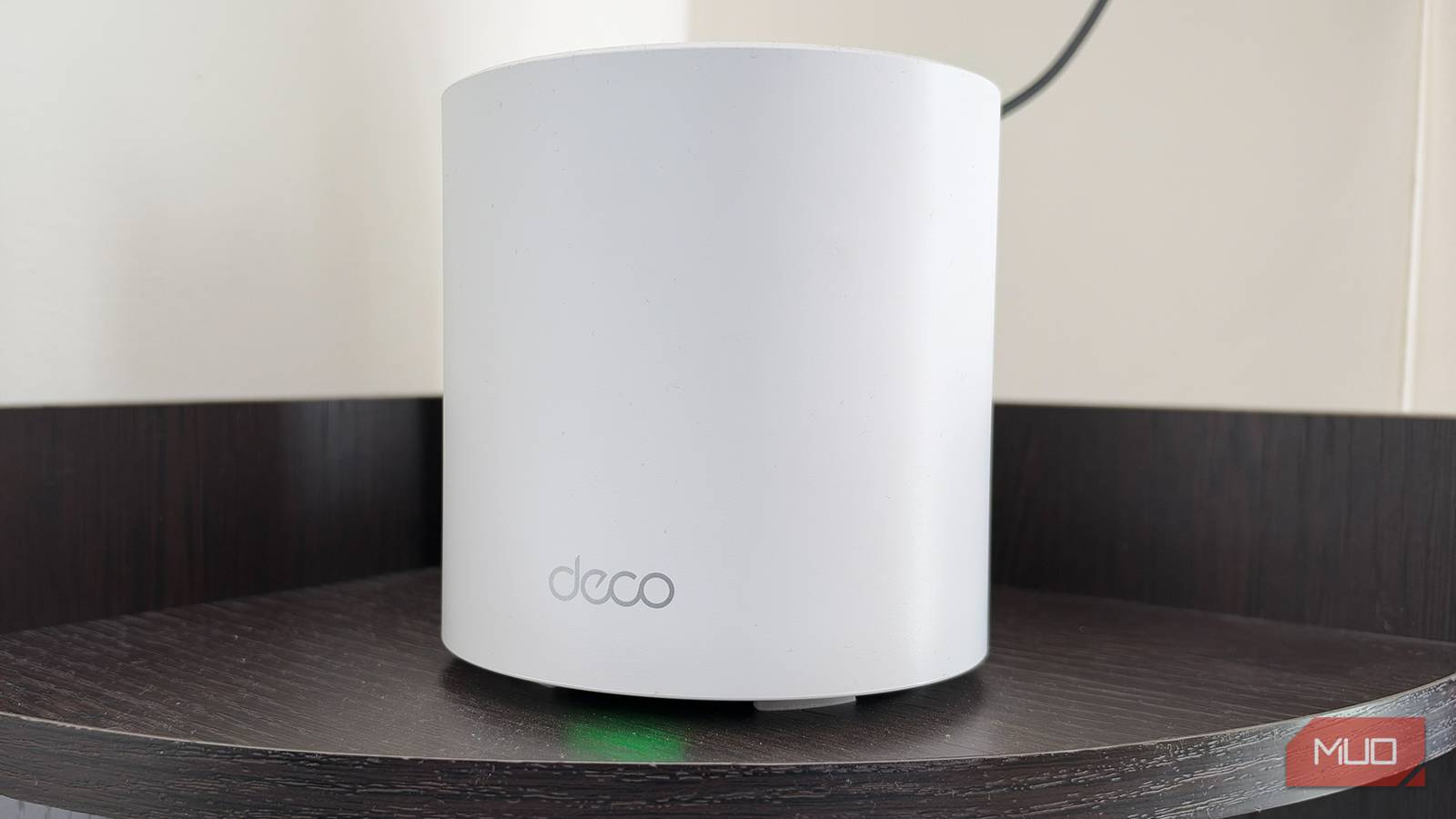
When you work from home as I do, the last thing you want is your Wi-Fi acting up, especially when you’re in the middle of something important. Unfortunately, I’ve had my fair share of moments when everything works perfectly one minute, and the next I’m wondering why even a simple webpage takes forever to load. It’s frustrating, especially when you’re paying for a decent internet connection and expect things to just work.
I’ve run into this problem more times than I’d like to admit, but this time, instead of restarting my router and hoping for the best, I decided to dig a little deeper. That’s when I came across Fing, a tool that helped me understand what was happening on my network. I expected to find something slowing down my connection, but I certainly wasn’t expecting to discover devices I didn’t even recognize connected to my Wi-Fi.
My Wi-Fi had an uninvited guest
My neighbor made himself right at home

To my surprise, I found several devices connected to my Wi-Fi that weren’t mine. And the strangest part is that they seemed to belong to my neighbor. For some context, I live in an apartment building where everyone lives pretty close to each other. Whenever I try to connect a new device to Wi-Fi, dozens of networks pop up, all belonging to people around me. And if you know someone’s Wi-Fi password, connecting to their network is pretty straightforward.
Now, here’s where things get interesting. I remember my neighbor visiting my apartment a while ago, and I had a small piece of paper pinned to my board with the passwords for my regular Wi-Fi and mesh network written on it. I remember him glancing at it a few times, but I didn’t think much of it.
Looking back, though, my Wi-Fi started acting strangely sometime after that visit. I can’t say for certain the two are connected, but finding what appeared to be his devices on my network certainly made me wonder.
Fing helped me figure out who was on my network
A few unfamiliar names immediately caught my attention

Thankfully, I had recently downloaded Fing on my iPhone, and I was curious to see what it could tell me about my home network. If you haven’t heard of it, Fing is a network-scanning app that helps identify devices connected to your local network.
Once you connect your phone to Wi-Fi and run a scan, Fing compiles a list of devices it finds. Depending on the device, you can see details such as its IP address, manufacturer, device type, and hostname. This is especially useful because not every device shows up with a recognizable name.
Now, I should mention that I already have quite a few devices connected to my Wi-Fi. Between my phones, laptops, TVs, and other gadgets around the house, something is almost always using the internet. Since I don’t check my router’s connected-device list every day, it’s easy to lose track of what’s connected.
So, when Fing showed me the results, it took me a little while to go through everything. I recognized most of the devices, but a few names immediately caught my attention. One device showed up with my neighbor’s name followed by “Android TV.” And as I continued scrolling, I noticed several other unfamiliar devices that also appeared to belong to him.
I kicked the freeloaders off my Wi-Fi
My downloads finally got some breathing room
Once I identified the unfamiliar devices, I wanted to get them off my network. Fing offers device-blocking and internet-pausing capabilities through supported setups and features, although these controls aren’t free.
The more important step was securing my Wi-Fi through my router’s settings. I changed my Wi-Fi passwords so anyone using the old credentials couldn’t reconnect. If you’re doing the same, I’d also recommend using WPA2-AES or WPA3 security, depending on what your router and devices support. If you’re still using the default router administrator password, change it, too.
Another thing to know: changing your Wi-Fi password will disconnect your existing devices, so you’ll need to reconnect them with the new credentials. It’s a little inconvenient when you have as many gadgets as I do, but I’d rather spend a few minutes reconnecting everything than leave my network accessible to someone else.
But removing those unwanted devices was only part of the problem. I also realized some of my own gadgets stayed connected even when I wasn’t using them.
Now, having multiple devices connected to Wi-Fi doesn’t automatically slow your internet. What matters is how much bandwidth they’re actually consuming. For example, a smart TV downloading an update, a laptop syncing files to the cloud, or a phone backing up photos can use a considerable amount of bandwidth without you actively doing anything.
When several devices do this at once, they can compete for the available bandwidth. That’s particularly noticeable when you’re downloading large files, uploading footage, or joining a video call. So, instead of blocking my own devices, I went through the ones I wasn’t actively using and turned off Wi-Fi in their settings. I also started paying closer attention to background downloads and updates, because they can quietly use your connection even when a device sits idle.
The whole experience made me realize how little attention I was paying to my home network. I spend so much time making sure my devices run properly, keeping their software updated, and fixing the smallest issues, yet I never really bothered to check who or what was using my internet connection.
And that’s something I’ve started doing differently. Every once in a while, I run a quick network scan to see whether anything unfamiliar has appeared. It’s also worth checking your router’s connected-device list, since it’s another way to verify which devices are on your network. Some routers even let you set up a separate guest network, which is a much better option when someone visits and needs internet access.