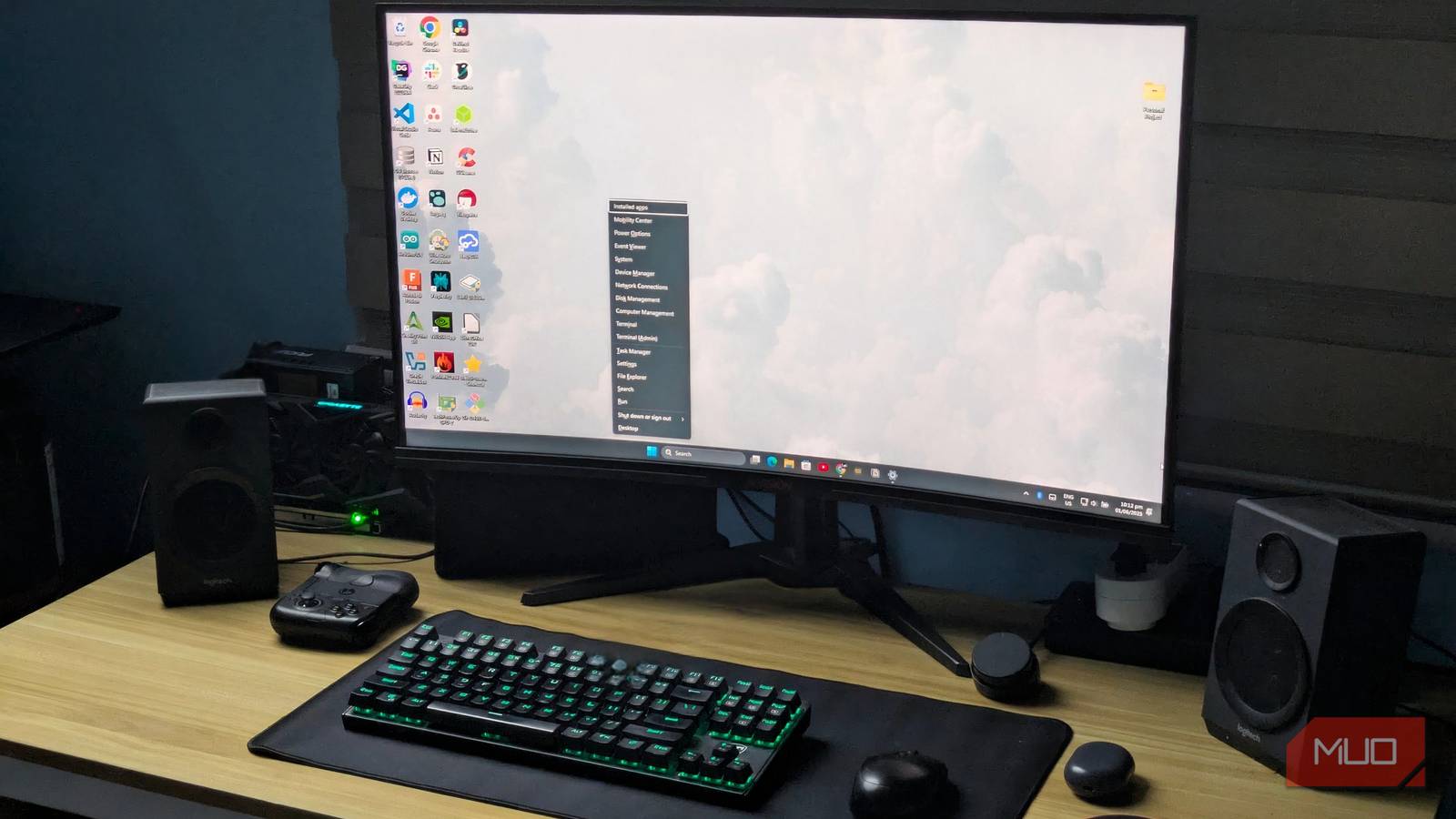
Most Windows 11 users know about the regular Start menu with its colorful tiles and recommended apps. But Microsoft has tucked away another menu, called the Quick Link menu, that you should absolutely use.
Just right-click
Accessing this hidden Start menu takes just a simple right-click. You don’t need any special settings or third-party software to unlock this feature. Microsoft built it right into Windows 11 but didn’t exactly advertise its existence.
The easiest way to open this menu is to right-click the Start button itself. You’ll see a pop-up menu with a long list of system tools and shortcuts. It appears immediately, making it perfect for accessing Windows features that are usually buried in Settings.
If you prefer keyboard shortcuts, press Windows + X. This combination works from anywhere in Windows 11, even when you’re running full-screen applications. I find this method particularly useful when working on laptops without a mouse.
Touchscreen users can access this menu by tapping and holding the Start button for a couple of seconds. The menu will pop up automatically once Windows detects the long-press gesture.
The menu opens near the Start button regardless of how you access it, making it easy to find and use. Its appearance follows your Windows theme, while its list of system shortcuts distinguishes it from the regular Start menu.
Powerful system tools, all in one place

This hidden menu packs a collection of system tools and shortcuts that would normally require multiple clicks to reach. Microsoft organizes these tools into logical groups, making it easy to find what you need. It gives you quick access to useful utilities, including:
- Installed apps: You get direct access to app management via the Installed apps shortcut, allowing you to view and uninstall installed programs. This shortcut saves time by bypassing multiple Settings screens for faster software removal or installation checks.
- Device Management: The menu includes Device Manager for instant hardware troubleshooting and driver updates, as well as Disk Management for handling hard drive partitions and storage tasks.
- Advanced System Tools: Quick links to Computer Management, Event Viewer, and Network Connections let you manage system logs, services, and change DNS servers without navigating through multiple menus.
- Command-Line Tools: The menu lets you open Terminal or Terminal (Admin) to run PowerShell or Command Prompt, making it the best menu for minimalists who want full control of their Windows PC.
- Task Manager and Run Dialog: Dedicated shortcuts to Task Manager and the Run dialog streamline system monitoring and program launching.
- Settings and File Explorer: Direct access to Settings and File Explorer ensures all common system functions are available from one central location.
- Power Options: Quickly restart, shut down, or put your PC to sleep using the Shut-down or sign out menu item (with sub-options for Sleep, Shut down, and Restart). You can also access the main power settings to configure battery options and power plans.
With all these utilities at your fingertips, the right-click Start menu is a powerhouse for streamlining your Windows experience. Whether you’re troubleshooting, managing software, or just saving time, this menu offers convenience and efficiency.
Less digging, faster troubleshooting
The right-click Start menu in Windows 11 is all about making your PC experience faster, easier, and more reliable. Instead of digging through layers of Settings or searching for hidden system tools, you get direct access to everything important in one spot.
Speed is the first thing you’ll notice. If your computer starts acting up, you can open Device Manager or Task Manager with a single click. There’s no need to wander through Control Panel or remember complicated file paths. You also don’t need to memorize Windows’ extensive keyboard shortcuts to quickly use its core utilities. This quick access adds up, saving you time and reducing frustration every day.
Consistency is another big advantage. No matter what Windows 11 device you use, whether it’s your work laptop, your home desktop, or a friend’s PC, the right-click Start menu always appears in the same place with the same set of tools. If you help others with their computers, this menu is something you’ll always have.
Most importantly, the right-click Start menu fits naturally into a power user’s workflow. It puts the tools you actually use—like Disk Management, Network Connections, PowerShell, and more—right at your fingertips. You don’t have to memorize shortcuts or hunt through menus. Everything’s organized, easy to find, and ready to go.
This hidden Start menu is one of Windows 11’s best shortcuts for improving productivity. It provides easy access to power user tools while maintaining the clean, simple interface that casual users prefer. Once you incorporate this menu into your daily workflow, you’ll find yourself working more efficiently and feeling more confident when dealing with system administration tasks.
So, the next time you need to check system information, manage devices, or troubleshoot problems, remember that Windows 11’s secret Start menu has exactly what you need, just one right-click away.