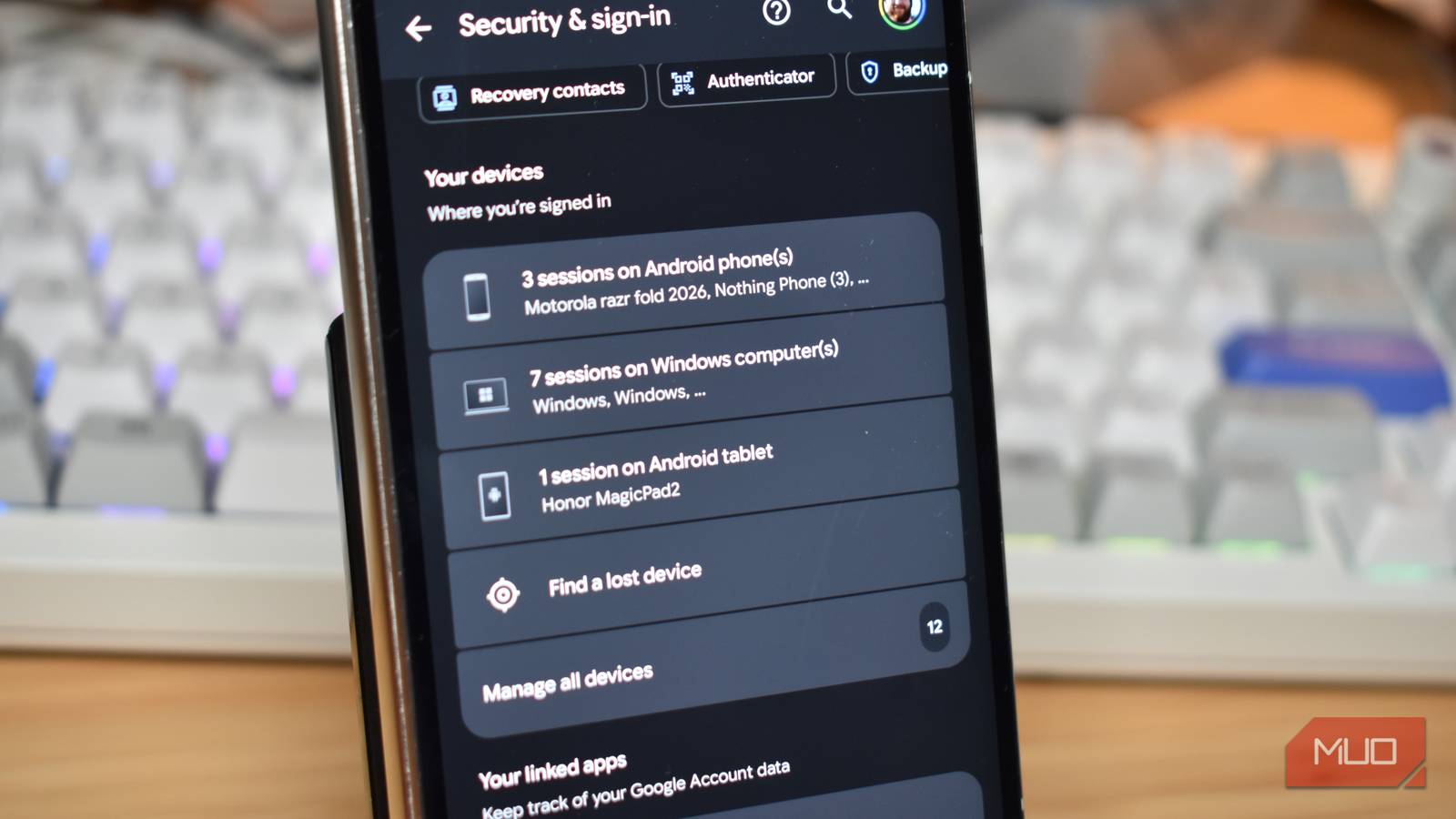
I use my Google Account across several devices like my phone, laptop, several browsers, and that’s usually convenient. But it also means I don’t always remember to sign out of my older devices. Now, the thing is, these sessions stay open long after you’ve forgotten them.
That’s why I recently checked my Google Account’s device list out of curiosity, and I spotted an entry I wasn’t expecting: a device I thought I’d already signed out of. So, with spotting that, I decided to check the details and review the other devices connected to my account, where I found another device — meaning it’s time for a Google Account security tune-up.
How to find your signed-in devices
See every device linked to your account
Google doesn’t put your connected devices list front and center, but you can see it within a minute, and it’s fairly easy. You don’t have to install any app or dive deeper into your settings. I visited my Google Account in a browser, and there was a Devices button right on that page. It showed up devices I currently use, as well as some I hadn’t used in a while.
In case you don’t see it, go to Security & sign-in from the left sidebar and scroll down to find the Devices section. When you click Manage all devices, you’ll see details like your device or browser name, approximate location, and when it was last active. You can tap a device to see more details.
Google doesn’t necessarily show one entry for every physical device. I saw multiple sessions associated with the same phone or computer. Signing in through a different browser, app, or private browsing window can create another session.
You can also view these devices on your phone. Go to the Google App (or another Google-owned app, like Gmail) > profile icon -> Manage your Google Account -> Security, and it will show you devices where you’ve signed in.
What I found in my devices list
Why my old device was still showing up
While going through the list, I noticed two older devices I didn’t expect to see. The first was my old Windows laptop, and the second was an iPad that I had already traded in last year. I had stopped using both devices and believed I had already signed out of my Google Account on them. This came as an alarm that something was wrong.
Naturally, my first thought was that I had missed something when I last used those devices. Rather than immediately assuming someone else had access to my account, I opened the entry to check its details.
I didn’t care much about my Windows laptop because that’s still with me, even if it’s been months since I used it. The concern was the iPad. It’s possible I erased my iPad and handed it over without signing out of my Google Account first. When you perform a factory reset, it wipes the device, but it doesn’t always tell Google to drop that device from your account’s list.
The interesting thing is that Google’s device list can include devices you’ve signed out of, as well as those you’re currently signed in to. A device that has been signed out shows a Signed out label. Google keeps these entries visible for a limited period so you can review recent account access.
I also learned that the last activity timestamp isn’t necessarily the last time I physically used a device. Background syncing from services and apps can communicate with Google systems even when you’re not actively using the device. For example, I might have stopped using an old phone last week, but an app connected to my Google Account could sync in the background. As a result, I might see activity time more recent than expected.
How to tell if a device is actually suspicious
And what to do if it is

I didn’t want to sign out of every unfamiliar-looking entry because I use my Google Account on several devices, and some entries aren’t always immediately recognizable. To avoid any confusion, I checked four things for each device: name or model, browser or app, location, and last activity. For instance, I only use Chrome on my laptop, but there was a browser session I didn’t recognize. Instead of removing it, I checked whether it could belong to another device I own.
Next, I looked at the approximate location and activity time, and I strongly recommend paying close attention here. If there’s a sign-in from a place you’ve never visited or at a time when you weren’t using your devices, you must take a closer look. However, you shouldn’t rely on location alone, as VPNs and network routing can sometimes show an unexpected location.
Cross-check with Google’s Recent security activity section for unfamiliar sign-ins, password changes, or changes to account recovery details. These can hint at whether someone has tried to access your account.
If something doesn’t feel right, it’s better to sign out of the unfamiliar device and change your Google Account password. I also recommend confirming your recovery email and phone number are correct, and enabling two-step verification if you haven’t already. This will add another layer of protection to your account.
Review third-party apps and services that have access to your account. Remove anything you don’t use.
How to sign out of a device
Remove devices you no longer use

If you find a device you no longer use, Google lets you remove its access remotely. You don’t need physical access to sign it out. Here’s what you need to do:
- Go to your Google Account and select Devices.
- Alternatively, select Security & sign-in, scroll down to Your devices, and select Manage all devices.
- Find the device you want to remove and open its details.
- Select Sign out and confirm your choice.
- Return to the device list and check its status.
While doing so, don’t confuse signing out remotely with wiping a device. Signing out removes your Google Account access from that session, but it doesn’t erase files, photos, or other data stored locally on the device. If you’re selling an old Android phone, signing out of your Google Account doesn’t automatically perform a factory reset.