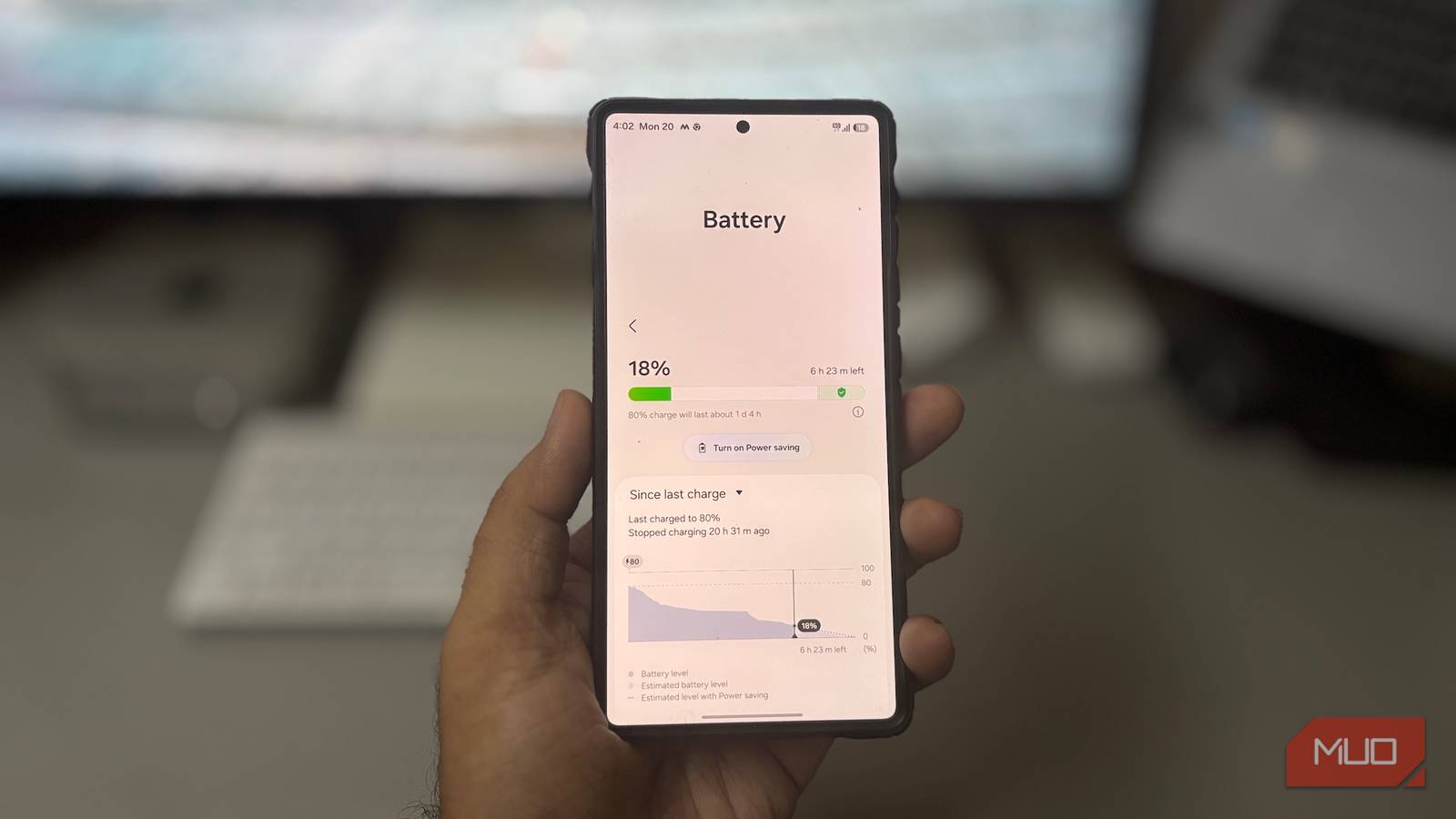
Battery degradation is real, and over time you will notice your phone’s capacity drop with more use, but a lower capacity isn’t always the reason why your phone’s battery dies quickly.
Even with a large battery, like the 5,000 mAh capacity on the Samsung Galaxy S26 Ultra, the phone can still lose power quickly, and the culprit isn’t the battery itself, but rather software settings, hardware, and what the phone is doing in the background when you’re not using it.
Here are some of the reasons your battery might drain faster, and what to do about it
It loses charge while you sleep
Updates, syncing, and radios keep working with the screen off

Android devices can lose an estimated 6–8% of their battery overnight, even when the phone isn’t doing anything. Normally, that points to weak battery cells that can’t hold a charge for long, but it can happen on newer phones too.
Even when you’re not using your phone, tons of activity still happens in the background, which the OS usually schedules for nighttime at idle, so it doesn’t interrupt what you’re doing during the day.
Things like software and app updates happen overnight so that they don’t interrupt usage. Then messaging apps and anything that communicates over the internet still run in the background, refreshing statuses and checking for new notifications.
Moreover, features like Always-On Display and connectivity like Bluetooth, Wi-Fi, cellular networks, and GPS all draw considerable power.
The simplest way to reduce this overnight drain is to turn off automatic app and software updates, disable connectivity like Bluetooth, GPS, and mobile data, and leave only Wi-Fi on.
It runs warm when you aren’t using it
A stuck app can produce more heat than an aging cell

Phones with degraded batteries eat through power quickly because higher internal resistance turns more energy into heat. With older phones, they tend to get hot even when sitting idle.
However, the same thing can happen with newer batteries, usually because of background activity, but other factors can also make a phone warm at idle that aren’t due to the battery.
A phone warming up at idle can be due to an app stuck in a loop after a failed update, a process that didn’t end properly, or a camera service still running in the background. In that case, check which app is using the most battery under Settings > Battery > Battery Usage, then force-stop the app.
Location scanning never fully switches off
Wi-Fi and Bluetooth scans keep running even with both toggled off
Android location services use more than GPS to pinpoint your exact position. Features like Wi-Fi scanning and Bluetooth scanning keep running in the background even when these connections are turned off. For Wi-Fi scanning, your phone uses nearby networks as access points against a location database.
Then, Bluetooth scanning does the same by searching for nearby devices. However, Bluetooth scanning also has a big downside, as it exposes your phone’s location to nearby devices.
When moving between places, the drain climbs even more since your phone constantly looks for connectivity nearby, causing you to lose battery.
To avoid this, disable Wi-Fi Scanning under Settings > Location > Location Services, then toggle it off. You’ll also disable Bluetooth Scanning under Location Services. However, it’s recommended to keep Bluetooth Scanning on in case your device gets lost, since the SmarThings/Find My Device feature depends on it if your phone gets lost and is turned off.
Your signal is weak
The modem raises transmit power to hold a connection

With weak cellular and Wi-Fi connectivity, it’s not only your internet speeds that are paying the price — it’s your phone’s battery as well. In areas where Wi-Fi or cellular signals are hard to reach, your phone’s modem has to work overtime, which causes it to raise the transmit power in order to keep a stable connection.
This is more of a hardware demand that not many people are familiar with, but your phone’s battery suffers because of it. The easiest fix is to switch to Wi-Fi calling when your cellular connection is weak and, conversely, switch to mobile data when your Wi-Fi is very weak.
Your display settings are set too high
Refresh rate, brightness, and Always-On Display can outweigh battery size

As good as modern Android displays are, they’re just as demanding on the battery. You can have an Android with the largest capacity, and your battery will die down quickly if you’ve turned up the display’s settings to the highest configuration. The reason is that these displays are power-hungry. A high refresh rate like 120Hz, Always On Display, maximum brightness, or a long timeout screen can drain the battery in just a few hours.
The battery can’t do much in this regard, since it’s the hardware sucking up all the juice. Except when gaming, set the refresh rate to adaptive or 60Hz, and reduce the timeout as well. Turning on Always On Display also isn’t a good idea, unless you schedule it.
A test by SlashGear shows Samsung’s AOD costs 1% of the battery per hour and, combined with other background activity, that’s bound to leave your battery dry sooner than it should be.
Above 80% battery health, your settings are the likelier cause
A simple way to check whether your phone’s battery is a problem is to check battery health or use the built-in diagnostics on Samsung or Google phones. A battery with over 80% health usually won’t have severe drain issues.
Anything below that is a major concern, to the point that your phone’s software and hardware settings become a secondary factor, but they’ll still affect battery life regardless of health.