Windows 11 doesn’t have a native tool for converting files, so a file converter is one of the first things I install on any new PC. Until now, that was File Converter, which is still a solid tool. But recently, I stumbled onto something even better.
Filee (not a typo) is a free and open-source file converter that’s ridiculously easy to use and, more importantly, does a few things more than simply convert files. In fact, I stopped using apps I used to reach for light image edits, resizing, merging PDFs, and renaming files in bulk.
Filee makes converting files a breeze
Simply drag and drop
Filee is a free, open-source file converter tool for Windows, macOS, and Linux. It supports over 270 different file formats, including images, video, audio, PDFs, Office files, CAD formats, and archives. And like most open-source apps, it doesn’t show ads or ask you to create an account.
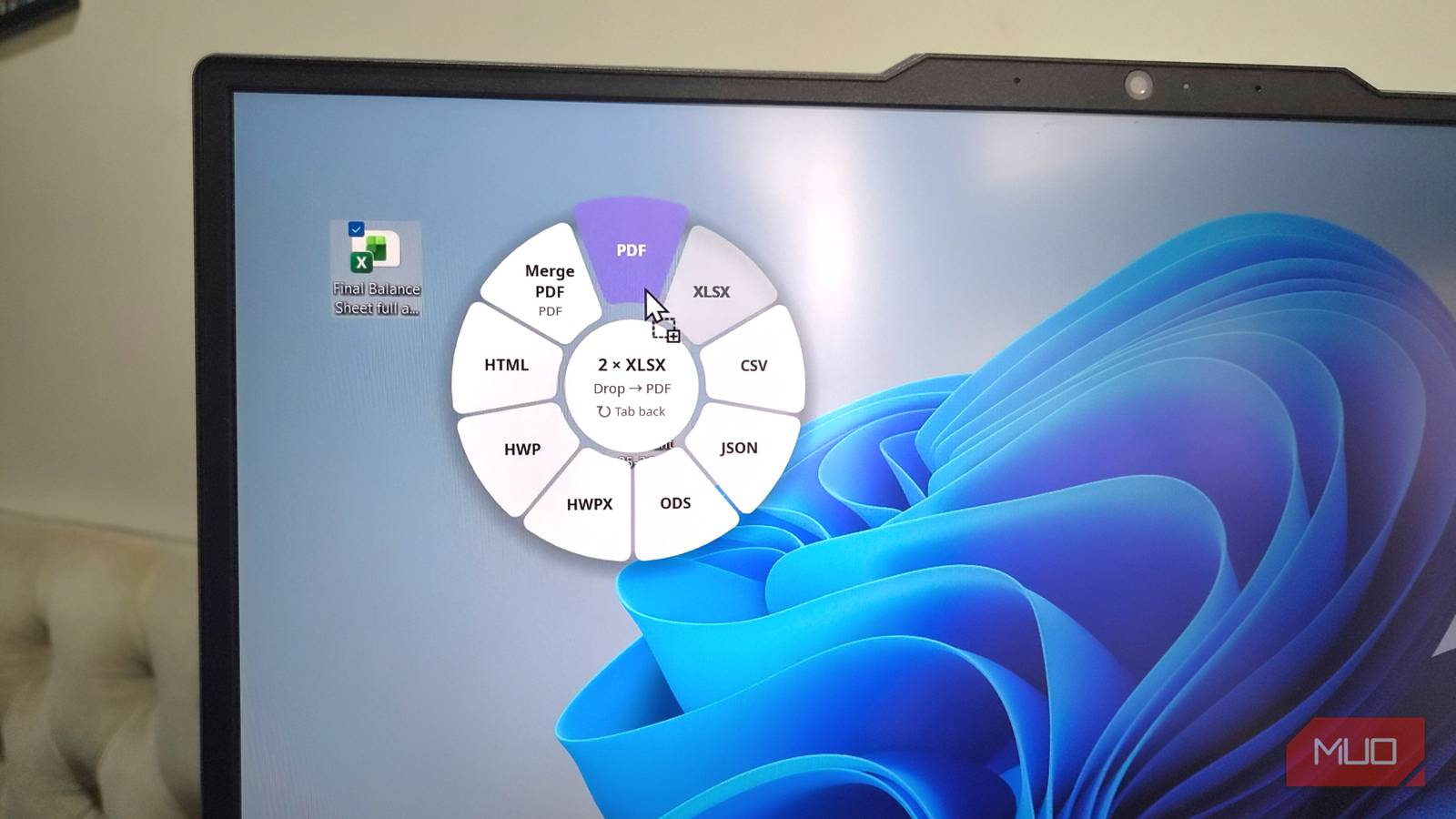
The biggest highlight here, though, is how easy it is to use. Filee skips the whole right-click menu routine, where you have to dig through submenus to pick the format you want. You don’t have to deal with any pop-ups either. Simply hold down the Ctrl key and drag the file you want to convert. This opens a little donut-shaped menu right under your cursor, where you see other formats. Drop the file on the one you want, and Filee saves the converted file in the same place as the original file.
That’s the part that got me. Using Filee doesn’t feel like you’re using a third-party tool — it almost feels like a native Windows feature. It can handle bulk conversion too. You can select multiple files and convert them all at once. Another big win here is that everything happens locally, so you don’t have to worry about privacy.
Heck, Filee even works with images inside a browser. This is something I haven’t seen a file converter app do. You can hold down the Ctrl key and drag the image to download it in your preferred format. This is a huge time saver if you’re constantly grabbing images in WebP format and then converting them manually. It works for file downloads, too. Instead of downloading a ZIP file, extracting it manually and then deleting the original, you can use Filee to download the extracted copy directly.
It can do more than just convert files
Resize, crop, and tweak files without another app

Conversion is the main feature, but Filee can do a lot more. While dragging an image file, for instance, it shows a Half Size option, which is useful if you want to make the image smaller before sharing.
The same menu also includes an Edit Picture option. This opens a small window where you can resize the image by percentage or by entering a specific width. If you just want to make it smaller without worrying about exact dimensions, there’s a Quality slider for that. This is something I used to do with PowerToys’ Image Resizer, but not anymore.
That same window also lets you rotate, flip, and apply a grayscale effect to an image, and you can do all of this to multiple images at once. The donut menu even has a Pixelate option for hiding sensitive information inside a photo — no need to fire up Paint.
And there’s more. If you drag the image file and then press the Tab key, Filee shows you a few more options for deleting metadata, removing background, and cropping.
If you’re working with documents, you’ll see options to split and merge PDFs. The merge PDF option is the one I like the most, since you can select half a dozen PDF files and simply specify the order. Filee creates a merged PDF in seconds. This is something I used to rely on PDF24 for, but I no longer need to.
It’s simple yet feature-packed

Filee also offers a few thoughtful extras that are worth talking about. My favorite is Watch Folders. With this, you can set up Filee to keep an eye on a specific folder and automatically convert any file that lands in it. You can even define naming rules for the converted files, so you don’t have to rename them with a tool like PowerToys PowerRename.
The app is also customizable. You can change the trigger key if Ctrl doesn’t suit you, change where converted files are saved, and even swap the options that appear in the donut toolbar. There’s also a history log that lets you go back and see everything you converted.
It’s genuinely hard to find an app with nothing wrong with it, but Filee comes close. I’ve used it for a few weeks, and I’ve got nothing to complain about it, except, I guess, its name.