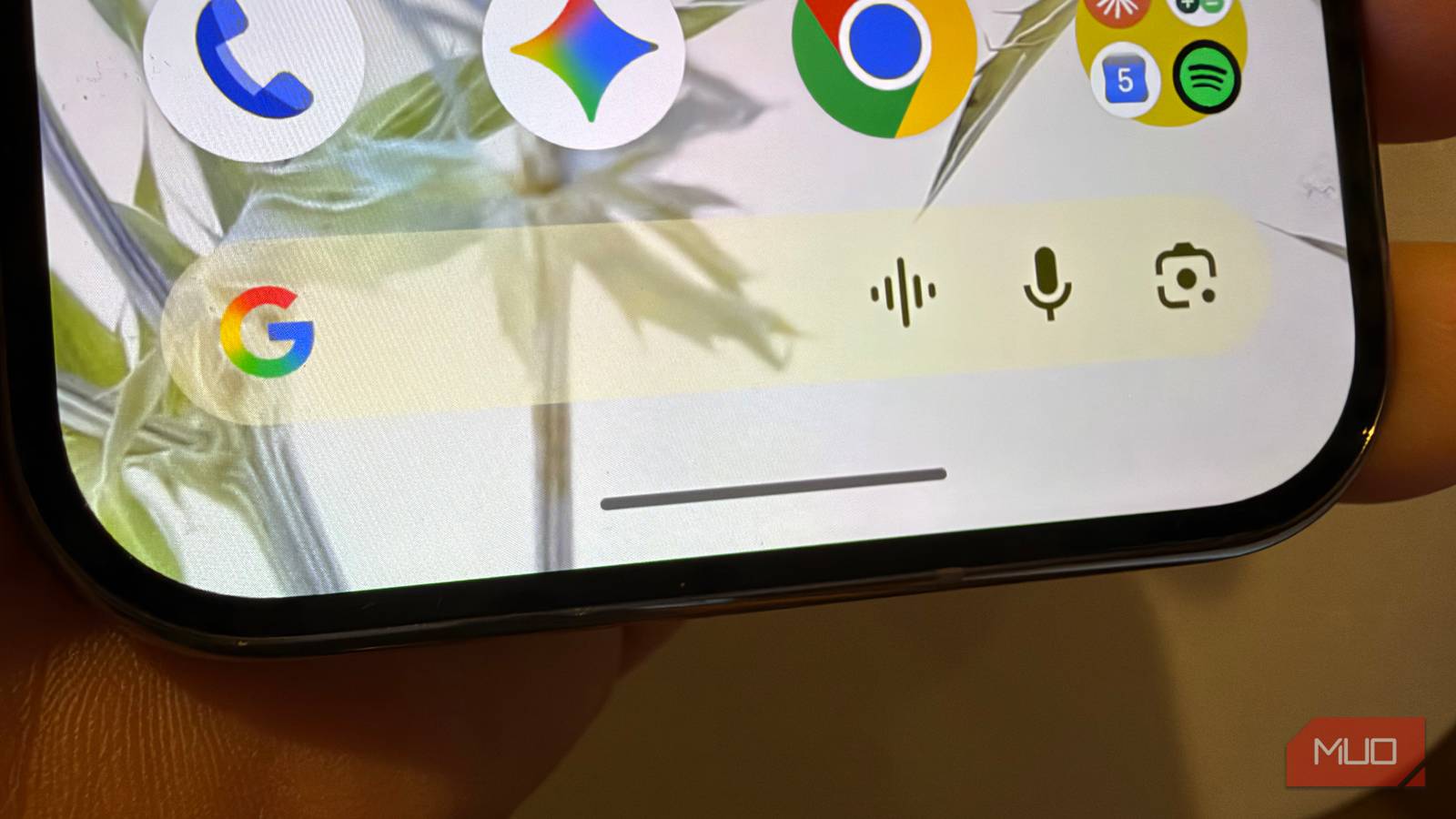
Most people don’t think about the little line on the bottom of most Androids, which some call the navigation “pill.” This pill does more than you think: it’s not just for going back to your home screen or for swiping away misbehaving apps.
Once you learn about all the other things the pill can do, like quickly toggling One-handed mode and bringing up Circle to Search instantly, you’ll wish you had learned about these capabilities sooner.
How to enable gestures

If you don’t already have gestures enabled, it’s easy to do. On most Androids, including Pixels, go to Settings > System > Navigation mode > Gesture navigation.
Turn on gestures on Samsung
On Samsung Galaxy, the path to enable gestures is a bit different. Go to Settings > Display > Navigation bar > Swipe gestures.
The navigation pill can shrink your phone
Quickly toggle One-handed mode

One of the best things the gesture pill can do is toggle One-handed mode if you swipe down on it (it takes a bit of practice to get it just right).
The Samsung One-handed mode is the best of any Android, giving you a full “shrunken phone” like the above that can be positioned to the left or right. To turn this on, assuming you have the navigation pill enabled, you go to Settings > Advanced features > One-handed mode > On. Then, anytime you want to shrink the screen for one-handed use.
The Pixel one-handed mode is different

On the Pixel, One-handed mode brings the entire display down to the bottom two-thirds of the screen, which makes a huge difference if you’re trying to reach elements towards the top of the screen. Another option that is not built in is to use an app called Quick Cursor which adds a trackpad to your navigation.
To turn this on for Pixel, go to Settings > System > Gestures > One-handed mode > On.
Access Android’s Alt+Tab instant app switcher
Just swipe side-to-side along the pill

I use Alt+Tab constantly on my PC and Mac to switch rapidly between two or more apps. Android gives you this same ability if you have navigation gestures enabled, by letting you swipe horizontally on the pill to move between apps. This is a snappy way to move between two things you’re working on, like filling out a form while referencing information.
The best way to use this is to get all the apps you want to toggle between loaded into memory by opening the 2–3 apps you want to use. Then, just swipe between them by moving your finger sideways on the pill.
The fastest way to Circle to Search
Just tap and hold the gesture bar

Circle to Search is a fantastic AI feature that has a lot of clever uses that lets you interact with or get more information about whatever you’re seeing on the screen. Whether you are looking at a pair of shoes you want to buy, or you have a question about something you see in a video, Circle to Search is the ultimate tool to get context on what’s on the screen. You can even use Circle to Search to turn any text you see into text that you can instantly copy.
With navigation gestures enabled: just tap and hold the navigation pill for a couple of seconds, then circle whatever you want.
If you’re not seeing this work right on Samsung Galaxy, there’s an obscure setting you might want to check in Settings > Display > Navigation bar > Circle to Search > On.
Bring up your assistant instantly
Just swipe in from the corner

While you can bring up Gemini from any screen already with a tap and hold of the power button on your Android phone, that might be uncomfortable depending on the size of your phone and where the power button is placed.
When you use Android navigation gestures, it enables a very fast way to bring up Gemini: swipe in from either bottom corner of the screen.
But if you’re using a Samsung Galaxy, this behavior isn’t available unless you add a module from Good Lock. Instead, your best option on Samsung Galaxy is to invoke your assistant by tapping and holding the power button.
Adjust your muscle memory
And get around your phone faster

Most Android phones come with gestures turned on by default, and you owe it to yourself to learn about all the shortcuts and features. The gesture bar enabled can do things beyond just letting you switch apps or go back to the home screen, making it faster to bring up key features. That said, I should also disclose that should you prefer Android buttons, you can perform many of these same actions but in a different way. The choice is yours.