
Google Maps seems to have a mind of its own when it comes to suggesting a route. When my friend and I decided to leave our co-working space at the same time for the same destination, it suggested different routes to each of us, with nearly a 3-minute difference. We were both at the same place, both using Android phones, and entered the destination maybe a minute apart.
I reached the destination 3 minutes earlier, which made me wonder: why? Why isn’t Google Maps giving everyone the same route? There’s no definitive answer, but my theory is that it all depends on your Maps settings as well as how the algorithm decides the best route. So, I dug into the settings and found a few things that could explain the difference, starting with one that most people never bother to check before their first drive.
Choosing fuel-efficient routes
Google now picks greener routes by default
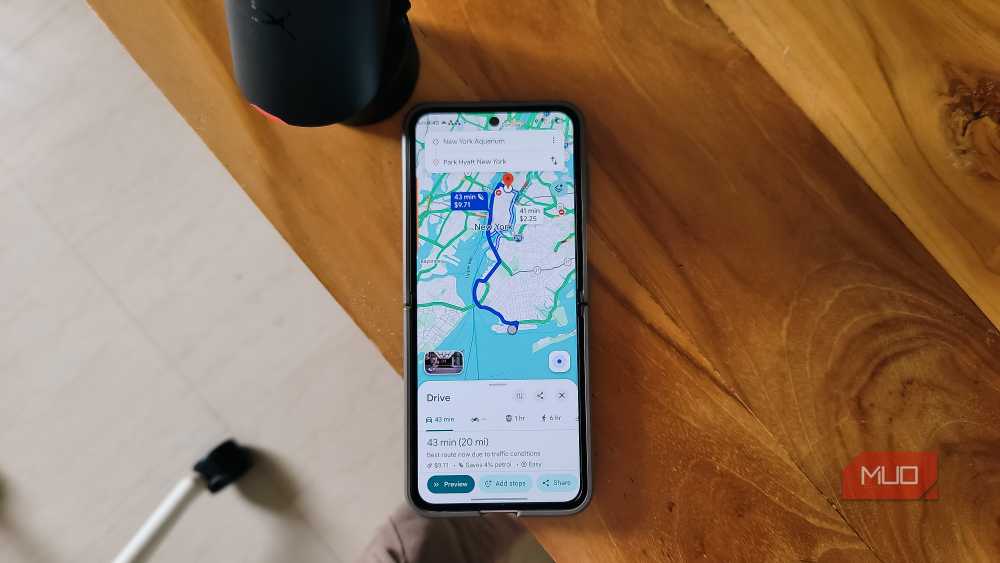
Google added fuel-efficient routing to Maps a few years ago, and it’s turned on by default. The feature is called Prefer fuel-efficient routes, and when it’s enabled, Maps doesn’t always pick the fastest route. Instead, it picks the most fuel-efficient one when the arrival times are “similar.” The problem is that “similar” is a loose term, and what Google considers a minor time difference might feel significant to you.
The way it works is that flat roads with steady speed limits and fewer stops use less fuel than a shorter route that goes over a steep hill or through heavy stop-and-go traffic. So if a flatter route adds two or three minutes to your trip, Maps might pick it automatically without telling you why.
This is likely one of the reasons my friend and I got different routes. If one of us had this setting turned off and the other didn’t, Maps would calculate two completely different paths. To check, open Google Maps and go to Settings > Navigation. Look for Prefer fuel-efficient routes and toggle it based on your preference. You can also spot the fuel-efficient route on a per-trip basis: it’s the one marked with a small green leaf icon on the route preview screen.
Avoidance options
These “sticky” settings silently rewrite your route
Route avoidance options are another reason two phones can show wildly different directions from the same starting point. These are toggles that tell Google Maps to skip certain types of roads entirely, and they can drastically change the shape of your route.
There are three main avoidance settings you can toggle. Avoid tolls is probably the most common one. When enabled, Maps bypasses any road that charges a fee, like turnpikes, express lanes, or toll bridges. This often forces the app to route you through longer backroads or city streets while someone without it stays on the direct, faster highway. Avoid highways keeps you off major interstate systems and freeways entirely. And Avoid ferries forces Maps to look for a bridge or overland route even if a car ferry would be faster.
The tricky part is that these settings are sticky. If you check Avoid tolls for one trip, Google Maps saves that preference for all future trips until you manually go back and uncheck it. It’s easy to forget you turned it on weeks ago, which leads to confusion when your route suddenly disagrees with someone else’s. To check your avoidance settings, tap the three dots on the route preview screen, select Options, and review the toggles. You can also set your permanent defaults by going to Settings > Navigation and scrolling down to Route options.
Engine type and default travel mode
Your vehicle profile shapes the route more than you’d think

Beyond fuel efficiency and road avoidances, Google Maps also factors in what kind of vehicle you drive and how you get around. These two settings work quietly in the background, but they can be the reason your route looks nothing like someone else’s.
The engine type setting ties directly into fuel-efficient routing. Google Maps lets you choose between four profiles: Gas, Diesel, Hybrid, and Electric. Each one changes how the app calculates the most efficient path. A gas car might get routed onto steady highway driving, while a hybrid could get pulled through city streets where regenerative braking makes stop-and-go traffic more efficient. If your friend has their engine type set to Hybrid and yours is set to Gas, Maps will optimize differently for each of you, even if you’re going to the same place. That said, this setting only matters when Prefer fuel-efficient routes is turned on. With it off, Maps ignores your engine type and just picks the fastest path.
Then there’s the default travel mode. This one is more basic but can still happen. Google Maps lets you set your primary travel mode to Driving, Transit, Walking, Cycling, or Two-wheeler. If your app is accidentally set to Two-wheeler from a previous trip, it’ll suggest narrow shortcuts and routes optimized for squeezing through traffic, which look nothing like a standard driving route. You can check both settings under Settings > Navigation on Android.
Algorithms play a role too
The route changes every minute, even if you don’t
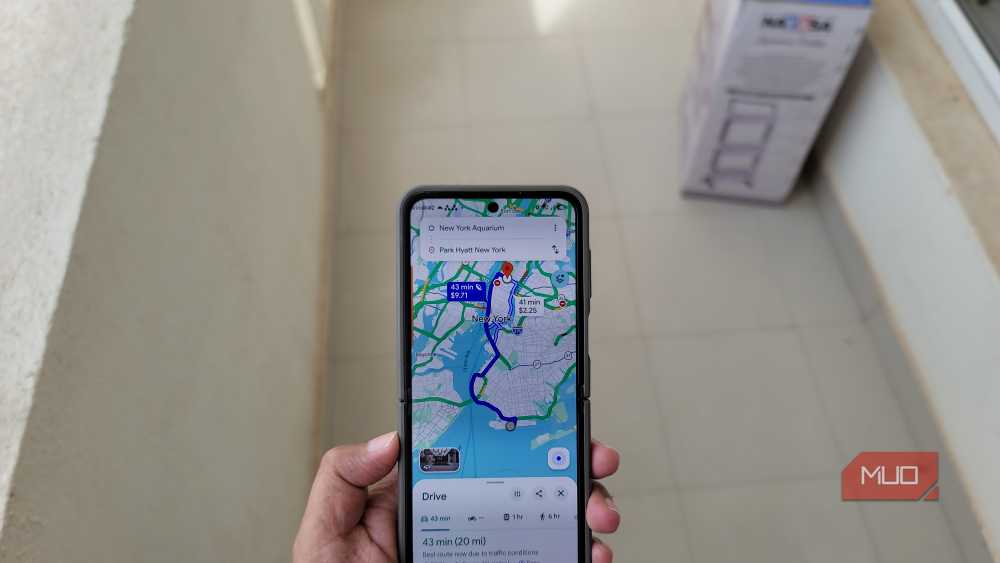
Even if two people have identical settings, including all the hidden tweaks that change how you use Google Maps on Android, they still might not get the same route. That’s because Google Maps doesn’t calculate a route once and hand it out to everyone. The app recalculates the cost of every major road segment roughly every minute, factoring in live traffic data, incidents, and congestion patterns.
So if I requested a route at 8:00 AM and my friend requested one at 8:01 AM, the traffic layer had already updated in that window. A new accident, a sudden wave of commuters, or even a traffic signal cycle could shift the recommended path. Google has said that when a highway gets clogged, the system reacts to the live slowdown and starts pushing the next batch of drivers toward alternatives. It’s not that Google is playing traffic cop and splitting drivers into groups on purpose, but the system reacts so quickly that users naturally end up on different roads.
This also means the algorithm considers things tied to your account that go beyond settings, like your historical driving speeds and past route choices, to fine-tune what it thinks is the “best” route for you specifically. Two people can leave the same place at the same time with the same destination, and the algorithm still has enough micro-variables to justify a different path for each.
So which setting matters most?
The answer depends on where you live and how you drive. In flat areas with few toll roads, the fuel-efficient route toggle probably won’t make a noticeable difference. But in hilly terrain or cities with congestion pricing, it can add minutes to your trip without you realizing why. Avoidance settings are the most common reasons for dramatic route differences because they’re sticky and easy to forget. And engine type only matters if you’ve got fuel-efficient routing turned on in the first place.
So, before you blame Google Maps for sending you on a weird route, check your settings first. Most of these options are buried a few taps deep in the Navigation menu, and a toggle you flipped months ago could still be quietly shaping every route you get.