Bluetooth audio sharing used to require third-party apps or proprietary wireless protocols, but that’s finally starting to change. Bluetooth Classic Audio — the standard we simply used to refer to as “Bluetooth” — is now outdated, and Bluetooth Low Energy Audio (LE Audio) is the newer alternative. It adds quite a few quality-of-life features for wireless listening, like higher sound quality, more stable connections, low-latency audio, and yes, audio sharing.
Android added support for audio sharing via Auracast and Bluetooth LE Audio more than a year ago, and Windows 11 is just now catching up. With the latest optional Windows Insider Program build, Windows 11 can now connect to multiple Bluetooth earbuds or headphones at once, sharing your system audio between them. It’s an excellent feature that lets me share movies, music, and games with others — and I can’t believe Windows 11 didn’t support it sooner.
What you need to share audio in Windows 11
A pair of LE Audio headphones, a supported PC, and the right build

Audio sharing support in Windows 11 can’t be achieved by simply downloading an update. The audio sharing feature is built on Bluetooth LE Audio, which only works on host devices and receivers with a Bluetooth Low Energy radio. That said, LE Audio isn’t new. You can often find it on devices with Bluetooth version 5.2 or higher. It’s somewhat rarer among Windows laptops compared to smartphones, tablets, and headphones.
To use audio sharing, every piece of the chain must support LE Audio. That starts with your laptop’s hardware — check with your manufacturer to confirm it has the necessary Low Energy radio. Your headphones must also support LE Audio for audio sharing to work. Models like the Sony WF-1000XM6 earbuds, Bose QuietComfort Ultra Gen 2 earbuds, Google Pixel Buds Pro 2, and the Samsung Galaxy Buds 4 series all work with this Bluetooth protocol.
The final consideration is your software. Audio sharing is rolling out for preview builds first, but it’ll make its way to all Windows 11 users eventually. Microsoft says you must be using one of the following Windows 11 builds to gain access to the audio sharing feature:
- Version 24H2, build 26100.8522 or newer
- Version 25H2, build 26200.8522 or newer
- Version 26H1, build 28000.2179 or newer
If you haven’t installed a preview build of Windows 11 before, it’s pretty simple. Open the Settings app on your Windows 11 PC, then click Windows Update. Select Windows Insider Program, and follow the prompts to join the program. You’ll have to sign in with your Microsoft account and choose an Insider channel. If your main goal is to try audio sharing, select the Release Preview channel.
You’ll have to restart your system to apply the changes. From there, you should see the KB5089573 preview update available for installation. If not, check Windows Update → Advanced options → Optional updates for the KB5089573 build, and hit Download and install. Once your system restarts, you’ll be able to use audio sharing in Windows 11.
I can finally send Bluetooth audio to multiple sources
Windows 11 is officially on-par with Android’s audio sharing support
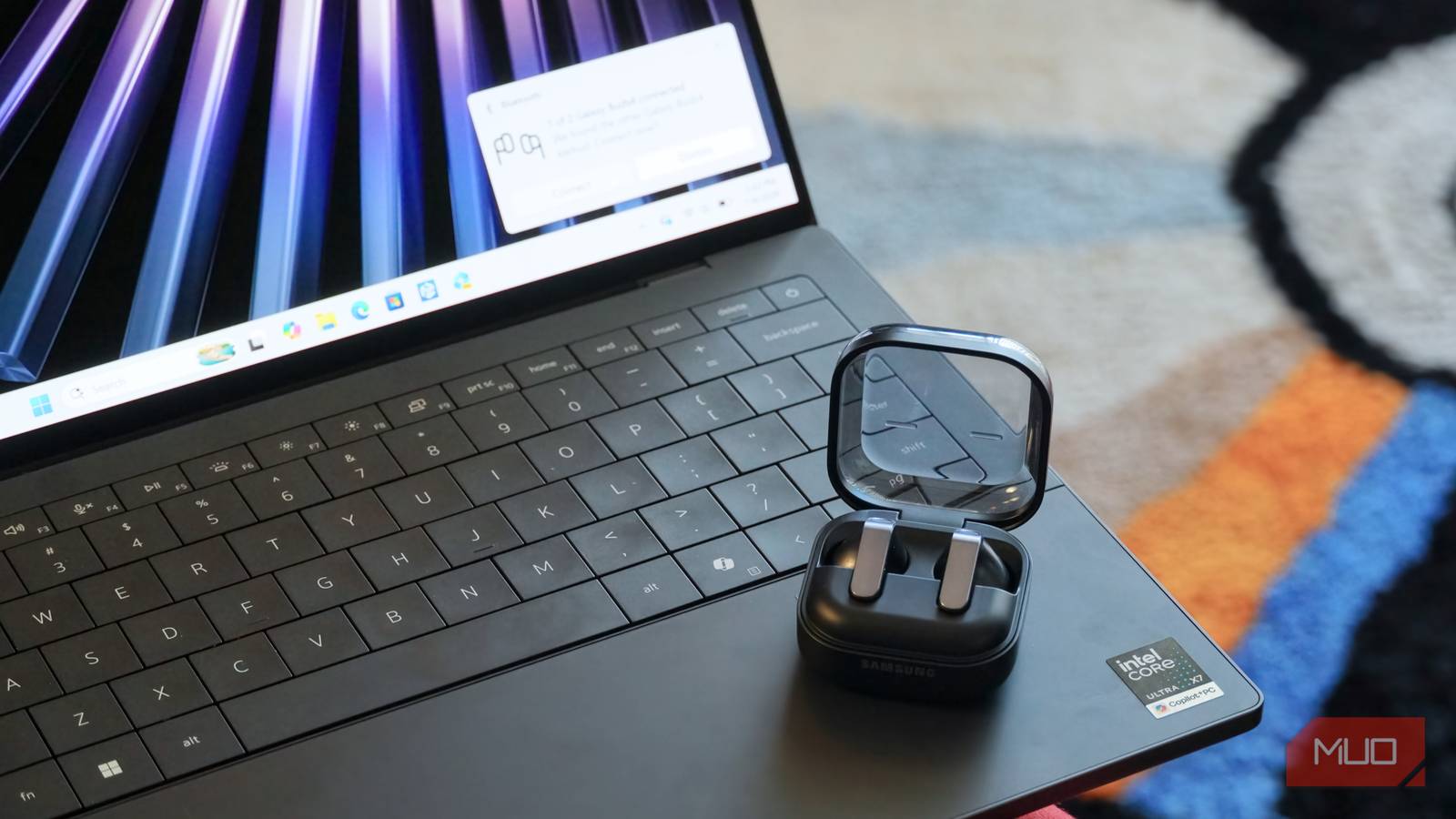
I tested audio sharing in Windows 11 after installing the latest preview build, and the feature felt just as polished as the one in Android 16 and Android 17. All I had to do was pair two or more Bluetooth LE Audio headphones or earbuds to my Windows 11 laptop, and they both appeared as audio sharing receivers. I used review units of the Dell XPS 14, Google Pixel Buds Pro 2, and Samsung Galaxy Buds 4 to try it out, but you can use any combination of LE Audio-enabled Windows 11 laptops and headphones.
Audio sharing isn’t hidden behind a clunky menu like too many other Windows 11 features. Instead, it’s right in the Quick Settings panel. I clicked the sound icon in the taskbar to open it, found the Shared audio button, and selected multiple earbuds to stream audio to. Make sure you’ve connected the earbuds or headphones using the Bluetooth menu first. After starting an audio sharing session, I adjusted the Windows 11 volume levels for each connected audio device separately.
Shared audio might not appear on the first page of Quick Settings buttons by default. Click the down arrow to cycle through the pages, and you’ll find the Shared audio button.
While an audio sharing session is active, a separate blue Shared audio icon appears in the Windows 11 taskbar. This helps you jump into the Shared audio menu to adjust the volume of connected headphones or stop the session. On-headphone controls work for independent volume adjustments, too. You can also access the Shared audio menu from within the main Settings app in Windows 11.
Windows 11 is starting to take multi-client audio seriously
It also fixed a crucial MIDI audio limitation, and audio sharing is another great step
Windows 11’s audio connectivity features were lacking for years, and Microsoft is giving them rightful attention with recent updates. Earlier this year, Microsoft updated Windows MIDI Services to support MIDI 2.0, making every endpoint multi-client by default. This fixed an oversight that meant only one Windows application could use a connected MIDI audio device at once. Now, one device can be shared by multiple apps, bringing Windows MIDI Services into the modern era.
Audio sharing is a similar improvement. Other operating systems have fully supported Bluetooth LE Audio and wireless audio sharing for years. Following the May 2026 preview build, Windows 11 does too. Whether you want to share audio in a meeting, on a plane, or during movie night, you now can with a Windows PC.

- Operating System
-
Windows 11
- CPU
-
Series 3 Intel Core Ultra X7 Processor 358H (16 cores, 18MB Cache, up to 4.8 GHz)
- GPU
-
Intel Arc Graphics
- RAM
-
32GB LPDDR5x Dual Channel at 9600 MT/s
- Storage
-
1 TB, M.2, PCIe NVMe, SSD
- Battery
-
3Cell, 70Whr
The Dell XPS 14 is a premium Windows 11 productivity laptop with decent performance in a modest form factor. At just over half an inch thick and weighing only three pounds, its aluminum chassis is both sleek and easy to carry. The Intel Core Ultra Series 3 chip inside is solid, and you should get all-day battery life, even if there are a few power and charging quirks to be wary of.