
Google One storage is one of those things that can easily go out of hand. Emails, WhatsApp backups, photos, Drive files — it all counts toward the same quota, and with most of these things backing up automatically in the background, it doesn’t take long for that storage bar to creep into the red. Upgrading is always an option, sure, but that’s just kicking the can down the road.
So when my Google account storage filled up recently, I took the time to dig in and delete anything I didn’t need. It took a while, but I got 10GB I didn’t have before.
Gmail was eating up more storage than I realized
Don’t ignore those attachments

When it comes to freeing up cloud storage, most of us only think about clearing large videos and photos. It makes sense, but Gmail can also be a storage hog, especially if you’ve been using it for years. Every attachment you ever send or receive sticks around unless you delete it manually.
Head to Gmail and type has:attachment larger:10MB to see every email with an attachment over 10MB. You can lower that number for a more aggressive sweep. After that, it’s just a matter of selecting unwanted emails and deleting them.
Another thing you can do is head to Promotional, Social, Updates, and Drafts tabs and delete old emails that are most likely no longer relevant. Doing this helped me free up around 2GB of storage space, which is a lot.
Delete unnecessary WhatsApp data
This takes some work, but it’s worth it

If you use WhatsApp like me, those chat backups can easily take up significant storage space. In my case, WhatsApp was taking around 5GB of storage, which is one-third of the total free storage Google offers. More importantly, it included useless WhatsApp photos and videos I never wanted to back up in the first place. The frustrating part is that Google One doesn’t give you any option to delete individual items from WhatsApp backup. It’s all or nothing — either delete the entire backup or leave it as is.
There’s a workaround, though. You can open WhatsApp’s storage manager and delete anything you don’t want. This will shrink the backup size the next time it runs.
To do this, head to WhatsApp Settings > Storage and data > Manage storage. Here, it’ll show you files larger than 5MB, so you can review and delete them easily. It also lists chats by their size, so you can go through and delete media from the heaviest ones. This brought down my WhatsApp backup to 3GB, so it was time well spent.
Another thing I did was head to Settings > Chats > Backup and turn off Include videos in chats. This simple tweak can keep WhatsApp backups lean by default.
Don’t ignore device backups
You don’t need to keep all of them
This is easy to overlook, but every Android phone or tablet set up with a Google account backs up data to the cloud. This includes call logs, SMS and MMS, device settings, and data from a select few apps. It’s handy because it’s what makes restoring everything easy when switching to a new phone or doing a factory reset.
But if you’ve gone through a few Android devices over the years, your account might be holding onto backups that aren’t relevant anymore. Head to Google Drive’s Storage menu on the web and click Backups in the top right corner. It’ll list all your device backups here, so you can delete the ones you don’t need.
Google’s cleanup suggestions can help too
Let Google point out the biggest offenders
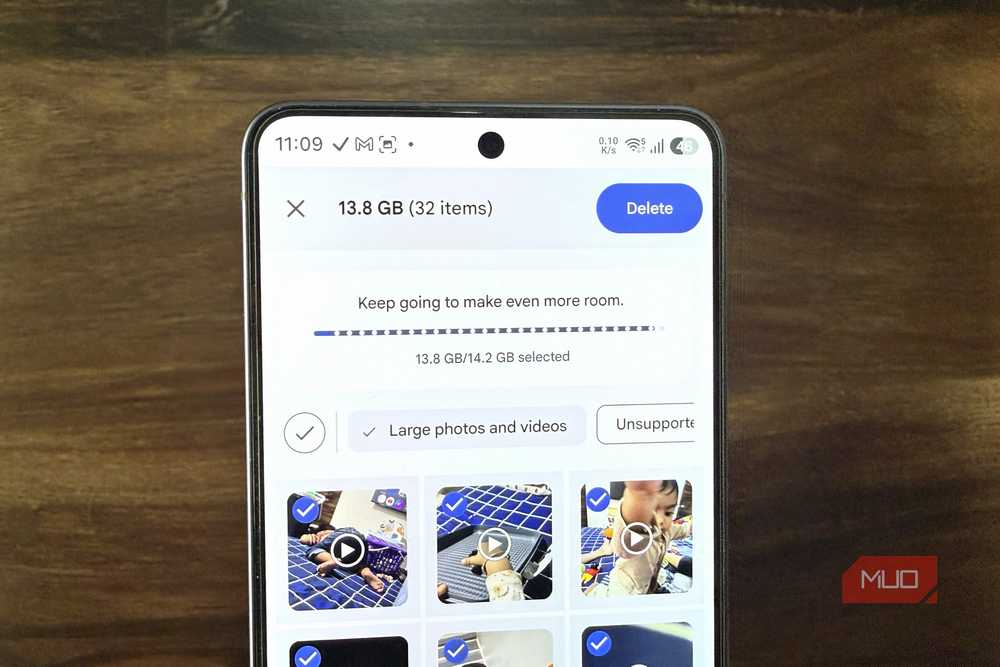
Google One’s storage menu offers some useful cleanup suggestions. It shows all your largest photos, videos, files, and emails, which makes it easy to free up several gigabytes of storage quickly. Head to Google Drive or Photos, click Storage, and you’ll see the Clean up space option.
Here, click Review under Drive files, and it’ll show you all the large videos and files. Photos show you the biggest photos and videos and even those that are in an unsupported format. For Gmail, you’ll see all the emails with large attachments. Those count toward your Google One storage, so deleting a few large emails can definitely help.
These cleanup suggestions are helpful, but you don’t have to stop there. You can also find and delete large files manually. Head to Google Drive > Storage and use the sort option to see what’s taking the most space. You can even use filters at the top to sort results by file type or date.
Similarly, Google Photos’ storage menu shows blurry photos and screenshots so you can delete them quickly. There’s also a dedicated section for large photos and videos. Between the cleanup suggestions and manual deletion, I managed to free up 6GB of storage within a couple of minutes.
Anything removed through Google’s own cleanup suggestions gets deleted permanently right away. But the stuff you’ve deleted manually needs to be removed from the Bin folder too, so make sure to do that too.