Many apps on Android can help you type faster on your phone, but I do most of my writing on my PC, and I write a lot, more than most people I know. As a result, I do miss the predictive text feature that phones so easily get. I mainly needed a way to avoid typing the same words that I type multiple times a day to make writing more efficient.
Turns out, Windows has a built-in text suggestion option; it’s just not turned on by default. It works across all apps, and you can insert a suggestion with a simple press of Enter. Now Windows helps me finish my sentences, and I didn’t even need to install a third-party app.
6 Windhawk mods that make Windows 11 behave like it should
Windhawk is the band-aid Windows 11 forgot to ship.
Turn on text suggestions in Settings
It’s buried under language settings, not where you’d expect
Windows 11 already enables text suggestions if you are using a touch-enabled device. For instance, when I use an Asus Flipbook 14 in tablet mode, text suggestions appear automatically above the on-screen keyboard because there is space for them, similar to the experience on a smartphone. But if you are using a physical keyboard and mouse, you won’t see any suggestions because there is no dedicated space above a hardware keyboard to display them.
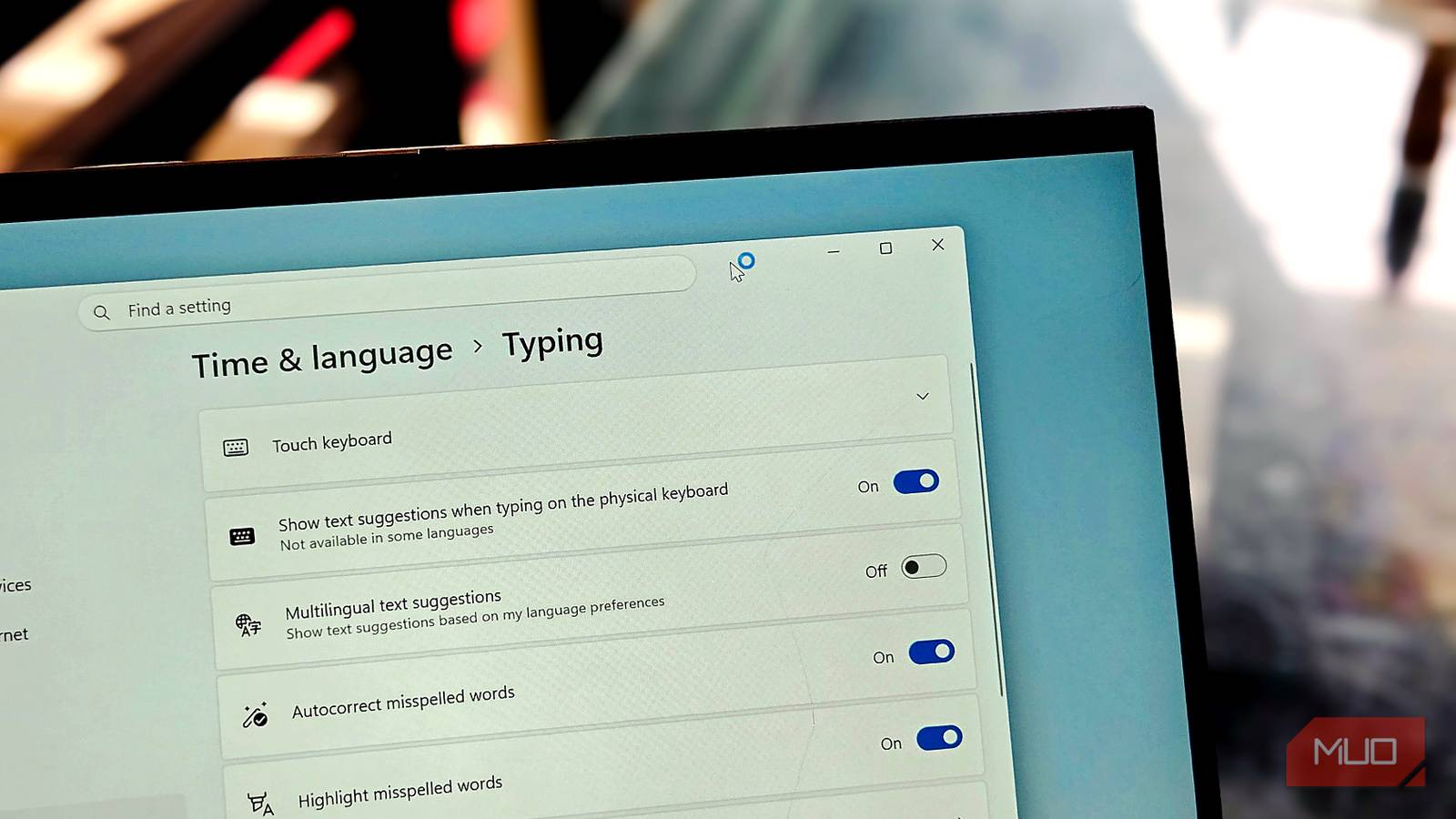
Microsoft does, however, offer an optional toggle buried in the Settings app. To enable it, go to Settings > Time & language > Typing and turn on Show text suggestions when typing on the physical keyboard. That’s it. Once enabled, Windows will start offering word suggestions as you type in any app across the system.
There is a second toggle worth enabling here too. If you have configured Windows 11 with support for multiple languages, turn on Multilingual text suggestions as well. This updates the suggestions to work across whatever languages you use, so you won’t have to disable the feature every time you switch between them. I write in English, but I often type words in other languages during conversations, and this toggle keeps the suggestions relevant regardless.
Use text suggestions when typing
The suggestion box works everywhere, not just in Microsoft apps

It may not be obvious how text suggestions work after you enable the setting. There is no pop-up or tutorial to get you started. But once you start typing in any app, whether it’s Microsoft Word, Notepad, or even a text field in your browser, a small suggestion box appears above the cursor offering multiple word options, much like you would see on a phone.
You can either click a suggestion with your mouse, which is slow and defeats the purpose, or use the arrow keys on your keyboard to select the option you want and press Enter to accept it. The arrow key method is far more efficient and keeps your hands on the keyboard where they belong. Once you get into the rhythm of glancing at the suggestions and tapping Enter, the process feels natural.
Surprisingly enough, text suggestions work extremely well outside of Microsoft’s own apps. I expected it to be limited to Word or Outlook, but text suggestions appear in Chrome, Firefox, Obsidian, Slack, and pretty much every text input field I’ve tried. It simply works everywhere, which makes it a useful system-level feature rather than something tied to a specific app. The suggestions also get better over time as Windows learns your writing patterns and frequently used words.
One quirk worth mentioning is that the suggestion box can feel distracting at first. If you type fast, you will see boxes of text constantly appearing and disappearing as you outpace the predictions. I found that I got used to it within a day or two, and now I only glance at the suggestions when I’m typing a word I know will come up.
Voice typing is even faster
If speed is the goal, your voice beats your fingers

Text suggestions have not made me any faster than I already was, and I type pretty fast. What they have done is make typing a little more efficient, especially when I’m repeatedly writing the same words throughout the day, or when the word itself is long and awkward to type, like a mix of numbers and letters.
But if your goal is to write faster, not just more efficiently, AI-powered voice dictation apps are a better option. I’ve been testing voice typing apps on both Android and Windows over the past few months, and the difference is significant. Tools like Wispr Flow and Typeless can turn messy, natural speech into clean, punctuated text in seconds, something Windows’ built-in voice typing (press Win + H) still struggles with. If you find yourself writing long passages or drafting articles, voice dictation paired with a good AI tool can cut your writing time in half.
That said, voice typing and text suggestions solve different problems. Where voice dictation is for speed, text suggestions are for reducing the annoyances of repetitive keystrokes throughout the day. I use both depending on the situation.

- OS
-
Windows
- Minimum CPU Specs
-
1Ghz/2 Cores
Windows 11 is Microsoft’s latest operating system featuring a centered Start menu, Snap Layouts, virtual desktops, enhanced security with TPM 2.0, and deeper integration with Microsoft Teams and AI-powered Copilot.
Windows can now finish my sentences
Ironically, multiple studies have shown that predictive text on smartphones doesn’t save as much time as people hope. On a PC, the experience is different. I’m not hunting for keys on a tiny screen. The suggestions appear right next to my cursor, and accepting one is a single keystroke. For someone who types all day, avoiding the repetitive typing of the same technical terms and phrases is a quality-of-life feature, not something more significant.
For longer sentences or blocks of repeated text, I still prefer a text expander like aText to automate my repetitive typing. But for avoiding the tedium of retyping the same few words over and over, Windows 11’s text suggestions have been a quiet but useful addition to my writing setup.