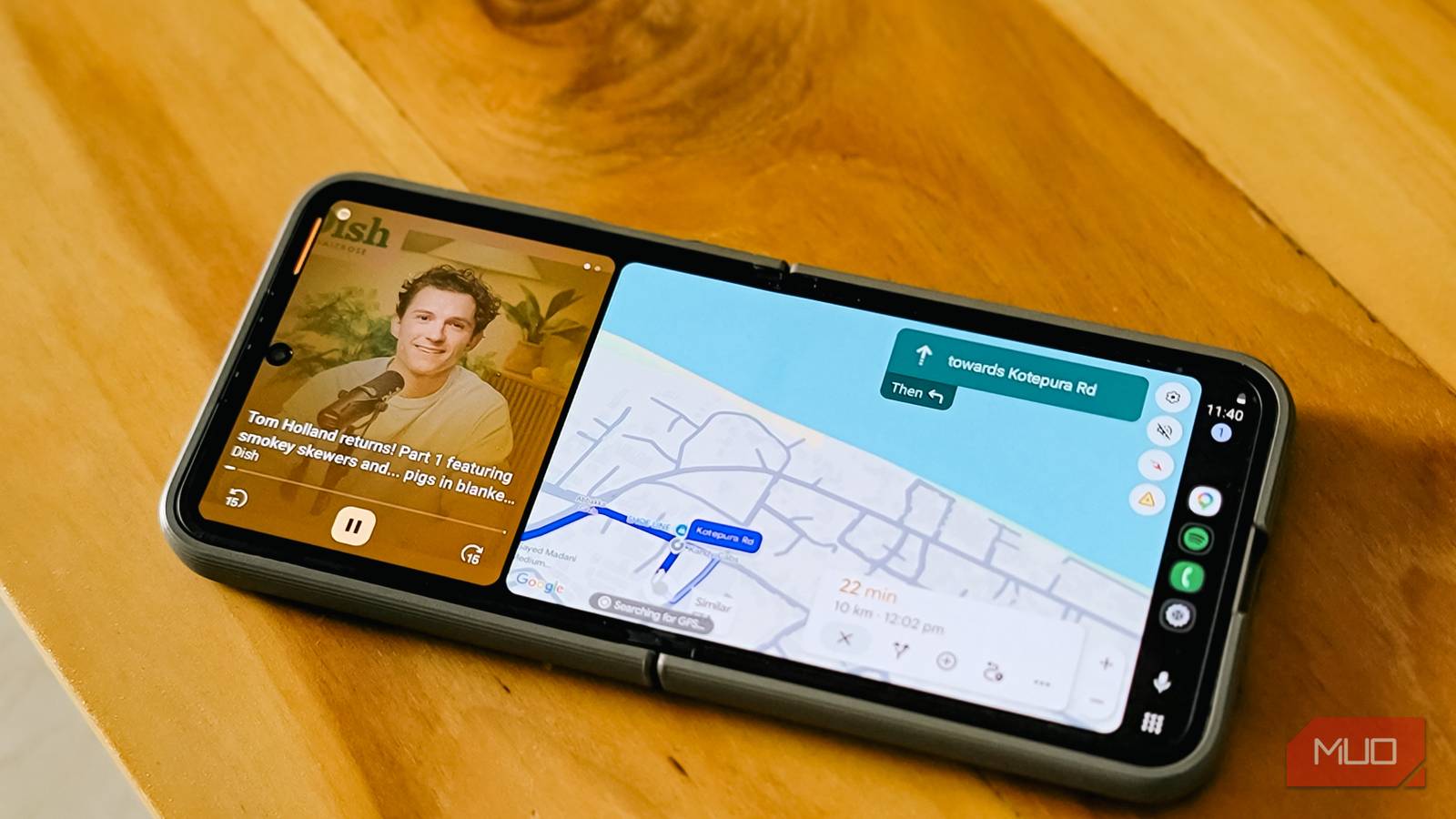
Android Auto comes standard on most new cars, but that wasn’t always the case. Plenty of older cars, some only a few years old, shipped without it. My 2021 car didn’t come with a head unit or Android Auto.
Even though I eventually installed a head unit, Android Auto was still missing from the equation until I found Headunit Revived, an emulator that turned my head unit into an Android Auto-compatible device. If you want, it can also turn your spare phone into a dedicated Android Auto device.
Setting up Headunit Revived
An open-source Android Auto emulator for any Android device
Headunit Revived is an open-source Android Auto head unit emulator. It takes any Android device running Android 4.1 or later and turns it into an Android Auto receiver. That means a spare phone, an old tablet, or even an aftermarket Android head unit that never shipped with Android Auto support can now run Google Maps, Spotify, phone calls, and everything else you’d expect from a factory Android Auto setup.
Since it’s open source, you can download the APK for free directly from GitHub. There’s also a paid version on the Google Play Store for $3.99 if you want automatic updates and want to support the developer. For the self-mode setup I’ll walk through here, the free GitHub version works fine.
Once you install the app, a setup wizard walks you through the configuration. Here’s how the self-mode setup works, where your phone itself acts as the Android Auto device:
- Open the app and choose your language on the welcome screen.
- On the How do you connect? screen, select Self Mode. This runs Android Auto directly on the device without needing a second phone.
- The app detects your panel resolution and codec support. On the Display screen, pick your screen size and orientation. For a phone, select Phone / Small (4-6″) with Landscape orientation.
- Set the Android Auto size by adjusting the DPI slider. The app recommends a DPI based on your screen, but you can tweak it. A lower DPI fits more on screen; a higher one makes icons and text larger.
- Configure Appearance settings for the app theme and Android Auto night mode. I set both to automatic.
- On the Location screen, choose This Device so Android Auto uses the phone’s own GPS for navigation.
- Grant the required permissions: location, nearby devices, notifications, and display over other apps. The Microphone and Modify system settings permissions are optional but useful for voice commands and automatic hotspot toggling.
- On the Your car screen, name the vehicle connection. This name shows up in your phone’s Android Auto connection history.
- Configure Automation settings. Enable Auto-Connect Last Session so the app picks up where it left off when you restart it.
- Tap Finish, and you’re done.
After the setup, the app shows a home screen with four options: Self Mode, USB, WiFi, and Settings. Tap Self Mode, accept the Android Auto permissions prompt, and you’ll see the full Android Auto interface on your phone, complete with Google Maps navigation, media controls, and messaging.
Connecting your phone and another device
Using Headunit Revived to project Android Auto onto a tablet or car head unit

If you have a spare Android tablet or an aftermarket Android head unit in your car that lacks Android Auto, this is where things get interesting. Instead of spending hundreds on a new head unit, you can repurpose the old Android device you already have and let Headunit Revived handle the Android Auto side.
To make it work, you install Headunit Revived on the device that will act as the display, whether that’s a tablet mounted on your dashboard or your car’s existing Android head unit. Your phone, the one running Android Auto, connects to it either wirelessly or through USB.
For the wireless route, the recommended method is to use the WiFi Helper companion app, which is free on the Play Store. Install Wireless Helper on your phone, and Headunit Revived on the receiving device. In Headunit Revived’s settings, set the wireless mode to Helper Mode and make sure both devices are on the same network, either through a hotspot or shared WiFi. Open Wireless Helper on your phone, start the service, and it will find your tablet or head unit automatically and initiate the connection.
You can also set it up to trigger automatically. If your head unit connects to your phone’s Bluetooth when you start the car, configure Wireless Helper to start searching the moment it detects that Bluetooth connection. The app finds the head unit, establishes the WiFi link, and Android Auto launches on the display without you touching anything. From a cold start, the connection typically takes a few seconds before audio and the full interface become active.
There’s a wired USB option too, which tends to be more reliable if your head unit supports USB Host mode. Just plug your phone into the head unit’s USB port, and Headunit Revived handles the rest.
A free app that does the job of a $600 head unit
The obvious limitation with Headunit Revived is that it’s an emulator, not a factory integration. You might run into the occasional connection hiccup, and performance depends heavily on the hardware you’re running it on. Older devices with less RAM or weaker processors may struggle with higher resolutions. There are also some quirks with Google Maps touch interactions in portrait mode on certain devices, which the developers suggest fixing by lowering the DPI below 200.
It’s not a perfect replacement for factory Android Auto, but for cars that were never going to get it, Headunit Revived is as close as it gets without spending serious money.