It’s 2026, so it’s hard to find any gadget that doesn’t have AI in it. Windows 11 PCs are no exception here. But the thing is, not everyone wants AI baked into every corner of the operating system. I’m certainly one of those people, so I decided to do the obvious and get rid of almost every AI feature Windows 11 has to offer.

For better or worse, Windows 11 now shows AI shortcuts throughout the context menu. The options you see depend on the type of file you select. For instance, if you right-click a photo, it shows shortcuts to remove the background using Photos or do a visual search with Bing. Similarly, it shows different actions for Teams, OneDrive, Office, Paint, and other apps.
If you don’t need any of that, or simply want to declutter the context menu, head to Settings > Apps > Actions and turn off all the toggles one by one.
If you have a Copilot+ PC, there’s one more feature to deal with, and it’s called Click To Do. It basically suggests AI-powered actions whenever you select an image or text on the screen. To turn it off, head to Settings > Privacy & Security > Click To Do and disable the toggle.
Remove AI options inside Photos, Notepad, Edge, and Office apps
Strip AI out of everyday apps

Disabling AI shortcuts from the context menu doesn’t stop Windows from showing them inside apps. Notepad has AI-powered writing tools, the Photos app has options like Object Eraser, Paint offers a background remover, and Office apps show Copilot to help you work. While there’s no master switch that lets you hide them all at once, you can still turn them off on an app-by-app basis.
- In Notepad, head to Settings and turn off the Writing Tools.
- In Office apps like Word, Excel, or PowerPoint, head to File > Options > Copilot and uncheck the Enable Copilot box.
- For Microsoft Edge, head to Settings, search for Show Copilot button in toolbar and turn off the toggle.
- Microsoft Photos doesn’t include a toggle to turn off AI editing tools. But you can head to its Settings and click Get Legacy Photos. This installs the classic Photos app, which doesn’t have any AI features.
Turn off Windows Recall
No snapshots, no searchable history
If there’s one AI feature that’s sparked more attention than any other, it’s Recall. It’s exclusive to Copilot+ PCs, so if you have one that doesn’t have NPU, you don’t need to worry about it.
Recall periodically takes snapshots of your screen so you can search through your past activity or ask questions about what you’ve done. All the data is stored locally, but it’s still a feature most people don’t want running in the background. If you’re in the same boat, go to Settings > Privacy & security and turn off Save snapshots. From the same menu, you can also click Delete snapshots to erase anything Recall has already saved and free up storage space.
Disable Windows Studio Effects
Skip the AI webcam tricks

Another AI feature that’s exclusive to Copilot+ PCs is Windows Studio Effects, which is basically designed to make you look and sound better during video calls. It offers features like automatic framing, background blur, eye contact, portrait lighting, and voice focus. To be fair, this is not the worst AI feature to have, especially if you often attend Teams or Zoom meetings.
But yes, if you’re on a mission to remove every AI feature from your PC, Windows 11 lets you turn off Studio Effects. Go to Settings > Bluetooth & devices > Cameras > Connected cameras. Choose your camera from the list, click the Edit button next to Advanced camera options. Finally, turn off the Use Windows Studio Effects toggle.
Uninstall Copilot and remap the Copilot key
Get rid of Copilot for good

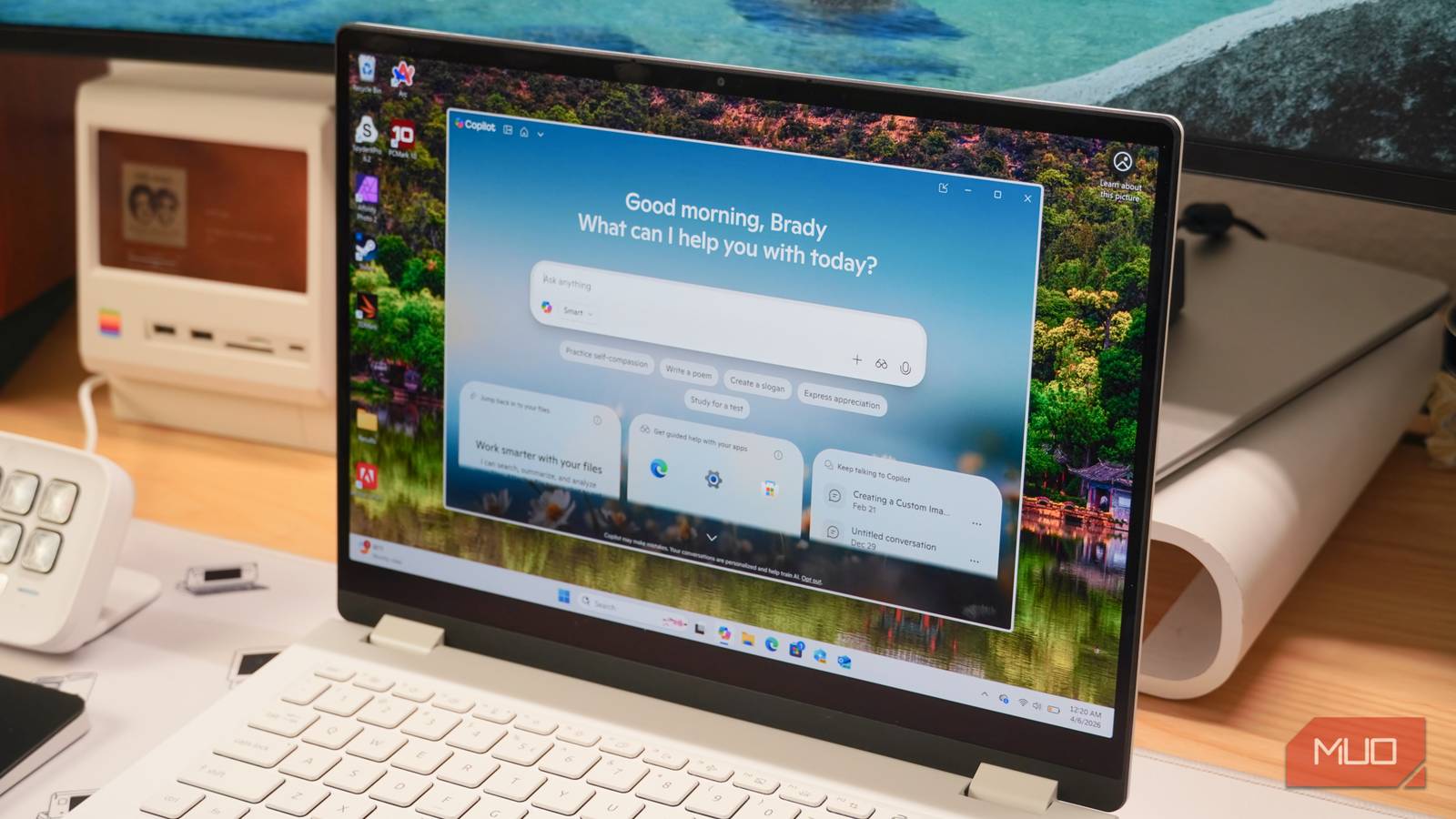
Windows 11 also comes with a standalone Copilot app. It’s Microsoft’s AI assistant that appears when you press the dedicated Copilot key on supported keyboards or use the Win + C hotkey. It can answer your questions, generate content, tweak device settings, and do pretty much anything you’d expect an AI chatbot to do. If you don’t need any of that, there’s no point in keeping the app around.
To uninstall it, head to Settings > Apps > Installed apps > Copilot, click the three-dot icon next to it and choose Uninstall. This also removes the Ask Copilot entry from the Windows 11 context menu.
If your keyboard has a dedicated Copilot key, uninstalling the app also makes it useless. Thankfully, you can repurpose it to launch something else. Head to Settings > Bluetooth & devices > Keyboard > Customize Copilot key on keyboard and choose Custom from the drop-down menu. Finally, pick the app you want to open using the Copilot key.

- CPU
-
Qualcomm Snapdragon MSM8260A
- RAM
-
16 GB
- Storage
-
512 GB
- Display (Size, Resolution)
-
15.3-inch
The Lenovo IdeaPad Slim 3x features a 15.3-inch WUXGA 16:10 display, Snapdragon X processor and a 45 TOPS NPU, and a powerful 60Wh battery. It is a Copilot+ PC with useful AI features, while its high-grade metal chassis is meets MIL-STD 810H standards, meaning it’ll survive some scraps and bangs.