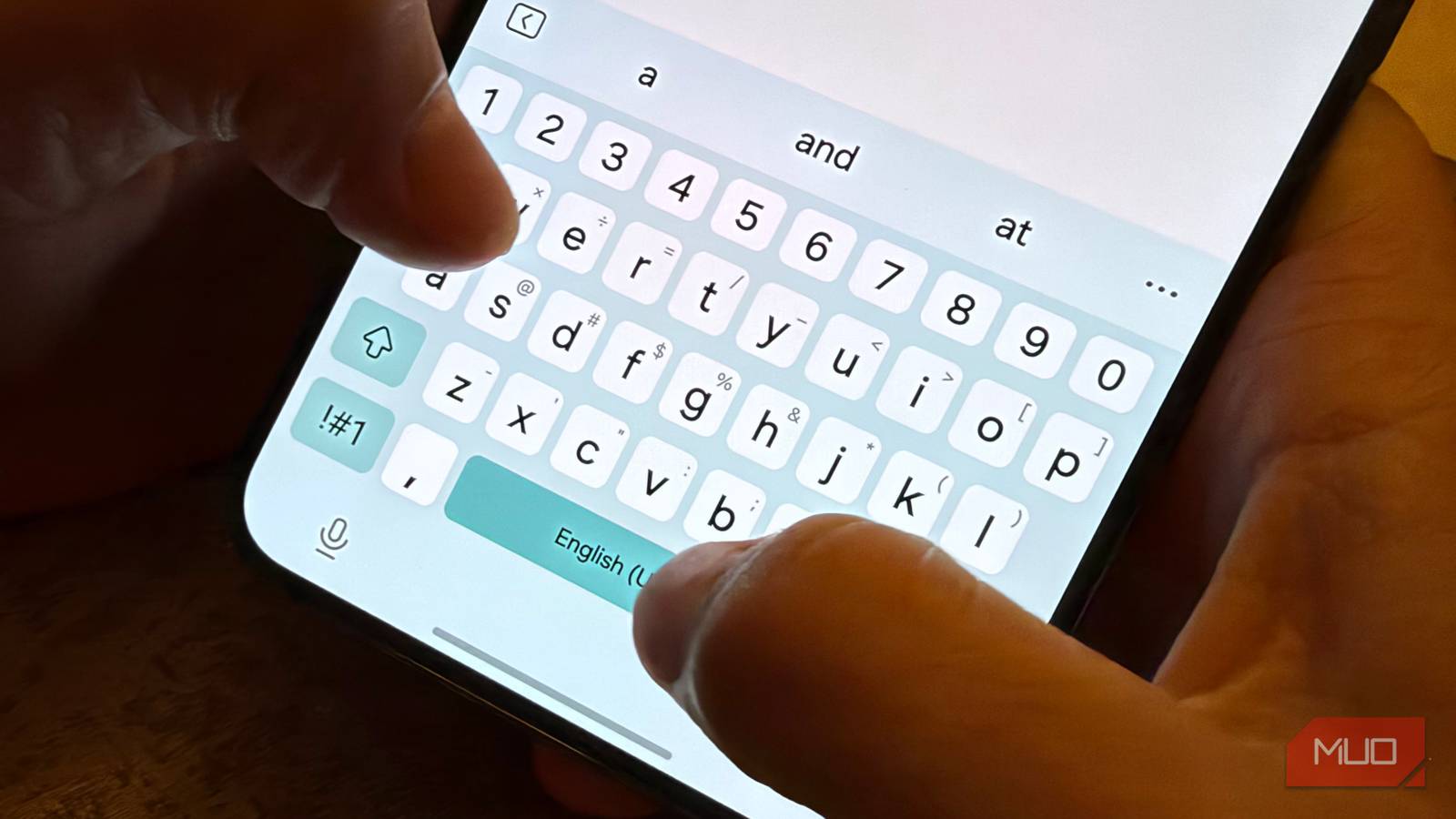
For years, I’ve used many different Galaxy smartphones, and something has always bugged me: the stock Samsung keyboard, while very versatile, seems to not offer as fast a typing experience as you’d find on a Pixel or iPhone.
I endeavored to fix this (and not just default to using Gboard) by poking around in the Samsung keyboard settings on my S22+, and I found two keyboard settings and one system setting that, once changed, have made my typing so much faster and more enjoyable on my Samsung Galaxy that I can’t imagine going back to the defaults. Here’s what I changed.
A quick check

Some housekeeping before we move forward: everything in this article assumes you’re using Samsung Keyboard and not another keyboard like Gboard. Your Samsung Galaxy comes with Samsung Keyboard built-in, and even if you install another keyboard, Samsung Keyboard is still there. To check, just go into any text field and tap the little keyboard icon in the bottom left corner of any text input field. This will bring up the “Choose input method” selection box, where you can make sure Samsung Keyboard is selected.
Turn off character preview
Reduce the graphical overhead

Character previews are a relic from the early days of multitouch keyboards where we all needed a bit of help to be more precise when typing. We first saw this feature go mainstream on the original iPhone, and it was very helpful to visually see a confirmation of the key you were pressing through these previews that would essentially magnify every key as you typed. Apple uniquely positioned this preview directly above the fingertip, allowing the user to get instant visual feedback of the letter they were typing. And somewhere along the line, character previews became default on almost every keyboard.
But this magnification of every key you type creates a small amount of overhead for your CPU and GPU and you don’t need it. In fact, turning it off makes the keyboard feel more responsive, but visually it makes for a more streamlined typing feel because there aren’t constant letter indicators flying around on the keyboard as you type. I actually didn’t expect typing to feel so much less cluttered after turning this feature off.
To turn off character previews, just tap the settings cog icon on the Samsung keyboard > Swipe, touch and feedback > Touch feedback > disable Character preview.
The next thing we’ll change is the haptic feedback that can make typing feel a bit slower.
Turn off haptic feedback
The vibrations add a slight delay

If you have vibration feedback turned on for your keyboard so that after every keypress you feel a slight buzz, you’re not only wasting power (the vibration motor requires power to mechanically move a weight to cause vibrations), but you’re also making your typing more laggy because your phone’s software has to wait for your hardware to respond. It’s minor, but it has an impact.
Also, while vibration motors have gotten better in certain phones (moving to the more-precise linear vibration motor versus the old rotation motor), it still makes your typing experience feel muddy and imprecise if you keep this feature turned on, which can slow down your typing.
To disable this, you’re going to go back to the same menu from above where you disabled Character preview. To do that, go to: settings cog icon on the Samsung keyboard > Swipe, touch and feedback > Touch feedback > disable Vibration.
The last change we’ll make is a system-wide tweak that will help make typing feel a bit faster.
Reduce system screen animations
Makes everything feel faster

This last tweak will honestly have the least amount of impact on your typing experience, especially if you’ve disabled the Character previews (which require system animation), but nevertheless, it does seem to make a marginal difference in typing speed, so it’s worth mentioning. This is a system-wide tweak that will quicken all animations, not just those specific to the keyboard.
To reduce the duration of system animations by 50% (from 1x to 0.5x), you’ll want to head to Developer Options (to turn this on, go to Settings > About Phone > Software information > tap Build number 7 times). Then go back into the main Settings > Developer Options > set Window animation scale, Transition animation scale, and Animator duration scale to 0.5x.
Typing on Samsung got faster
The way I always wanted it

Did these changes make the Samsung keyboard as fast as Gboard is on the Pixel and these tweaks make Gboard even better or as smooth as the iOS keyboard is on the iPhone? Not entirely, but these changes absolutely make typing feel less laggy and distracting on all the Samsung Galaxy phones I’ve tried these tweaks on — typing just feels more immediate and precise. You can also deeply customize the Samsung keyboard with Keys Cafe if you want to go even further.