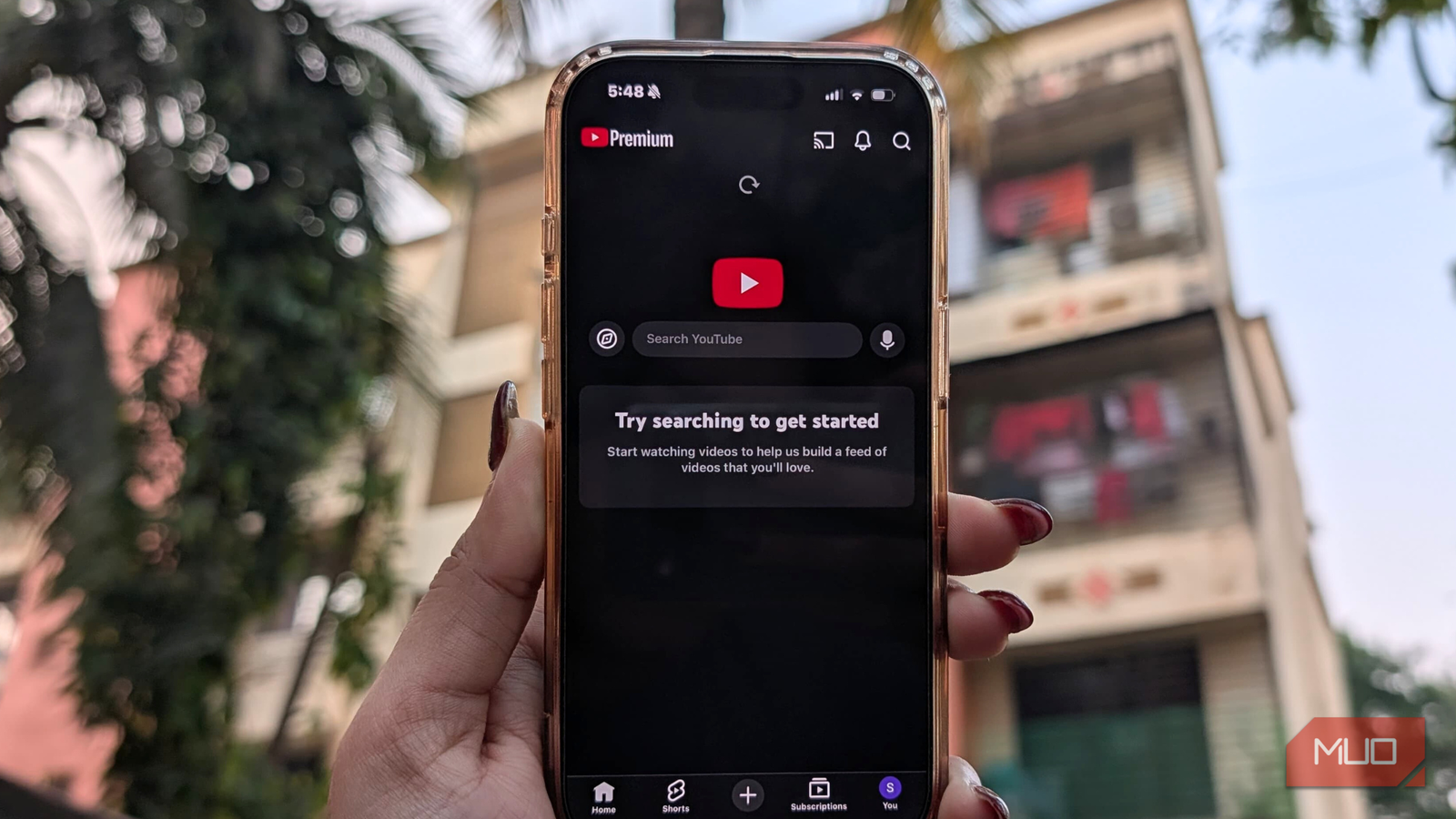
YouTube is a resource hog. First, the free version has so many ads that they ruin the entire experience and also become quite taxing on your system resources; video ads during playback add to the stream and require their own decoding.
Second, data usage goes way beyond what’s actually being played, which is why I’m always reluctant to play YouTube videos when I’m not on Wi-Fi. YouTube plays videos in your feed even if you don’t open them, which adds up during scrolling sessions and quickly drains your mobile data.
Thankfully, there is a handy setting you can toggle that fixes most of this problem.
YouTube previews videos before you ever hit play
It’s not autoplay but something more sneaky

Typically, a video preview plays a few seconds of footage just to show what the content is really about. That behavior differs across devices.
Sometimes YouTube may show only segments of the video, and sometimes YouTube also uses AI to stitch together key parts of the video to preview — the ones that actually provide substance to viewers. Other times, YouTube may stream the entire video in the preview.
On mobile, it happens when you scroll through the feed without tapping; on the desktop, previews are triggered when you hover your mouse over the video. The same is true on TV whenever you highlight a video using the remote.
The preview function is different from Autoplay, which applies only to the next video in the queue. The preview video function works with videos you haven’t even opened.
Data from multiple previews can burn through your plan fast
Megabytes vanish before you even hit play, which adds up fast for mobile plans
Per hour, YouTube typically uses 720MB–1.5GB for 720p videos and 1.5–3GB for 1080p videos. However, that’s just data used by the video itself and doesn’t account for the overhead from ads and the preview. Now, the preview doesn’t use the same data as normal playback, but it’s still enough to drain your mobile data plan.
Whether the preview lasts a few seconds or keeps rolling, YouTube keeps loading later parts of the video, even if you never open it. Across multiple previews in one scrolling session, that adds up to a few hundred megabytes of data — before you’ve even decided to watch anything. In places where data is expensive, such as a foreign country while on vacation, this can become quite costly.
Turning it off is different across every device
Sometimes, you cannot disable YouTube previews completely
Depending on the device you use, disabling video preview on YouTube is a relatively straightforward process. On most smartphones, you can follow this path:
- Click the Profile icon.
- Go to General.
- Enter Playback.
- Find Playback in feeds.
- Turn it off.
You can either disable the previews completely or enable them only over Wi-Fi; I did the latter. Depending on whether you’re on Android or iOS, the naming convention might be different, but it’s usually the same path.
For YouTube on PC, you’ll find the setting in this order:
- Select your Profile
- Go to Settings -> Playback and Performance.
- Turn off Video previews.
On YouTube TV, you cannot disable previews, but you can disable the sound from the preview by going into Settings -> Preview with sound -> Off.
Turning off video preview on YouTube is a per-device option, and switching to another device where you have YouTube logged in means you’ll have to disable it again.
The upside goes beyond your data plan
A cleaner watch history and fewer compulsive scrolls

The preview feature is annoying for me, and while the saved data is a win, you get other advantages too. For starters, video previews do count toward your YouTube history. If you accidentally preview a video that isn’t to your liking, the next time your feed accumulates, it may include content based on what you’ve “watched.” Not to mention that this also clutters your watch history.
The constant motion of previews was also feeding a compulsive scroll that was adversely impacting my attention span.
Small savings that add up fast
The data you save by disabling video previews on YouTube is minimal, but in my case, made a difference to my mobile bill. Data is quite expensive depending on where you live, and with ads and previews, your total cost can add up pretty easily.
To turn off ads, you can buy YouTube Premium, but I recommend using an ad blocker on your desktop, or, if you’re on a mobile phone, streaming YouTube through a browser like Firefox and then installing an ad blocker there.