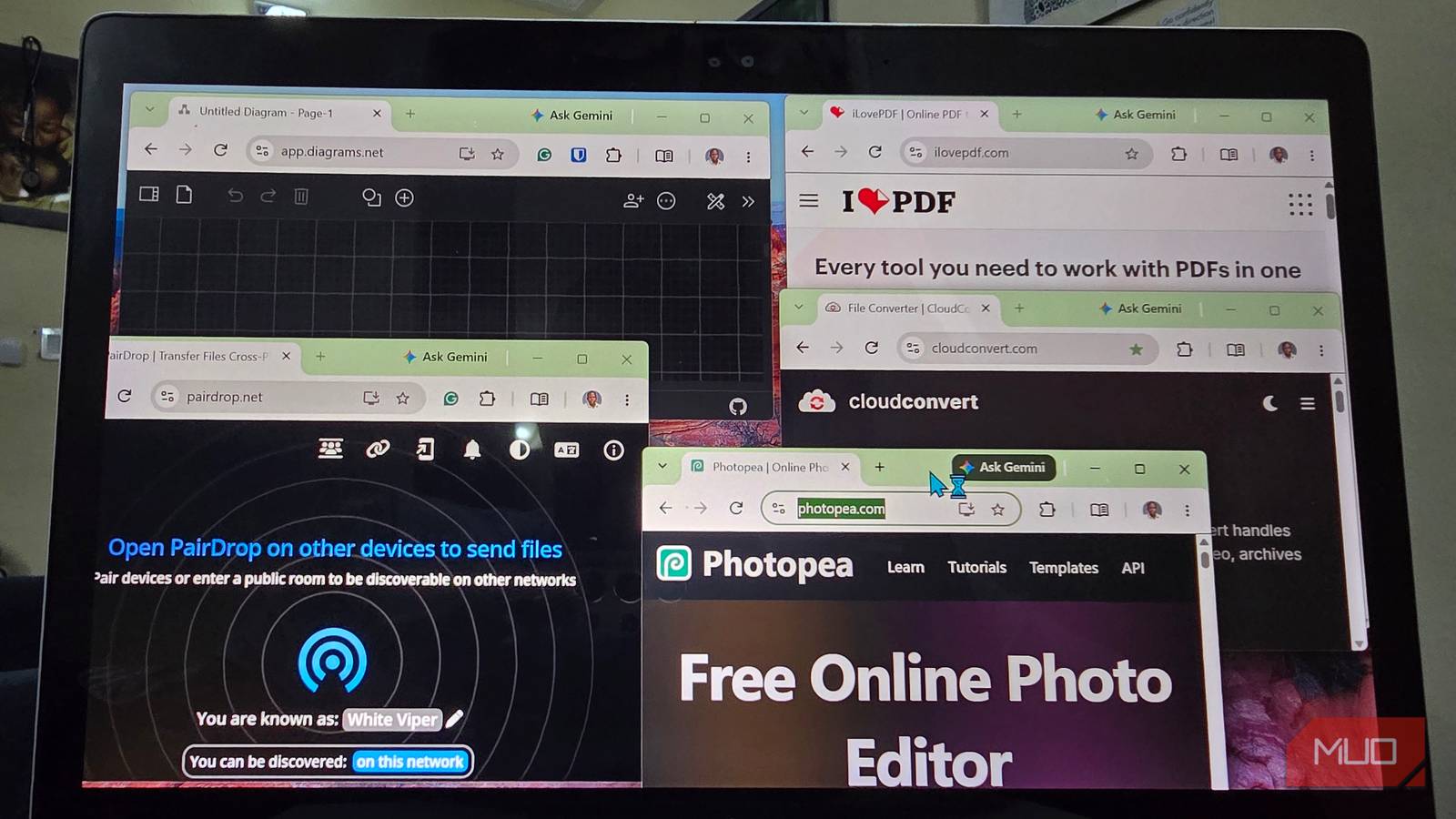
I used to keep full desktop apps around for utility-sized jobs I might do twice a year. If something takes five minutes and doesn’t need deep desktop integration, I can probably handle it in a browser now, close the tab, and spare my Start menu another permanent resident.
Photopea
Photoshop without the Adobe-shaped commitment
I used to keep GIMP installed mostly for the occasional five-minute job. Every few months I’d need to remove an object from a photo, clean up a scan, add text on a separate layer, or open a PSD someone sent me, and launching a full desktop editor always felt a little excessive for that kind of work.
Photopea is where I go for that now. It covers those jobs in the browser while still giving me the tools I expect from a proper image editor. It supports layers, masks, smart objects, layer styles, selections, adjustment layers, PSD files, and a long list of formats from other design apps. The interface also follows the general Photoshop school of thought, so if you’ve spent time in a traditional desktop editor, you can usually find your way around without much wandering.
I also like that Photopea processes files on the device instead of uploading them somewhere just so I can edit them. The editor runs locally and can use the computer’s CPU and GPU, which makes me much more comfortable dropping in a random screenshot or work asset without wondering where the file ended up afterward.
iLovePDF
It handles the annoying PDF chores I used Acrobat for

I’ve used Adobe Acrobat when I needed proper PDF editing, but most of the PDF jobs that catch me off guard are much smaller. I need to pull out three pages, combine two files, compress a scan, fix the rotation, or OCR a document somebody apparently photographed during an earthquake.
iLovePDF covers most of the jobs I run into, including merging and splitting files, converting documents, compressing PDFs, rotating pages, and running OCR on scans. Many of those basic jobs are free, though the service offers paid plans with higher limits and extra features.
This one works differently from Photopea because it requires you to upload files for processing. According to iLovePDF, uploaded files are encrypted in transit and automatically deleted from its servers within two hours, which is fine for plenty of routine documents.
I still keep sensitive paperwork away from online PDF processors. Unredacted financial documents, medical records, confidential contracts, and anything else I’d rather keep entirely on my machine go through a local PDF tool instead. Just because a website is easy to use doesn’t make every document a good candidate for uploading.
PairDrop
This is AirDrop’s cross-platform cousin
Moving a file between my phone and PC should be simple, yet I’ve wasted an embarrassing amount of time hunting down a USB cable or tossing a document into cloud storage just to download it again half a minute later.
PairDrop gives me the workflow I wanted all along. I open the site on both devices, pick the one I want to send to, and transfer the file straight through the browser. It works across platforms too, so I’m not locked into a particular mix of Android, Windows, macOS, iOS, or Linux. You can even self-host PairDrop if you want the same workflow running under your own control.
PairDrop grew out of the Snapdrop idea and adds a few extras around the same basic concept, including device pairing and temporary rooms. Those options help when local discovery doesn’t cooperate, while the basic same-network transfer experience stays straightforward.
Transfers use WebRTC, so I don’t have to upload a file to cloud storage just to pull it down on another device. PairDrop can also fall back to a TURN relay when the network won’t allow a direct connection. Restrictive guest Wi-Fi and networks that isolate devices can still complicate things, which is where pairing, public rooms, and relay support come in handy.
CloudConvert
Handles conversions that don’t deserve their own app

VidCoder is still one of my go-to tools when I’m deliberately transcoding video and want control over codecs, quality, presets, queues, and output settings. Most file conversions I run into aren’t big enough to justify that kind of setup, though.
Every so often, I end up with one awkward audio file, ebook, font, image, document, or video format that another app simply refuses to understand. CloudConvert is great for those stray cases because it supports more than 200 formats, which saves me from installing a small dedicated converter I may never touch again.
The tradeoff is that conversion happens on CloudConvert’s servers. According to the company, transfers are encrypted, jobs run inside isolated containers, and uploaded files are kept only as long as necessary for processing before they’re deleted. If sending files to somebody else’s servers is the part you don’t like, a self-hosted file converter such as ConvertX keeps much of the browser workflow while doing the actual processing on hardware you control.
The free tier has limits too, with 10 conversion credits per day, a 1 GB maximum file size, and a five-minute processing limit. I wouldn’t point an entire video library at it or give up VidCoder or HandBrake, but those limits are generous enough for the occasional conversion I’m talking about here.
diagrams.net
Visio can sit this one out

I make diagrams just infrequently enough that paying for dedicated diagramming software would annoy me every time the renewal email arrived. There are plenty of other Visio alternatives, but diagrams.net, previously known as draw.io, has handled nearly everything I’ve needed from that category without asking me to maintain another subscription.
I’ve used it for flowcharts, rough network diagrams, process maps, and architecture sketches. It has snap-to-grid tools, connectors, a large shape library, and icon sets for platforms and vendors such as AWS, Azure, and Cisco. Editable diagrams can be kept in its native .drawio format, while finished work can be exported as PNG, SVG, or PDF.
I can also save diagrams locally instead of tying every project to an online account, and the browser editor keeps working if I lose my connection after it has loaded. That makes it useful for the occasional diagram without turning a simple flowchart into a whole software procurement exercise.
I install fewer apps because I now can
I still prefer installed software for tools I use every day, especially when the job needs real performance, automation, or dependable offline access. What’s disappearing from my PC are the apps I installed for some random five-minute task, then ignored for the next six months. Browsers have gotten good enough that I don’t need to keep those around anymore.