Windows is generous with background processes. Sometimes, a bit too much. Out of the box, it runs dozens of services you didn’t enable and probably don’t need — and then there are third-party apps that register themselves to launch at startup. Over time, all of it adds up.
I recently went through my PC and cut down as many processes as I could to lower the CPU usage. It wasn’t exactly quick, but it surely was worth it.
Task Manager quickly exposed the culprits
It was a mix of apps and services

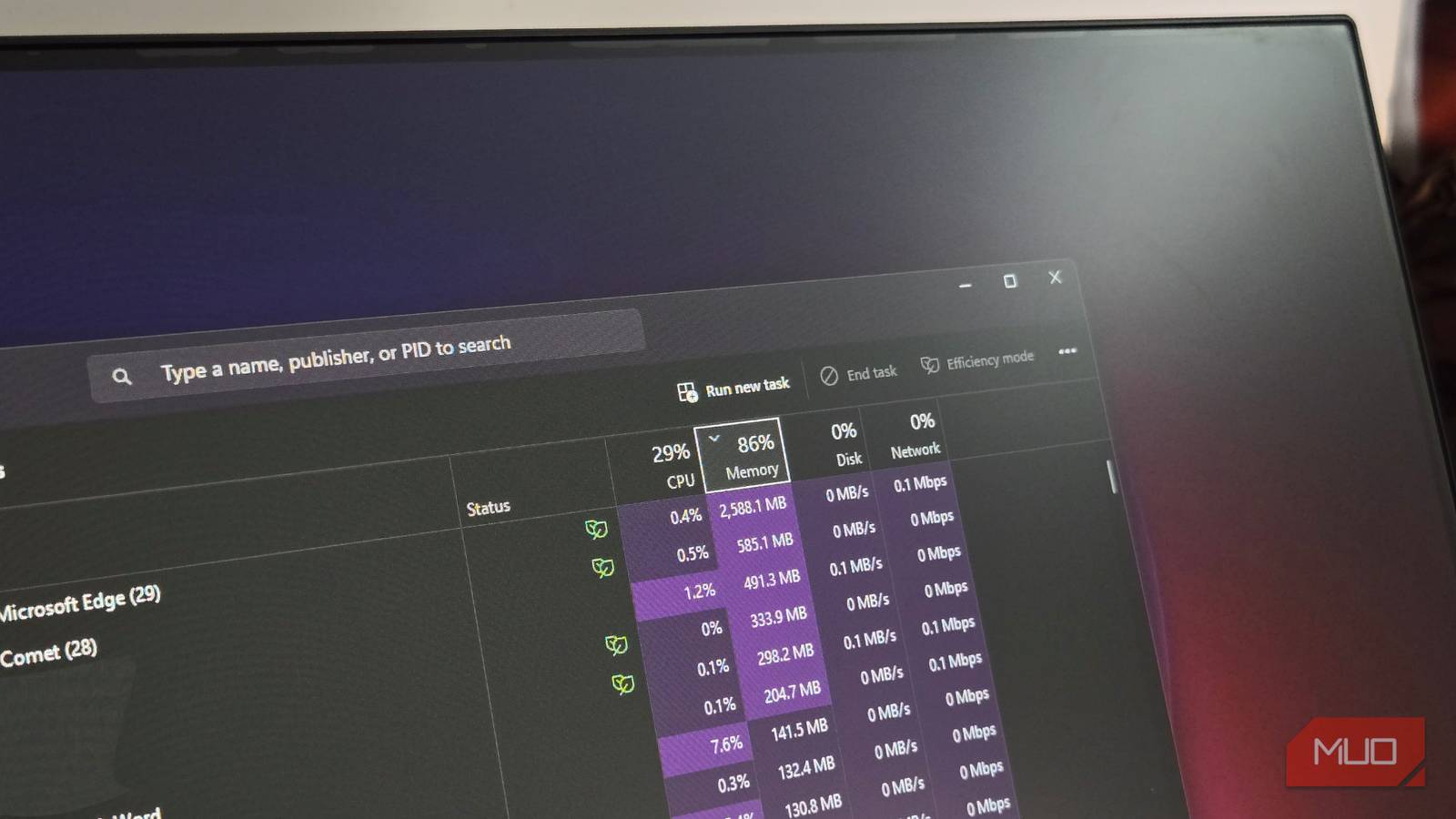
Any time a Windows PC slows down, your first instinct should be to open the Task Manager. It lets you sort apps based on their CPU and memory usage, which makes it easy to spot those top offenders hogging most of your resources. That was my experience anyway.
The first thing that jumped out was my browser. There were close to 56 Edge processes running and hogging the CPU like no other. Expanding the entry gave me details about how much each tab or extension was consuming. The biggest culprits here were mainly Canva, my CMS, and a couple of extensions. Further down the list, I noticed apps like Discord, WhatsApp, EA, Steam, Xbox, and a few others. Discord had three separate processes running and Steam had its Web Helper and Client Bootstrapper. More importantly, I wasn’t actively using either of those apps.
The sneakier offenders, though, were the ones I’d half-forgotten I’d installed. CCleaner’s monitoring services, an old Adobe updater, and something called JetBrains Toolbox were all running in the background. Individually, none of these looked alarming — two or three percent here, one percent there. But together, they were consuming the CPU without giving much in return.
Apps weren’t the only problem, though. On that list, I also noticed several Windows services that kept the CPU busy. And it wasn’t like these services were important. I noticed SysMain, Connected User Experiences and Telemetry, Windows Error Reporting, Delivery Optimization, and a few others. If you don’t know what these do, the short version is, they are all optional, and your PC will run just fine without them. SysMain is a legacy holdover that made sense in the hard drive era but doesn’t benefit much on SSDs. Telemetry phones home to Microsoft. Error Reporting sends crash logs to Microsoft when something goes wrong. And Delivery Optimization is a sneaky one that shares update files with strangers.
Too many apps were hiding behind my back
Startup apps were the biggest offenders

The Task Manager told me what was running. Most of the CPU-hungry apps were either startup apps or ones that had permission to run in the background.
The startup list was embarrassing, honestly. I went to the Startup apps tab, and found 20-something entries there. It was a mix of apps I’d installed for testing, one-time use, and even those I used regularly but didn’t need at boot. All of them had registered themselves to launch at boot. Windows even tells you startup impact for each — High, Medium, and Low — and I had more “High” entries than I’d like to admit.
Disabling them was easy enough. I went through the list and kept only what I actually needed. I ended up shortening the list to a mere 5 apps. The second piece was background apps because Windows doesn’t actually close apps when you click that “X” icon. So knowing which apps run in the background once I dismiss them is important. I went to Settings > Apps > Installed apps and disabled background access for apps like Xbox, Steam, LocalSend, and a few others I didn’t need running all the time.
Windows was running far more services than I needed
This took a while, but it was worth it
Services were less resource-intensive than apps, but the sheer number of those running in the background was quite alarming. Thankfully, managing them was just as easy. I had to open the Services app for this. I went through the list to find all the useless services and set their startup type to Disabled. And I didn’t stop at those that showed up in the Task Manager. I also went ahead and disabled anything that was not important. Sysmain, Telemetry, Delivery Optimization, Print spooler, and plenty of others.
The important bit here is to read the description column. Every service has one, and it tells you exactly what it does and what breaks if you turn it off. You don’t want to skip this because disabling an important service could cause certain features to stop working or throw up errors.
Managing all those background apps and services took a while, but it brought my CPU usage down to a single digit. Of course, if this doesn’t work out, you can disable visual effects, change power plan, scan for malware, check for updates, and do a lot more.