
When freeing up storage on a PC, most of us only think about deleting apps and moving personal files to the cloud. That makes sense, but you shouldn’t stop there. Some of the biggest space-wasters on your PC are Windows’ own built-in features. I recently went through four such features on my laptop, and disabling them freed up 65GB of storage.
Hibernation
10GB is a bit too much for something I rarely use

Hibernation is a lifesaver for anyone who doesn’t want to lose their open apps and windows while turning off the PC. Its usefulness is undeniable. But it can also be a storage hog, which is something most people don’t realize.
The feature works by dumping everything in memory into a file called hiberfil.sys before the PC turns off. When it turns back on, it reads everything from the same file boot in seconds. The problem is how big that hibernation file gets. It can be roughly 40% to 75% of your PC’s total RAM. My PC has 24GB of storage and hibernation file was taking around 10GB of storage, which is a lot on a 512GB system.
More importantly, I don’t use hibernation often. Sleep handles my quick brakes, and I rely on shutdown at the end of the day. So yes, disabling it felt like a no-brainer. It was easy too. All I had to do was open Command Prompt with admin rights and run the following command.
powercfg /hibernate off
Paging file
Useful, but also the biggest space waster
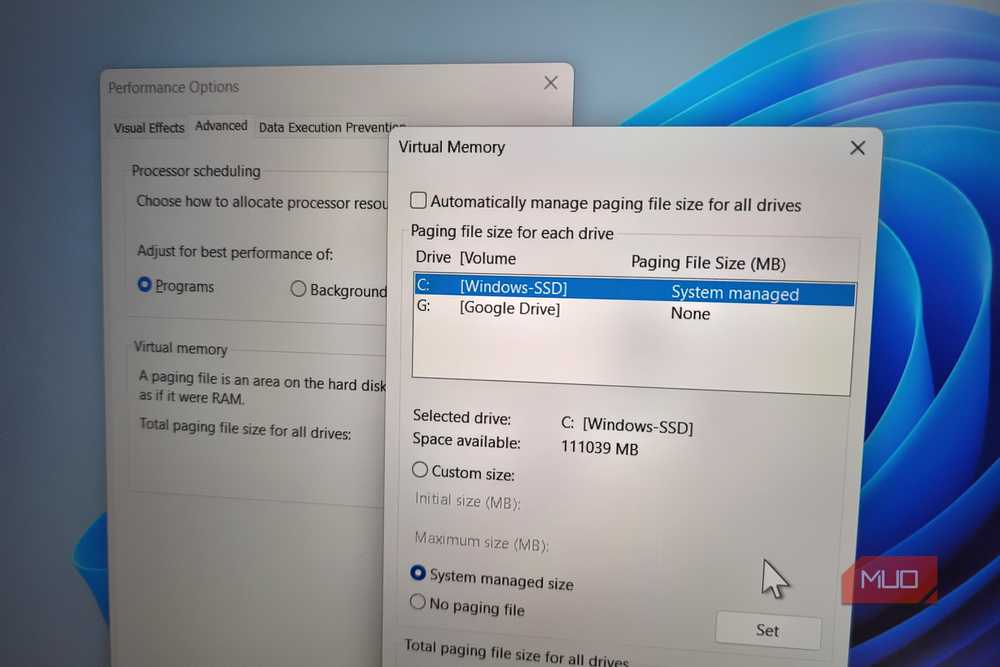
Paging file is another useful Windows feature that keeps your PC from crashing when RAM runs out. Once your physical memory is full, Windows moves some of the less important data over to your storage temporarily. The file where it stores this data is called a paging file, which is another name for virtual RAM.
By default, Windows automatically decides how big this file needs to be based on your usage. So if you love keeping dozens of tabs open, running virtual machines, or using tools like AutoCAD, Windows automatically increases the paging file size as a safety net. This works great, but the only problem is that once Windows increases virtual RAM, it rarely bothers shrinking it down.
So yes, this file can end up consuming 20GB or even more storage. In my case, it had ballooned to a ridiculous 36GB. Now, since this is a crucial feature, I wouldn’t tell you to turn it off. Instead, you can manually specify the storage Windows should use for the paging file.
Type adjust the appearance and performance of Windows in the search menu and hit Enter. In the Performance Options window, head to the Advanced tab and click Change under Virtual memory. Here, you need to set the minimum and maximum size for the paging file. You can set this to the same value as your physical RAM or slightly lower, whatever feels right to you. On my PC, I set it to 10GB, which means Windows can’t use more than that for virtual memory.
System Restore
Windows already has a better version of this

System Restore on Windows lets you undo recent changes made to your PC. So if a Windows update goes wrong or if your PC starts acting up out of nowhere, you can use it to restore your PC to its previous state when everything was working fine. It’s a nifty feature, sure, but Windows already has a newer feature that does the same job.
Point-in-time restore is available on Windows 11 26H2 and later. It also lets you restore your PC to a previous state, but works slightly differently. Instead of waiting for a major event like an update or system change, it creates a restore point every 24 hours regardless. That means you always have a recent restore point to fall back to.
This feature also takes its own space, around 2% by default. Since System Restore takes the same amount of storage and does the same thing, I ended up disabling it and freeing up another 9GB of storage. To do this, search for create a restore point in the search menu and select the first result. Click the Configure button, choose Disable system protection, and hit OK. If you prefer the classic System Restore more, you can disable Point-in-time restore instead.
Delivery Optimization
I don’t want my PC to act as an update server
Unlike every other feature on this list, you probably won’t have to think twice before disabling Delivery Optimization. It’s a feature that stores update files on your PC and then shares them with other PCs on your local network and also over the internet. Your PC essentially acts as a server for downloading updates for other people. In return, your PC also gets to download update files other systems already have.
The feature promises faster and more reliable updates, but the problem is that it forces Windows to keep update files longer than usual. This obviously is not ideal if you’re already struggling with storage space. On my PC, Delivery Optimization files were taking close to 20GB of storage, which is massive.
The good thing is that you can free up this space by running Disk Cleanup. And if you don’t want this feature working at all, head to Settings > Windows Update > Delivery Optimization and turn off Allow downloads from other devices.