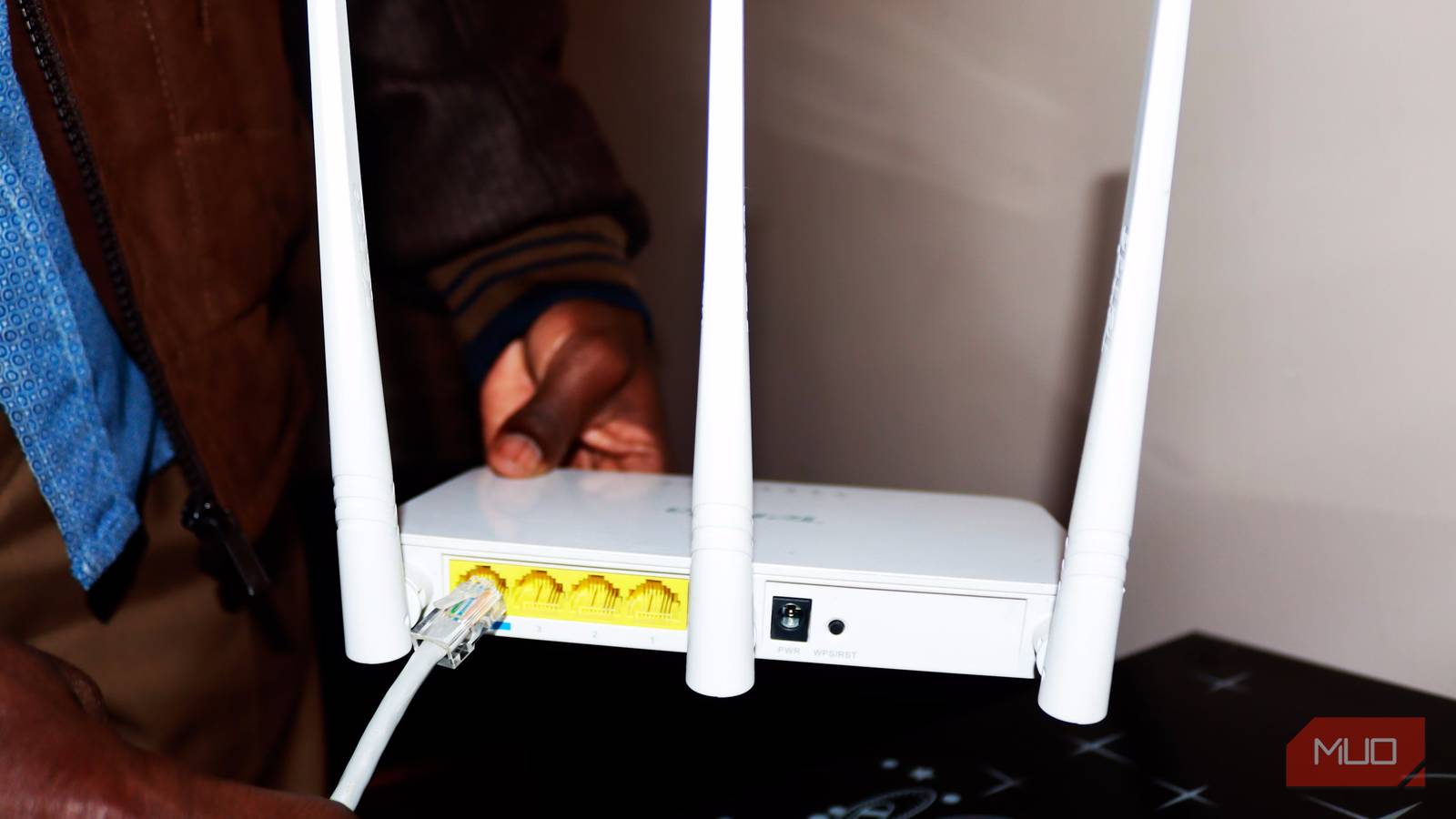
When you think of more lanes, you think of more cars to accommodate and more speed, simple math. I assumed the same for Wi-Fi. I thought that more Wi-Fi channels were always better, and I always used my 2.4GHz band Wi-Fi with a high channel width. The result was not favorable. My smart home devices kept dropping, and even after running a channel scan to eliminate interference on my network, the issue wasn’t resolved.
It wasn’t until I looked deeper into how Wi-Fi router channels actually work. I learned that shrinking the channel to 20MHz almost immediately fixed the internet stability in my house. Here’s how narrowing your channel can widen your real-world performance.
A wider channel doesn’t mean a bigger hose
It is like a highway

Before we fix the issue, let us first understand what channel width is. Channel width is what decides how much radio spectrum each Wi-Fi transmission gets. A 20MHz channel is the narrow lane, and a 40MHz channel combines two lanes to provide more capacity.
But the wider channel also needs to keep all its lanes clear across its entire width before transmitting, because if any part gets busy, the whole thing waits. When it comes to the 2.4GHz band, only three channels are non-overlapping: 1, 6, and 11.
Every nearby router, smart plug, and Bluetooth speaker crowds into this same tiny slice. When you combine two of these congested channels into 40MHz, you are not doubling the capacity; instead, you are doubling the amount of congestion your router has to wait out.
Apple’s own guidelines for Wi-Fi routers and access points recommend setting the 2.4GHz band to 20MHz while leaving the 5GHz on Auto or wider widths. TP-Link’s support documentation also says the same: 40MHz on 2GHz can cause performance and reliability issues, especially near other Wi-Fi networks and Bluetooth devices.
Intel used a water analogy to explain Wi-Fi channels and channel width. It says to think of the wireless signal like a wave. A wider wave has more area and can get around obstacles more easily, but it has less overall strength than a narrower one. On the other hand, if you give up some width, you often get back strength and fewer dropped connections.
Making the Wi-Fi channel narrower is easy
It takes less than five minutes
Narrowing channels is mostly a 2.4GHz fix. The 5GHz band has dozens of non-overlapping channels, so it has room to stay wide without immediately colliding with your neighbors.
If you want to narrow your Wi-Fi channel and make your internet faster and much more stable, then you need to follow the steps below:
- Open a web browser and head over to your router’s admin page. It is usually written on the sticker at the back of your Wi-Fi router.
- If you have a single-band router, then navigate to Wireless -> Basic Settings.
- Change Channel and Channel Width and hit Save.
- If you have a dual-band router, then click Advanced -> Wireless -> Wireless Settings.
- Click on 2.4GHz and change the channel width from 40MHz to 20MHz.
- Save and let the router restart.
- Reconnect devices and test.
After tweaking the router settings, I hopped onto my laptop to check if there were any changes in my internet speed. Sadly, my raw 2.4GHz speed barely changed. However, what changed was consistency.
Smart plugs weren’t vanishing every few hours, and even video calls also stopped stuttering mid-call. On a crowded 2.4GHz band, that kind of stuttering usually comes down to channel congestion from nearby networks and devices sharing the same narrow spectrum.
If you are looking for more speed on a 5GHz network, then there is a different fix, since many Wi-Fi 6 routers still ship with 160MHz disabled by default. It is worth checking if speed, not stability, is your actual problem.
Know before you touch this setting
According to Intel, setting the 2.4GHz channel width to 20MHz improves reliability. It noted that 40MHz on that band is “rarely optimal,” since it ends up interfering with nearly the entire spectrum of the nearby Wireless-N channels. On 5GHz, Intel suggests starting at 40MHz for a better balance, warning that bumping it up to 80MHz or 160MHz could offer extra speed at the cost of increased interference from more sources.
Moreover, this fix works better if you live in an apartment building, a condo, or a densely packed neighborhood where dozens of networks are competing for the same three channels. It is also worth checking whether your smart home devices are mysteriously dropping Wi-Fi.
It is less useful if you are somewhere genuinely remote with little competing Wi-Fi traffic, or if the devices giving you trouble already operate on 5GHz, where congestion isn’t the real bottleneck. Overall, this isn’t an expensive upgrade or installation of a new mesh system. It is a five-minute change that can help improve the stability of your internet connection.

- Brand
-
TP-Link
- Wi-Fi Bands
-
2.4GHz, 5GHz
- Ethernet Ports
-
1x Gigabit WAN, 4x Gigabit LAN
- MU-MIMO
-
2×2
- Chipset/memory
-
Broadcom’s BCM6750 1.5Ghz Triple-Core CPU
The TP-Link Archer AX10 is a Wi-Fi 6 router that can deliver dual-band speeds up to 1.5Gbps, with improved capacity and reduced congestion for multiple devices. It features a triple-core CPU, beamforming with four antennas, and four gigabit ports. Easy app setup and Alexa compatibility make it ideal for reliable, modern home networking